Quick Summary / The 30-Second Fix:
Apply the ultimate OBS Studio 33.0.0 crash fix by updating immediately to the hotfix v33.0.1 build, turning off Browser Source Hardware Acceleration under
Settings > Advanced, and flushing your%appdata%\obs-studio\plugin_config\obs-browsercache directory. To eliminate the Discord Virtual Camera black screen, re-register the DirectShow batch file (virtualcam-install.bat) as an Administrator and disable Hardware Acceleration inside Discord’s Advanced voice and video settings.
Works on: Windows 11 (24H2 / 25H2 / 26H2) | macOS | OBS Studio v33.0.0 & v33.0.1 | NVIDIA RTX 40/50-Series (Blackwell) & AMD Radeon RX 7000/8000 GPUs
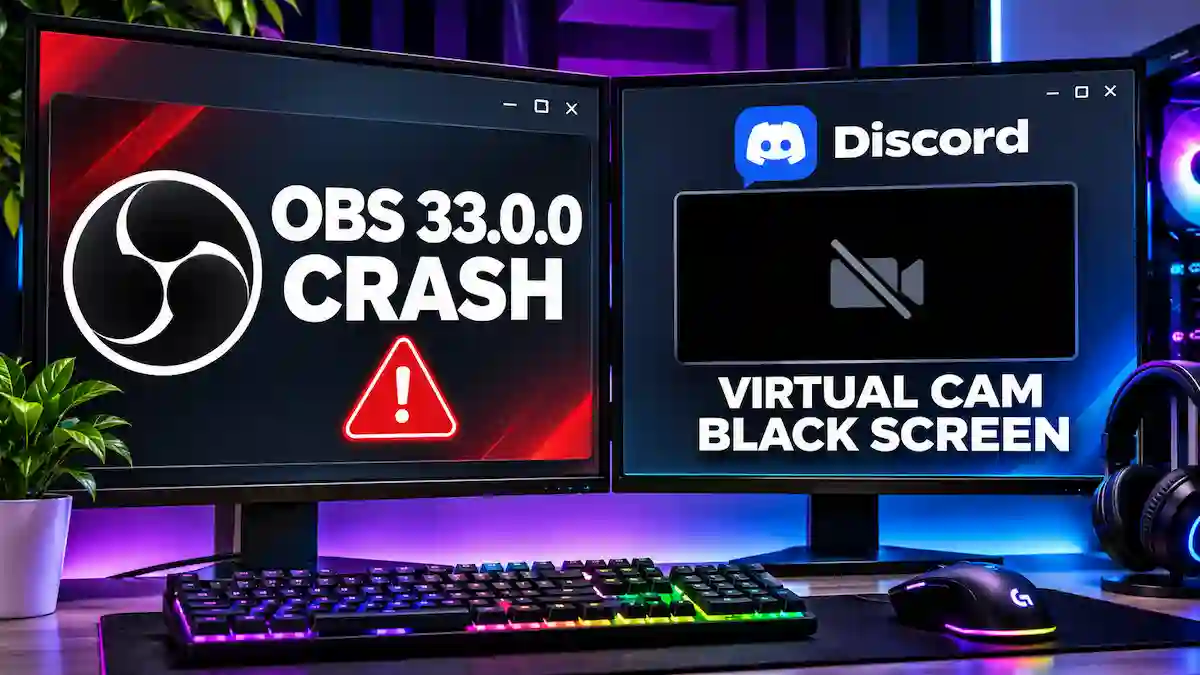
Updating your production rig right before going live is always a gamble, and the late-October rollout of OBS Studio 33.0.0 on GitHub proved brutal for thousands of US creators. Streamers are getting slammed by vanishing StreamElements overlays, libcef.dll memory exceptions, startup deadlocks, and a stubborn Discord virtual camera black screen.
Quick Triage: OBS v33.0.0 / v33.0.1 Glitches & 10-Second Solutions
| Core Symptom | Primary Root Cause | Immediate 10-Second Solution |
| Crash on Startup / Twitch & YouTube Login | Service integration authentication deadlock in v33.0.0 (#554 / #14072) | Install the official OBS Studio 33.0.1 hotfix immediately. |
| Browser Source Blank / Instant Crash | Chromium Embedded Framework (CEF) jump from v127 to v150 (#13900) | Uncheck Browser Source Hardware Acceleration in Settings > Advanced. |
| Discord Virtual Cam Black Screen | Unregistered DirectShow filter or GPU compositor conflict | Run virtualcam-install.bat as Admin and disable Discord GPU acceleration. |
| Plugin Load Failures / Missing Docks | Overhauled v33 plugin architecture moving core files to \core (#13594) | Boot OBS in Safe Mode (hold Shift) and disable legacy WebSocket plugins. |
| Slideshow Stutter / Out-of-Memory Crash | Image slideshow source memory leak in v33.0.0 (#14078) | Patch to v33.0.1 or convert heavy image slideshows into static MP4 loops. |
Root Cause First: Diagnose Your Crash Before Guessing
Don’t blindly wipe your scenes before confirming what broke your broadcast pipeline. OBS Studio 33.0.0 upgraded its internal Chromium Embedded Framework (CEF) from build 127/6533 all the way to 150/7871, alongside a massive plugin directory overhaul (#13594).
- Open OBS Studio and navigate to Help > Log Files > View Current Log (or View Last Crash Log if the app died on launch).
- Press
Ctrl + Fand search forlibcef.dll,obs-browser.dll, orVirtualCamto pinpoint whether Chromium rendering or DirectShow registration triggered the fault. - Go to Docks > Stats and watch Frames Missed Due to Rendering Lag—if it spikes above 1% when activating alerts, your GPU driver is fighting the new CEF v150 compositor.
- Check the new Plugin Manager in the top menu bar to see if outdated add-ons are flagged as
Old Formatand stalling the main UI thread. - Note that in v33+, launching OBS in Safe Mode now completely shuts off the internal WebSocket server (#13984) and blocks all third-party plugins to help you isolate native bugs.
Safety Precaution & Scene Collection Backup Warning
Before wiping Chromium caches, running administrative batch scripts, or modifying Windows system paths, back up your profiles and scenes. Open OBS Studio and click Scene Collection > Export and Profile > Export to save .json backups to an external drive. Never delete root folders inside %appdata%\obs-studio\basic unless you want to lose your layouts permanently.
Fix 1: Apply the Core OBS Studio 33.0.0 Crash Fix for Browser Sources (CEF v150)
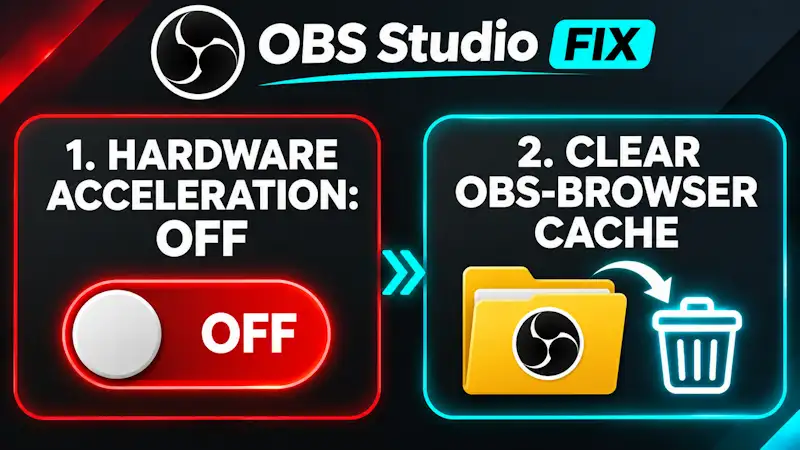
The leap from Chromium v127 to v150 causes legacy GPU shader caches and outdated authentication tokens to collide with libcef.dll. If your alerts freeze or your stream software closes without warning, execute this OBS Studio 33.0.0 crash fix sequence.
- Install the official OBS Studio latest release (v33.0.1 or newer), which specifically patches startup crashes when logged into Twitch (#14072), YouTube deadlocks (#556), and browser panel sizing race conditions (#558).
- Open OBS and go to File > Settings > Advanced.
- Scroll down to the Sources section at the bottom of the window.
- Uncheck Enable Browser Source Hardware Acceleration to stop CEF v150 from clashing with DirectX 12 game hooks.
- Click Apply, hit OK, and close OBS Studio completely.
- Press
Ctrl + Shift + Escto open Windows Task Manager and force-kill any lingeringobs64.exeorobs-browser-page.exebackground tasks. - Press
Win + Ron your keyboard, type%appdata%\obs-studio\plugin_config\obs-browser, and hit Enter. - Select and delete the Cache, Code Cache, GPUCache, and DawnCache folders (leave your cookies folder intact if you don’t want to re-authenticate every custom dock).
- Relaunch OBS Studio and test your alert box URL—it will generate a clean Chromium v150 cache structure without memory corruption.
If your browser overlays work now, but your desktop or browser windows still render pitch-black inside your scenes, follow our dedicated guide to resolve the OBS capture specific window black screen error.
Fix 2: Resolve the Discord OBS Virtual Camera Black Screen
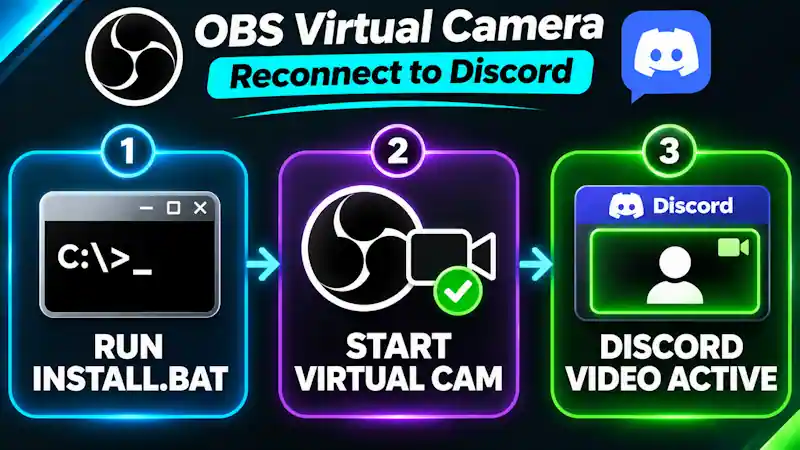
When Discord displays an endless spinning wheel or a black rectangle instead of your OBS program feed, the Windows DirectShow filter registration or hardware frame server is blocked. Follow the official OBS Virtual Camera Troubleshooting guide combined with Discord’s subsystem overrides below.
- Close both Discord and OBS Studio completely (quit Discord from the Windows System Tray).
- Open File Explorer and navigate to
C:\Program Files\obs-studio\data\obs-plugins\win-dshow(or look inside the newly introduced\coreplugin directory in OBS v33 if your clean install relocated first-party modules). - Right-click
virtualcam-uninstall.batand select Run as administrator to clear broken registry hooks from older OBS v32 installs. - Wait for the command prompt confirmation, then right-click
virtualcam-install.batin the same folder and select Run as administrator. - Press
Win + R, typeservices.msc, and press Enter to open the Windows Services manager. - Scroll down to Windows Camera Frame Server, right-click it, and click Restart (if it isn’t running, right-click and hit Start).
- Check Windows 11 camera permissions by navigating to Settings > Privacy & security > Camera and toggling Let desktop apps access your camera to On.
- Launch OBS Studio as an Administrator, set your base/output resolution to standard 16:9 (
1920x1080or2560x1440), and click Start Virtual Camera in the Controls dock before opening Discord. - Open Discord, click User Settings (Gear Icon) > Advanced, and toggle Hardware Acceleration to Off (Discord will restart).
- Go to User Settings > Voice & Video, scroll down to Video, and select OBS Virtual Camera from the camera dropdown list.
If you’re feeding an external console or dual-PC HDMI link into your virtual cam and the preview itself is dead, jump over to our walkthrough on how to fix capture card black screen in OBS.
Fix 3: Audit Overhauled Plugin Paths & Visual Studio 2026 Runtimes
OBS Studio 33.0.0 refactored its internal build toolchain to use Visual Studio 2026 and Windows SDK 26100 (#13543) while moving first-party plugins into a new \core directory (#13594). Legacy third-party plugins or missing C++ redistributables will trigger immediate crashes during scene transitions.
- Download and install the latest Microsoft Visual C++ Redistributable (x64) package so your OS matches OBS 33’s updated compiler environment.
- Hold the Shift key on your keyboard while double-clicking your OBS Studio shortcut to trigger the Safe Mode prompt.
- Select Run in Safe Mode—this disables all third-party plugins and stops the WebSocket server from initializing.
- If your crashes vanish in Safe Mode, restart OBS normally and open Tools > Plugin Manager from the top toolbar.
- Inspect every plugin marked as
Old Format—temporarily uncheck outdated plugins like legacy Move Transition, StreamFX, or old obs-websocket 4.x compat modules. - Read the official OBS Browser Source Knowledge Base if you rely on custom local HTML/JavaScript files that call deprecated audio monitoring APIs (
monitoring_typewas replaced bymonitoring_enabledin v33).
Fix 4: Stabilize GPU Scheduling & Fix Encoding Overload on Windows 11
With OBS Studio 33.0.0 adding support for the newest NVIDIA Broadcast Audio and Video Effects SDKs (#13838), outdated GPU drivers can lock up both browser compositing and NVENC encoders.
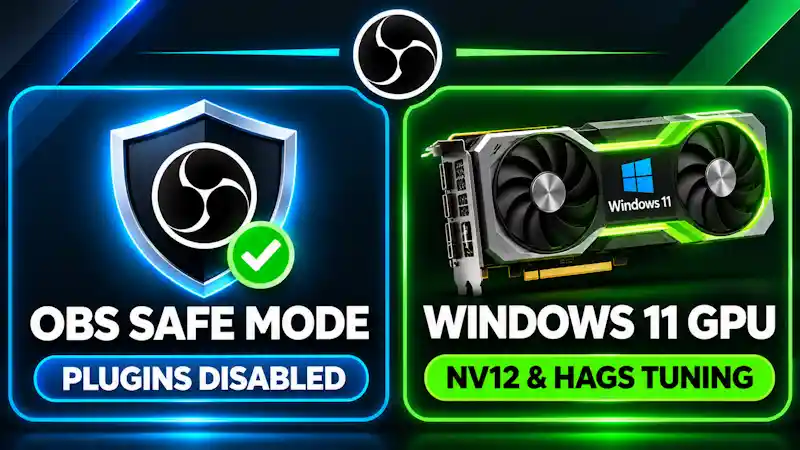
- Perform a clean installation of the latest NVIDIA GeForce Game Ready or Studio Drivers if you run an RTX 30, 40, or 50-series card.
- Open Windows Settings > System > Display > Graphics > Advanced graphics settings (or Change default graphics settings).
- Toggle Hardware-accelerated GPU scheduling (HAGS)—if it’s currently On and causing NVENC/CEF locks on Windows 11 26H2, flip it Off, reboot your PC, and re-test.
- Right-click your OBS Studio desktop shortcut, select Properties > Compatibility, check Run this program as an administrator, and click Apply (note that OBS 33 fixed an earlier RC bug where running as Admin broke browser sources on Windows 11).
- Inside OBS, navigate to Settings > Advanced > Video and verify Color Format is set to
NV12and Color Space is set toRec. 709orsRGB—forcing 10-bit HDR color spaces into standard SDR browser docks or Discord’s 8-bit virtual cam pipeline causes instant black screens.
Still seeing a blank preview specifically when launching fullscreen DirectX 12 or Vulkan titles? Check out our targeted OBS game capture black screen Windows 11 fix to resolve anti-cheat and multi-GPU hook conflicts.
Common Mistakes to Avoid
- Opening Discord’s video settings before clicking “Start Virtual Camera” in OBS: Discord caches DirectShow device states on initialization; if OBS isn’t actively pumping frames before Discord queries the webcam list, the handshake fails and locks onto a black frame.
- Copying old v32 plugin
.dllfiles directly into the new OBS v33\corefolder: OBS 33 separated first-party core plugins from third-party directories—dumping external plugins into the core path corrupts startup integrity checks and guarantees an instant crash.
Frequently Asked Questions (FAQs)
Why does OBS Studio 33.0.0 crash immediately on startup or when logging into Twitch?
OBS Studio 33.0.0 shipped with a critical authentication deadlock (#554, #14072, and #556) affecting users logged into Twitch and YouTube service integrations, alongside a massive Chromium Embedded Framework (CEF v150) update. Updating to the OBS Studio 33.0.1 hotfix and clearing your obs-browser cache folder resolves both the login crash and libcef.dll faults.
How do I apply the OBS Studio 33.0.0 crash fix without losing my scenes and alerts?
You don’t need to uninstall OBS or delete your scene collections. Simply install the v33.0.1 patch right over your existing directory, uncheck Enable Browser Source Hardware Acceleration under Settings > Advanced, and delete only the Cache, Code Cache, and GPUCache folders inside %appdata%\obs-studio\plugin_config\obs-browser.
Why is my OBS Virtual Camera showing a black screen on Discord in 2026?
A black screen on Discord’s virtual camera happens when DirectShow filters become unregistered after an OBS update or when Discord’s GPU hardware acceleration clashes with OBS’s video output. Run virtualcam-install.bat as an Administrator inside C:\Program Files\obs-studio\data\obs-plugins\win-dshow, start the Virtual Camera inside OBS before opening Discord, and turn off Hardware Acceleration in Discord’s Advanced settings.
4 Comments
7 Proven Best OBS Settings For Low End PC (4GB / 8GB RAM) – Fix Lag Instantly (2026)
November 10, 20267 Proven Fixes: Ultimate OBS Studio 33.0 Browser Source Crash & Plugin Error Guide
November 9, 2026OBS Display Capture Not Working On Dual GPU Laptop: 5 Fixes (2026 V33+ Guide)
November 5, 20267 Proven Ways To Fix Twitch Error Code 2000 On Chrome (2026 Guide)
November 3, 2026