Quick Summary / The 30-Second Fix
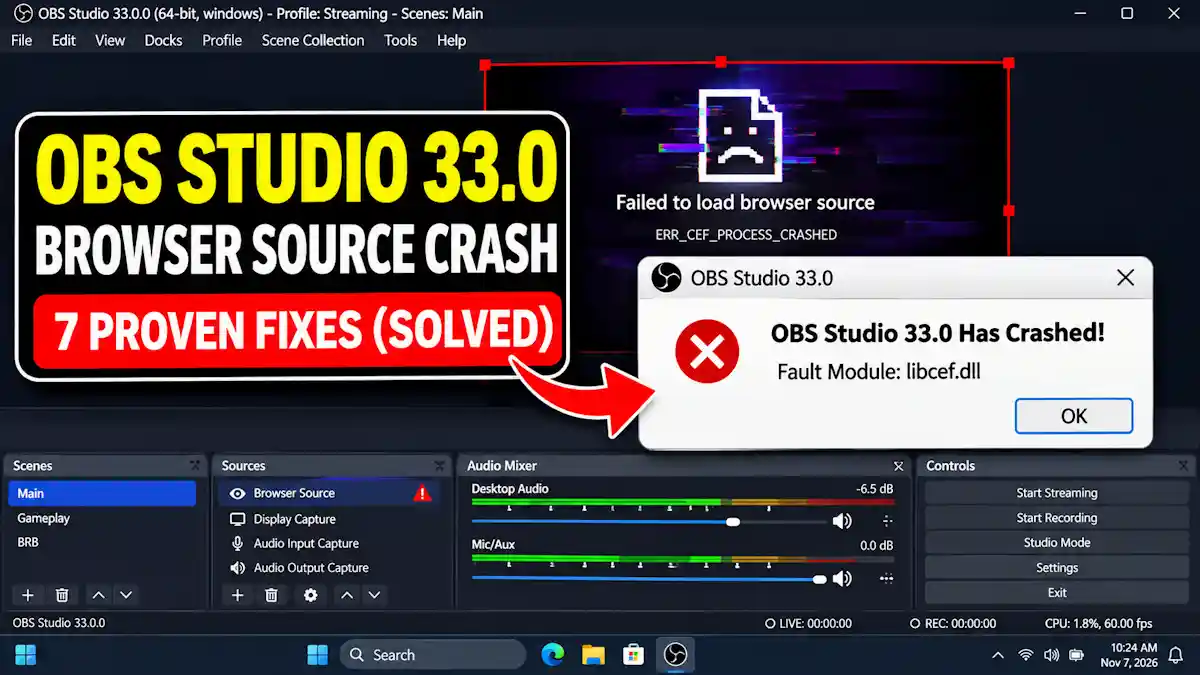
To immediately resolve an OBS Studio 33.0 Browser Source Crash, install the v33.0.1 hotfix (which patches Twitch and YouTube browser panel startup crashes), disable Browser Source Hardware Acceleration under Settings > Advanced > Sources, and delete your corrupted Chromium 150 cache inside
%appdata%\obs-studio\plugin_config\obs-browser.
Works on: Windows 11 (24H2 / 26H2) / Windows 10 / macOS / OBS Studio v33.0 & v33.0.1+ / NVIDIA RTX 40 & 50-Series (Blackwell) / AMD Radeon RX 7000 & 8000 GPUs.
An OBS Studio 33.0 Browser Source Crash happens because version 33.0 jumped directly from Chromium Embedded Framework (CEF) v127 to v150 (7871) while simultaneously moving built-in plugins into a new core directory structure. When the upgraded CEF 150 engine reads legacy Chromium 127 shader caches, hits a Twitch/YouTube service dock deadlock, or collides with unmigrated third-party C++ plugins, libcef.dll crashes the entire broadcast. You can permanently stop these crashes by updating to the v33.0.1 hotfix, purging old LevelDB cache folders, turning off GPU browser acceleration, and moving third-party plugins to the new ProgramData directory layout. If your broadcast also freezes during Discord screen shares, check out our dedicated OBS Studio 33.0.0 crash fix and Discord black screen troubleshooting guide.
1. Root Cause Diagnostics: Check Your Crash Log and OBS Plugin Manager

Stop guessing which overlay or add-on broke your stream setup. OBS Studio records the exact faulting module in its crash logs and highlights outdated plugin paths inside the built-in Plugin Manager.
- Open OBS Studio and click Help > Log Files > View Current Log in the top menu bar.
- If OBS crashes immediately on launch, press
Win + R, enter%appdata%\obs-studio\crashes, and click OK to open the raw crash dump folder. - Open the latest
.txtcrash file in Notepad and check theFault address:line at the top to see whetherlibcef.dll(browser engine) or a third-party.dlltriggered thec0000005memory access violation. - Upload your log file straight to the official OBS Studio Log Analyzer via Help > Log Files > Upload Current Log File to scan for known hook conflicts.
- Open the built-in Plugin Manager from the top menu bar to check if any installed add-ons are flagged with a Legacy badge.
- Verification: Your crash report or Analyzer summary identifies either
libcef.dll(confirming a browser source or dock failure) or the exact third-party.dllplugin causing the startup error.
2. Install the OBS 33.0.1 Hotfix to Stop Twitch and YouTube Dock Crashes
The initial OBS Studio 33.0.0 release contained a severe race condition and startup crash when loading integrated Twitch or YouTube browser docks. If your OBS Studio 33.0 Browser Source Crash occurs the exact second the main window opens, you are likely hitting this service integration deadlock.
- Open OBS Studio and navigate to Help > Check For Updates in the top menu bar.
- If OBS cannot stay open long enough to run the updater, download the latest OBS Studio 33.0.1 (or newer) installer directly from the Official OBS Project Download Page or the OBS Studio GitHub Releases Page.
- Close all background
obs64.exeprocesses and run the updated installer directly over your existing installation. - If a broken custom browser dock still locks up your UI on boot, navigate to Docks > Custom Browser Docks and delete any unresponsive dashboard URLs.
- Verification: OBS Studio boots while signed into your Twitch or YouTube account without freezing on the dock initialization screen or resizing browser panels incorrectly.
3. How to Fix OBS Studio 33.0 Browser Source Crash via Hardware Acceleration

CEF 150 uses shared GPU textures and DirectComposition to render WebGL alerts, animated overlays, and chat widgets. When your graphics card hits high VRAM usage in a game or clashes with Windows 11 Hardware-Accelerated GPU Scheduling (HAGS), obs-browser-page.exe loses its Direct3D device context and triggers an instant OBS Studio 33.0 Browser Source Crash.
- Launch OBS Studio and click File > Settings in the top-left menu.
- Select the Advanced tab on the left navigation sidebar.
- Scroll down to the Sources section near the bottom.
- Uncheck the box next to Enable Browser Source Hardware Acceleration.
- Click Apply, click OK, and restart OBS Studio so the change takes effect.
- Inside your Sources dock, right-click each heavy browser overlay, select Properties, and check Shutdown source when not visible to stop hidden scenes from eating RAM.
- Check Control audio via OBS inside the same Properties window if your alert box plays sound effects, and read our guide on fixing OBS not capturing audio if your alert audio still fails to play on stream.
- If moving browser rendering to your CPU causes frame drops during CPU-heavy games, apply the optimizations in our OBS Studio high CPU usage and encoding overloaded fix or our Streamlabs OBS dropped frames on low-end PC guide.
- Verification: Switch rapidly between scenes containing heavy HTML5 alert boxes; overlays load smoothly on CPU threads without crashing your display driver.
4. Purge Legacy Chromium (CEF) Cache Folders After Updating
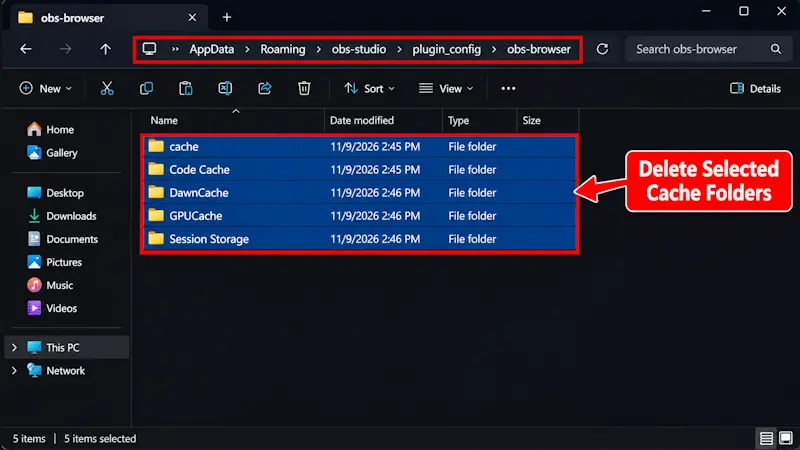
Because OBS Studio 33.0 upgraded its internal browser engine from Chromium 127 to Chromium 150, older cached JavaScript files, Service Workers, and compiled GPU shaders stored in %appdata% frequently corrupt the new browser sub-process.
Safety Warning: Close OBS Studio completely before deleting any cache folders. Open Windows Task Manager (
Ctrl + Shift + Esc) and confirm thatobs64.exeand everyobs-browser-page.exeprocess have exited so you don’t corrupt your active scene collection JSON files.
- Press
Win + Ron your keyboard to open the Windows Run dialog. - Type
%appdata%\obs-studio\plugin_config\obs-browserand press Enter. - Select and delete the
cache,Code Cache,GPUCache,DawnCache, andSession Storagefolders inside that directory. - Do not delete your
obs-studio\basic\scenesorprofilesdirectories, as those store your scene layouts and encoder settings. - Launch OBS Studio, double-click any individual glitching widget in your Sources list, scroll to the bottom, and click Refresh cache of current page.
- Verification: OBS automatically generates clean CEF 150 cache folders inside
obs-browseron launch, and StreamElements or Streamlabs widgets render without white-screen freezes.
5. Fix Third-Party Plugin Errors and the New OBS 33.0 Folder Structure
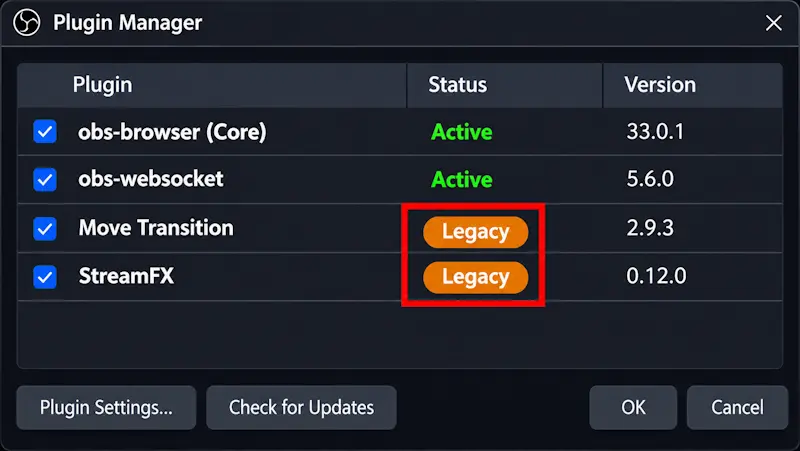
OBS Studio 33.0 completely overhauled how plugins load on Windows. Built-in plugins now live inside a dedicated core folder, while third-party plugins use a flattened directory layout in C:\ProgramData\obs-studio\plugins. Although OBS 33.0 still loads plugins from old paths (and flags them as Legacy until OBS 34.0 drops support completely), plugins built against older libobs or Qt versions—or unsigned DLLs blocked by Windows 11 Smart App Control—will fail to load or crash on startup.
Important Note on Safe Mode in OBS 33.0: Launching OBS 33.0 in Safe Mode disables all third-party plugins, scripts, and the WebSocket Server. External remote-control tools like Elgato Stream Deck, Streamer.bot, or Touch Portal will not connect while Safe Mode is active.
- To test if a broken plugin is crashing OBS, right-click your OBS Studio desktop shortcut, select Properties, and add
--safe-modeto the end of the Target field:"C:\Program Files\obs-studio\bin\64bit\obs64.exe" --safe-mode. - Alternatively, pass
--only-bundled-pluginsin the Target field to load OBS with only its built-in core modules. - If the crash stops in Safe Mode, open the official OBS Legacy Plugin Locations Knowledge Base Guide and check your installed plugin directories.
- Press
Win + Rand inspect both the legacy path (C:\Program Files\obs-studio\obs-plugins\64bit) and the modern path (C:\ProgramData\obs-studio\plugins). - Under the new OBS 33.0 plugin layout, a third-party plugin’s
.dllanddatafolder must sit directly insideC:\ProgramData\obs-studio\plugins\<plugin-name>\(for example,C:\ProgramData\obs-studio\plugins\win-spout\win-spout.dllalongsideC:\ProgramData\obs-studio\plugins\win-spout\data\) rather than buried inside abin\64bitsubfolder. - If you update a plugin to its OBS 33.0 installer, manually delete any leftover
.dllcopy insideC:\Program Files\obs-studio\obs-plugins\64bitso OBS doesn’t load duplicate legacy copies. - Download OBS 33.0-verified, code-signed plugin updates directly from the OBS Project Forums Plugins Directory.
- If an outdated virtual camera plugin broke your video feed in chat apps, follow our Discord not detecting OBS Virtual Camera fix.
- Verification: Remove
--safe-modefrom your shortcut and launch OBS normally; the application opens without “The following OBS plugins failed to load” popups, and the Legacy badge disappears in the Plugin Manager.
Stopping an OBS Studio 33.0 Browser Source Crash on Dual-GPU Setups

On gaming laptops and desktops with an active integrated GPU (Intel Iris Xe or AMD Radeon iGPU) alongside a discrete NVIDIA RTX or AMD Radeon graphics card, Windows sometimes assigns obs64.exe to the dedicated GPU while spawning obs-browser-page.exe on the integrated graphics chip. Because OBS 33.0 moved first-party plugins into the new core folder, you must point Windows Graphics settings to the updated executable path to prevent cross-adapter texture crashes and eliminate any OBS Studio 33.0 Browser Source Crash.
- Press
Win + Ito open Windows Settings and go to System > Display > Graphics. - Click Add desktop app (or Browse), navigate to
C:\Program Files\obs-studio\bin\64bit\obs64.exe, and click Add. - Select OBS Studio in the app list, click Options, set it to High performance (your dedicated gaming GPU), and click Save.
- Click Add desktop app again to add the browser sub-process executable (
obs-browser-page.exe). - In OBS Studio 33.0, check the new core plugin directory at
C:\Program Files\obs-studio\obs-plugins\core\(orC:\Program Files\obs-studio\obs-plugins\64bit\obs-browser-page.exeif upgrading from an older layout) and addobs-browser-page.exe. - Set
obs-browser-page.exeto the exact same High performance GPU and click Save. - For a complete walkthrough on solving laptop cross-adapter capture conflicts, read our guide on fixing OBS display capture not working on a dual-GPU laptop.
- Verification: Open Windows Task Manager (
Ctrl + Shift + Esc), switch to the Details tab, and confirm bothobs64.exeandobs-browser-page.exerun on the exact same GPU engine (GPU 1 - 3D).
6. Repair Microsoft Visual C++ Runtimes and Clean-Install GPU Drivers
OBS Studio 33.0 increased the minimum required Visual Studio toolchain and Windows SDK versions. If your system has outdated or corrupted vcruntime140.dll or msvcp140.dll libraries, C++ plugins and CEF sub-processes fail with LoadLibrary failed with error 126.
- Download the latest official
VC_redist.x64.exepackage from the Microsoft Visual C++ Redistributable Latest Supported Downloads page. - Right-click
VC_redist.x64.exe, select Run as administrator, and click Repair (or Install). - Download the newest WHQL graphics driver from the Official NVIDIA Driver Downloads page or the AMD Drivers and Support portal.
- Run the GPU driver installer, choose Custom (Advanced) Installation, and check Perform a clean installation to reset corrupted shader caches.
- Reboot your PC to finalize the runtime library registrations.
- Verification: Check Help > Log Files > View Current Log inside OBS; all installed third-party modules load cleanly without
Module not founderrors.
7. Advanced Fix: Pass CEF Launch Flags or Run an In-Place OBS Repair
Because OBS Browser Source runs on Chromium Embedded Framework, you can pass official CEF command-line flags straight through your OBS Studio desktop shortcut to bypass strict Windows sandbox conflicts or GPU compositing bugs.
Safety Warning: Before modifying shortcut flags or running an in-place repair install, back up your configurations via Scene Collection > Export and Profile > Export so your layouts and stream keys remain safe.
- Right-click your OBS Studio desktop shortcut and click Properties.
- Locate the Target field:
"C:\Program Files\obs-studio\bin\64bit\obs64.exe". - Add a space after the closing quotation mark and append
--disable-gpu-compositing(or--no-sandboxif kernel anti-cheat software is blocking CEF child processes). - Click Apply and OK to save the shortcut.
- If an OBS Studio 33.0 Browser Source Crash still persists due to damaged core files, run the latest OBS-Studio-33.0.1-Windows-x64-Installer.exe directly over your existing installation directory to restore clean
coreplugin binaries. - Verification: Launch OBS using the updated shortcut; all browser overlays and custom docks render immediately without triggering background process crashes.
Quick Troubleshooting Summary Table: Symptoms, Causes, and 10-Second Fixes
| Crash / Error Symptom | Exact Root Cause | Immediate 10-Second Fix |
| Crash on startup when logged into Twitch/YouTube | OBS 33.0.0 service integration deadlock | Update immediately to OBS Studio 33.0.1 via Help > Check For Updates. |
Fault address: libcef.dll when switching scenes | CEF 150 GPU hardware acceleration conflict | Uncheck Enable Browser Source Hardware Acceleration in Settings > Advanced. |
| Frozen alerts or white-screen browser docks | Corrupted CEF 127-to-150 cache files | Delete cache and GPUCache inside %appdata%\obs-studio\plugin_config\obs-browser. |
| “Failed to load plugin” popup or Legacy badge | Old obs-plugins\64bit path or pre-33 build | Install OBS 33-ready plugins to C:\ProgramData\obs-studio\plugins\<name>\. |
| Stream Deck / WebSocket fails in Safe Mode | OBS 33.0 Safe Mode disables WebSocket Server | Fix the broken plugin and restart OBS in normal mode to re-enable WebSockets. |
Common Mistakes to Avoid
- Leaving duplicate
.dllfiles in both old and new plugin folders: When updating a plugin for OBS Studio 33.0, failing to delete the old.dllfromC:\Program Files\obs-studio\obs-plugins\64bitcauses OBS to load both the newProgramDataversion and the old copy, resulting in instant startup conflicts and a persistent Legacy badge. - Extracting old
bin\64bitzip structures into the newProgramDatafolder: In OBS 33.0, third-party plugins must place their.dllanddatafolder directly insideC:\ProgramData\obs-studio\plugins\<plugin-name>\—keeping the oldbin\64bitsubfolder triggers the Legacy warning and will stop the plugin from loading in OBS 34.0.
Frequently Asked Questions (FAQs)
Why does an OBS Studio 33.0 Browser Source Crash happen right after updating?
OBS Studio 33.0 updated its internal Chromium Embedded Framework from version 127 to version 150 and overhauled how plugins load. When the new CEF 150 engine reads outdated Chromium 127 GPU shader caches or encounters the v33.0.0 Twitch and YouTube login bug, libcef.dll crashes until you clear the browser cache and update to OBS 33.0.1.
What does the “Legacy” badge mean in the OBS Studio 33.0 Plugin Manager?
The Legacy badge means a third-party plugin is still installed in the old C:\Program Files\obs-studio\obs-plugins\64bit directory or uses the outdated bin\64bit subfolder layout. While legacy plugins continue to load in OBS 33.0, support for those old locations ends completely in OBS Studio 34.0, so you should install updated versions that use C:\ProgramData\obs-studio\plugins\<plugin-name>\.
Why did my Stream Deck and WebSocket tools stop working in OBS 33.0 Safe Mode?
Starting in OBS Studio 33.0, Safe Mode automatically disables the built-in WebSocket Server alongside all third-party plugins and scripts. Once you remove the crashing plugin and relaunch OBS Studio in normal mode, the WebSocket Server starts back up and your Stream Deck or Streamer.bot will reconnect automatically.
Does disabling Browser Source Hardware Acceleration reduce my gaming FPS?
Disabling Browser Source Hardware Acceleration moves webpage and alert rendering from your graphics card to your CPU. On modern multi-core processors, this adds less than 1% to 2% CPU usage while freeing up GPU VRAM and preventing Direct3D device-loss crashes during demanding games.