Quick Summary / The 30-Second Fix (2026 Update):
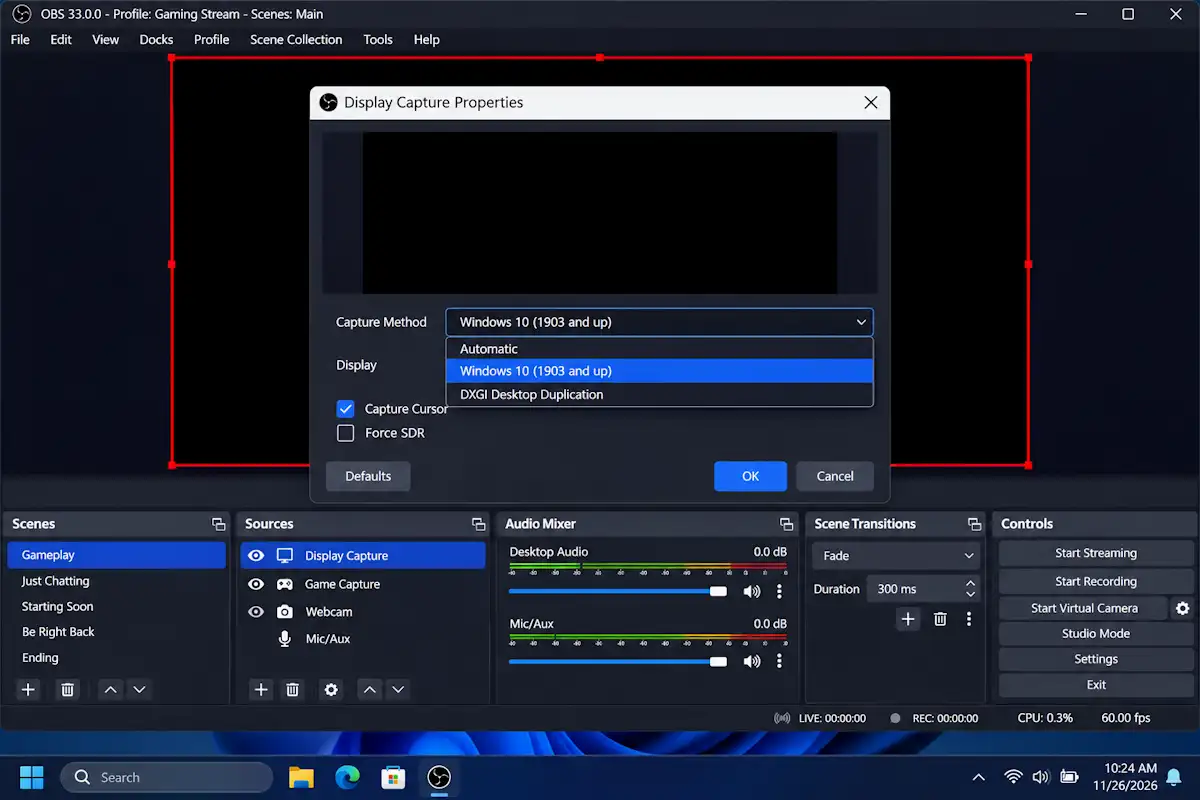
Stop changing Windows Graphics Settings to “Power Saving”—that outdated workaround kills your NVIDIA NVENC hardware encoder. Instead, double-click your Display Capture source in OBS Studio, change the Capture Method dropdown from Automatic to Windows 10 (1903 and up), and click OK to bypass the cross-GPU bottleneck immediately.
Works on (Updated November 2026): Windows 11 (23H2 / 24H2 / 26H2) & Windows 10 | OBS Studio v33.0.1+ | NVIDIA RTX 30/40/50-Series (Advanced Optimus / MUX) | AMD Ryzen AI / Radeon & Intel Arc / Iris Xe iGPUs.
Why Your Dual-GPU Laptop Shows a Black Screen in 2026
Dealing with OBS Display Capture not working on dual GPU laptop hardware is still a massive headache for mobile streamers in 2026. Even on the latest OBS Studio 33.0.1 release, modern gaming laptops split rendering duties between two chips: a power-efficient integrated GPU (Intel or AMD iGPU) that controls your physical laptop screen, and a high-performance dedicated GPU (NVIDIA RTX) that renders games and runs OBS.
When OBS runs on your NVIDIA GPU and attempts to grab desktop frames using the legacy DXGI Desktop Duplication API, Windows blocks the request because the desktop lives on the integrated GPU’s framebuffer. If your software also freezes or shuts down while sharing your screen, check out our guide on the OBS Studio 33.0.0 crash fix and Discord black screen workaround instead.
| Symptom on OBS Preview Canvas | Primary Hardware / OS Root Cause | Immediate 10-Second Solution (2026) |
| Pitch-black preview (Red bounding box visible) | OBS is running on the dGPU while attempting a legacy DXGI capture of an iGPU display. | Switch the OBS Display Capture Method to Windows 10 (1903 and up). |
| Display works, but streaming fails with NVENC Error | You forced OBS onto the “Power Saving” iGPU in Windows Graphics Settings, cutting off NVIDIA hardware access. | Set OBS back to High Performance (NVIDIA GPU) in Windows and use WGC inside OBS. |
| Screen freezes mid-session when launching a game | NVIDIA Advanced Optimus dynamically switched the internal MUX switch from iGPU to dGPU-Only mode. | Lock Display Mode to NVIDIA GPU Only in the NVIDIA Control Panel or NVIDIA App before opening OBS. |
| Black screen with stuttering or frozen preview | Windows 11 Hardware-Accelerated GPU Scheduling (HAGS) or Windowed Game Optimizations conflict. | Toggle off Optimizations for windowed games or restart OBS as Administrator. |
Diagnose the Root Cause of OBS Display Capture Not Working on Dual GPU Laptop Setups
Before changing random Windows settings, verify which GPU controls your display and which GPU runs OBS. Your internal OBS log file holds the exact hardware routing map.
- Open OBS Studio on your laptop.
- Click Help > Log Files > Upload Current Log File from the top menu bar.
- Click Analyze in the pop-up window to launch the official OBS Studio Log Analyzer in your browser, or click View File to inspect the raw text directly.
- Scroll down to the D3D11 Loaded Adapters section inside your log text.
- Look at the line labeled
Loading up D3D11 on adapter [GPU Name] (0)—this tells you which GPU OBS is currently running on. - Check the sub-lines directly underneath both listed GPUs for
output 0: pos={0, 0}, size={1920, 1080}, attached=true. - Confirm the mismatch: if OBS loads on
NVIDIA GeForce RTX(Adapter 0), butattached=trueappears underIntel(R) GraphicsorAMD Radeon(TM) Graphics(Adapter 1), you have confirmed a cross-GPU framebuffer conflict.
5 Fixes for OBS Display Capture Not Working on Dual GPU Laptop Hardware (2026)
⚠️ Safety Precaution & Data Backup Warning:
Before modifying GPU routing tables, display multiplexers (MUX), or Windows 11 system graphics settings, export your current OBS workspace. Navigate to Profile > Export and Scene Collection > Export in the top OBS menu bar and save the backup
.jsonfiles to your desktop. Never edit GPU assignments while actively recording or live-streaming.
Fix 1: Switch the OBS Capture Method to Windows 10 (1903 and up)
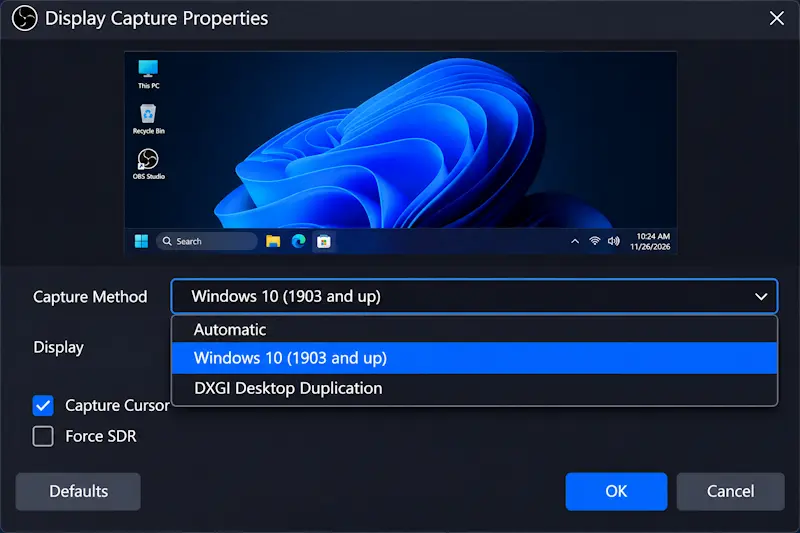
This is the cleanest modern solution in 2026. It uses Microsoft’s Windows Graphics Capture (WGC) API to pull frames across different GPUs without sacrificing your NVIDIA hardware encoder.
- Launch OBS Studio (ensure you’re updated via the official OBS Project Download Page to v33.0.1 or newer).
- Locate the Sources dock at the bottom of your screen.
- Double-click your existing Display Capture source (or click the + icon > Display Capture > OK to create a fresh one).
- Locate the Capture Method dropdown menu inside the Properties window.
- Change the setting from Automatic or DXGI Desktop Duplication to Windows 10 (1903 and up).
- Select your primary laptop monitor from the Display dropdown menu directly below it.
- Check the Capture Cursor box if you want your mouse visible, then click OK.
- Verify your preview—on modern Windows 11 builds, WGC renders a clean, borderless desktop feed immediately inside your OBS canvas.
Fix 2: Resolve the Power Saving GPU vs. NVENC Encoder Conflict
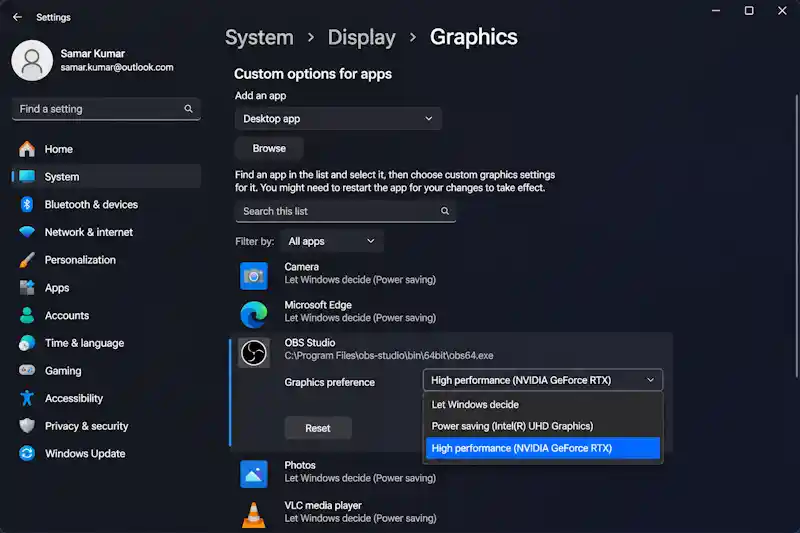
Thousands of outdated tutorials from a few years ago tell you to force OBS onto your “Power Saving” GPU in Windows Settings. If you did that, your Display Capture works, but starting a stream triggers an immediate encoder failure (Failed to open NVENC codec) because OBS can no longer access your NVIDIA chip. If you’re already experiencing severe stream lag or connection instability from this mistake, follow our guide to fix dropped frames and disconnection issues in OBS Studio.
- Close OBS Studio completely.
- Press
Win + Ion your keyboard to open Windows Settings. - Navigate to System > Display > Graphics.
- Scroll through the Custom options for apps list and click on OBS Studio (if it’s missing, click Add desktop app and browse to
C:\Program Files\obs-studio\bin\64bit\obs64.exe). - Click the GPU preference dropdown (or click Options on older builds) and select High performance (NVIDIA GeForce RTX…) instead of Power saving.
- Close Windows Settings, right-click your OBS Studio desktop shortcut, and select Run as administrator.
- Combine this with Fix 1 (
Windows 10 (1903 and up)capture method) so your NVIDIA card can both encode via NVENC and capture your integrated display simultaneously.
Fix 3: Lock NVIDIA Advanced Optimus / MUX Switch Before Launching OBS
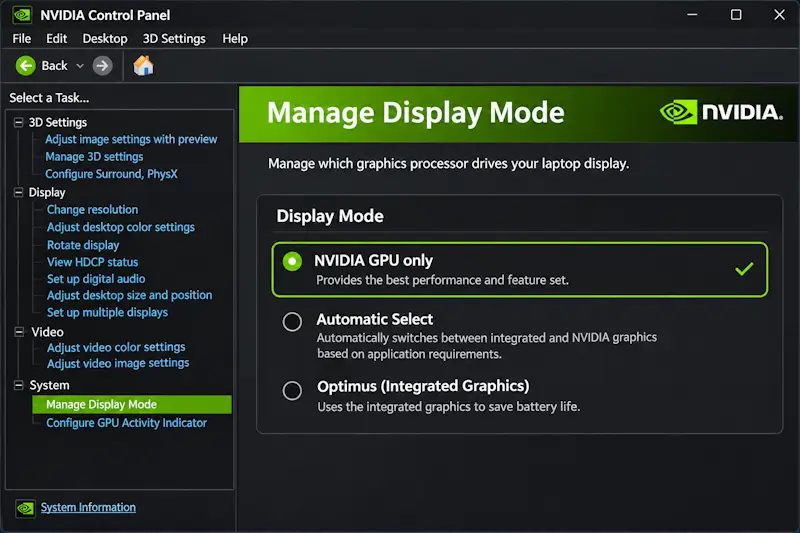
Modern 2026 gaming laptops (Lenovo Legion, ASUS ROG/TUF, HP Omen, Acer Predator) feature hardware MUX switches and NVIDIA Advanced Optimus. When you launch a game, the laptop dynamically disconnects the screen from the Intel/AMD iGPU and wires it directly to the NVIDIA dGPU. This mid-session display handoff invalidates the active Display Handle ID in OBS, turning your preview black and frequently causing OBS audio out of sync streaming issues during the hardware transition.
- Close both your game and OBS Studio.
- Open the NVIDIA Control Panel (or launch the NVIDIA App on newer RTX laptops).
- In NVIDIA Control Panel, expand 3D Settings in the left sidebar and click Manage Display Mode (in the NVIDIA App, go to System > Displays > Display Mode).
- Change the active mode from Automatic Select (or Optimus) to NVIDIA GPU only (on laptops without Advanced Optimus, switch to Ultimate / Discrete GPU Mode inside Armoury Crate, Lenovo Vantage, or Omen Gaming Hub).
- Wait 3 to 5 seconds for your laptop screen to flicker and re-initialize directly on the dedicated GPU.
- Click Apply or Yes to confirm the multiplexer switch before the timer expires.
- Open OBS Studio after the display switch completes—both your laptop screen and OBS now share the exact same NVIDIA GPU, allowing zero-latency
DXGI Desktop Duplicationto work natively.
Fix 4: Disable Windows 11 HAGS and Windowed Game Optimizations
Windows 11 24H2 and 2026 builds aggressively manage DirectX flip-model swapchains. Occasionally, this causes the Windows Graphics Capture API to hang on a single frozen frame when switching between your desktop and a borderless windowed browser—especially if you are already battling a Twitch Error Code 2000 on Google Chrome while monitoring your live creator dashboard.
- Press
Win + Iand go to System > Display > Graphics. - Click Advanced graphics settings at the top of the page (or click Change default graphics settings on older Windows 11 versions).
- Toggle Optimizations for windowed games to the Off position.
- Toggle Hardware-accelerated GPU scheduling (HAGS) to Off if your OBS preview still stutters or black-screens during alt-tabbing (as noted in Microsoft’s Windows Graphics Capture API documentation).
- Restart your Windows laptop completely for the kernel-level WDDM driver change to take effect.
Fix 5: Clean-Update Both iGPU and dGPU Drivers (OEM vs. Generic Fix)
A corrupted DirectX 11 interop hook between your integrated graphics driver and your NVIDIA driver will block cross-adapter frame copying even when using the right settings.
- Download the latest WHQL Game Ready or Studio driver directly from the Official NVIDIA Driver Downloads page.
- Download the latest integrated graphics driver from Intel or AMD—do not rely solely on Windows Update, as it often installs outdated OEM display drivers that break WGC hooks.
- Run the integrated GPU installer first and select the Factory Reset / Clean Installation checkbox during setup.
- Reboot your laptop.
- Run the NVIDIA installer, select Custom (Advanced), check the box for Perform a clean installation, and complete the setup.
- Reboot once more and test your Display Capture source in OBS Studio. If your virtual webcam feed also broke during the graphics driver reset, follow our steps to fix OBS Virtual Camera not showing up in Discord, Zoom, or Chrome.
Common Mistakes to Avoid
- Stacking Display Capture and Game Capture in the Same Scene: Never put an active
Display Capturesource and aGame Capturesource inside the exact same OBS scene container. They fight over the DirectX hook on dual-GPU laptops, causing severe frame pacing micro-stutter and random black screens. Put them in separate scenes and switch between them using hotkeys. - Forcing OBS onto the Integrated GPU When Using NVENC: Setting
obs64.exeto “Power Saving” in Windows Graphics Settings is an outdated 2019 workaround that ruins modern 2026 setups. It forces raw frames to copy across the narrow PCIe bus back to your NVIDIA card for encoding, tanking your in-game FPS by 20% to 35% or crashing the stream outright with aFailed to open NVENC codecerror.
Frequently Asked Questions (FAQs)
Why is OBS Display Capture not working on dual GPU laptop setups in 2026 even after updating to OBS v33?
Updating OBS Studio does not change how your laptop’s physical motherboard is wired. Because your laptop’s internal screen is physically connected to the integrated Intel or AMD GPU to save battery, OBS (which defaults to your high-performance NVIDIA GPU) cannot read the desktop using legacy DXGI capture. You must manually change the Capture Method inside the Display Capture properties to Windows 10 (1903 and up) so OBS can pull frames across both GPUs.
Does setting OBS to Power Saving GPU reduce streaming performance?
Yes, significantly. Forcing OBS to run on your integrated “Power Saving” GPU disables direct memory access to your NVIDIA card’s dedicated hardware encoder (NVENC). You’ll either be forced to encode using your CPU (x264), which causes massive thermal throttling on gaming laptops, or suffer heavy PCIe bandwidth bottlenecks as frames transfer back and forth between both graphics chips.
Should I use DXGI Desktop Duplication or Windows 10 (1903 and up) in OBS?
If your laptop is running in Hybrid / Optimus mode (both GPUs active), you must use Windows 10 (1903 and up). However, if you use a MUX Switch or NVIDIA Control Panel to lock your laptop into NVIDIA GPU Only mode—or if you are capturing an external monitor plugged directly into an HDMI/DisplayPort wired to your NVIDIA card—you should switch back to DXGI Desktop Duplication for the lowest possible capture latency.
3 Comments
7 Proven Fixes: Ultimate OBS Studio 33.0 Browser Source Crash & Plugin Error Guide
November 10, 20267 Proven Fixes For Streamlabs OBS Dropped Frames On Low End PC (Ultimate Guide)
November 6, 20267 Proven Fixes For OBS Not Capturing Audio From Desktop Or Headset (Ultimate Guide)
November 6, 2026