

Quick Summary / The 30-Second Fix
Close your communication apps, launch OBS Studio as an Administrator, and click Start Virtual Camera in the Controls dock.
If the driver hangs permanently, open Command Prompt as Admin and run: regsvr32 "C:\Program Files\obs-studio\data\obs-plugins\win-dshow\obs-virtualcam-module64.dll" to re-register the system device.
Compatibility: Windows 11 / Windows 10 (22H2+) / macOS Sonoma & Sequoia / OBS Studio v32+ & v33.0+
You boot up your gaming rig, prep your overlays, click join on Discord or Zoom, and realize your video feed is completely blank.
When the dreaded OBS Virtual Camera not showing up bug halts your live broadcast, digging through outdated forums is the last thing you want to do. To quickly get your stream back online, verify your setup against standard system protocols and the official OBS Studio Documentation.
(Note: If you are encountering broader software stability problems, check out our working guides on How to Fix OBS Studio Crashing With No Error Message on Windows 11, resolving the frustrating OBS Game Capture Black Screen Issue on Windows 10, or our step-by-step tutorial for fixing OBS Studio High CPU Usage and Encoding Overloaded errors).
Root Cause First: How to Diagnose the Issue
Before applying random fixes, check exactly where the video signal handshake is failing:
- OBS Engine Status: Check the Controls dock on the bottom right of OBS Studio. If the button displays Start Virtual Camera, the output filter is disabled and sending zero frames.
- Windows DirectShow Registry: Open the Windows Run dialog (
Win + R), typedevmgmt.msc, and hit Enter. Expand the Cameras dropdown to see if the driver is unregistered by the OS. - Process Privilege Disconnect: Microsoft UIPI Security Policies block direct video pipeline hooks if Discord or Zoom runs with standard user rights while OBS runs elevated.
- GPU Routing Conflicts: Rigs running Intel Core Ultra or AMD Ryzen chips paired with NVIDIA GeForce RTX 40/50-series (Blackwell) or AMD Radeon RX 7000/8000 cards route hardware acceleration through separate display channels, hiding virtual capture devices from non-elevated desktop clients.
Common Symptoms, Root Causes & 10-Second Quick Fixes
| Symptom | Root Cause | 10-Second Solution |
| OBS Virtual Camera missing from app menu | Virtual driver failed to register in DirectShow | Run regsvr32 on the OBS plugin DLL via elevated Command Prompt. |
| Option visible, but black screen / loading icon | Virtual Camera button was never clicked in OBS | Click Start Virtual Camera in the OBS Controls dock. |
| Shows up in Zoom, but missing in Discord | Discord hardware acceleration or Electron sandbox lock | Run Discord as Admin and disable Discord Camera Hardware Acceleration. |
| Missing after OBS Studio update | Old files overwritten during patch migration | Run virtualcam-install.bat from the OBS installation folder. |
⚠️ Safety Precaution & Data Backup Warnings:
Before tweaking these system settings, make sure to back up your current configuration files just in case! In OBS Studio, navigate to Scene Collection > Export to save your layouts safely before editing registry files or re-registering system drivers.
5 Solutions for OBS Virtual Camera Not Showing Up
Fix 1: Properly Initialize the Virtual Camera and Elevated Run Status
Windows security frameworks often prevent low-privilege apps like Discord or Zoom from querying virtual video devices initialized by an unprivileged instance of OBS.
- Close Discord, Zoom, and OBS Studio completely.
- Press
Ctrl + Shift + Escto open the Windows Task Manager. - Locate any lingering instances of
obs64.exe, right-click them, and choose End Task. - Right-click your OBS Studio desktop shortcut and choose Run as administrator (following Microsoft User Privilege Guidelines).
- Look at the bottom-right Controls dock inside OBS and click Start Virtual Camera.
- Launch Discord or Zoom and inspect your camera drop-down menu to verify the feed.
Fix 2: Re-Register the OBS DirectShow Virtual Camera Driver

If a Windows Update or OBS Studio patch migration wipes your device registries, target communication apps will fail to detect the virtual pipeline.
- Close all active streaming, gaming, and conferencing software entirely.
- Press the Windows Key, type
cmd, right-click Command Prompt, and select Run as administrator. - Paste the following command into the terminal and hit Enter:DOS
regsvr32 "C:\Program Files\obs-studio\data\obs-plugins\win-dshow\obs-virtualcam-module64.dll" - Verify that a Windows system prompt pops up stating DllRegisterServer in … succeeded.
- Alternative Batch Method: Open File Explorer, navigate to
C:\Program Files\obs-studio\data\obs-plugins\win-dshow\, right-clickvirtualcam-install.bat, and select Run as administrator.
💡 Windows on Arm Pro-Tip: If you are running a modern Copilot+ PC or ARM64 gaming laptop, execute
regsvr32.exe /i /s obs-virtualcam-module-arm64.dllinstead to register native architecture compatibility.
Fix 3: Adjust Windows Privacy and Camera Access Permissions

Strict Windows security protocols can silently block third-party desktop software from accessing virtual capture interfaces.
- Press
Win + Ito open the Windows Settings menu. - Select Privacy & security from the left navigation panel, then click Camera under App permissions.
- Toggle the main Camera access switch to On.
- Ensure the Let apps access your camera switch is toggled to On.
- Scroll down to Let desktop apps access your camera and toggle the master switch to On as outlined in Microsoft Camera Privacy Settings.
- Verify that both OBS Studio and your communication client (Discord or Zoom Meetings) explicitly display Allowed in the authorized applications list below.
Fix 4: Configure App-Specific Video Pipelines in Discord and Zoom
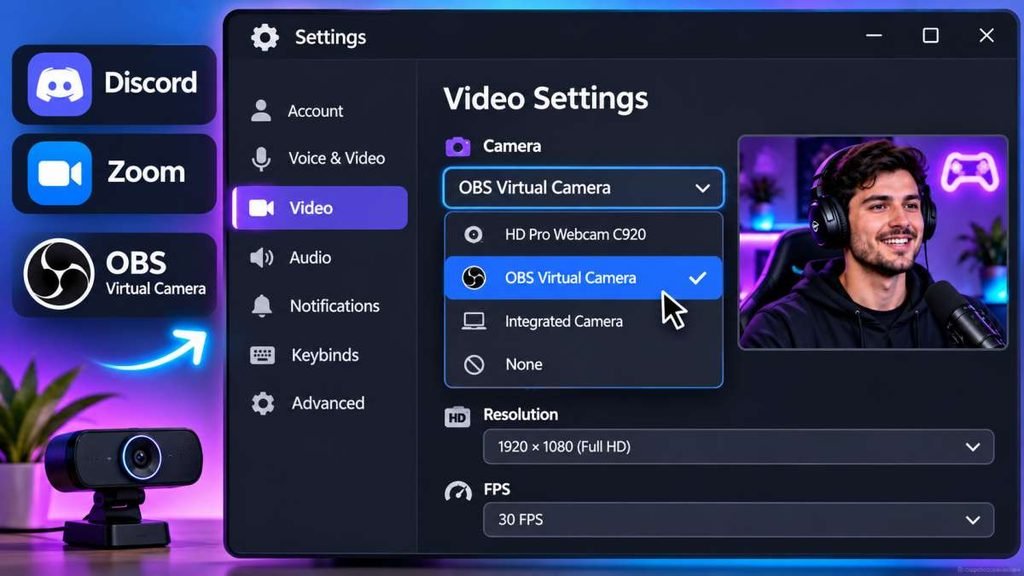
Both Discord and Zoom leverage sandboxed video rendering hooks that frequently fail if there is a conflict in hardware decoding protocols.
For Discord:
- Click the User Settings (gear icon) next to your avatar at the bottom left.
- Navigate to Voice & Video and scroll down to the Video Settings pane.
- Select OBS Virtual Camera explicitly from the Camera dropdown menu instead of Default.
- Scroll down to Advanced and toggle Off the OpenH264 Video Codec if it causes encoding locks.
- Toggle Off Use our latest technology to capture your screen or disable hardware-accelerated video decoding via Discord Hardware Acceleration Settings if the feed fails to render.
For Zoom:
- Click your profile picture or the gear icon in the main Zoom client to access Settings.
- Navigate to Video and verify the Camera dropdown menu detects OBS Virtual Camera.
- Click Advanced in the bottom-right corner of the Video settings panel.
- Change the Video Rendering Method from Auto to Direct3D11 or Media Foundation to force a clean frame ingest across modern graphics architecture.
Fix 5: Match Canvas Dimensions and Output Framerates
If OBS Studio renders odd streaming aspect ratios, standard 16:9 communication tools will instantly drop the virtual driver handshake.
- Open OBS Studio, locate the bottom-right Controls dock, and click Settings.
- Navigate to the Video tab on the left sidebar.
- Set both your Base (Canvas) Resolution and Output (Scaled) Resolution to
1920x1080(or matching1280x720). - Change the Common FPS Values strictly to 30 or 60—avoiding broadcast fractions like 24, 29.97, or 59.94.
- Click Apply, select OK, and restart your Virtual Camera output toggle to refresh the active stream pipeline.
Common Mistakes to Avoid
- Launching Call Apps Prematurely: Discord and Zoom cache active video hardware profiles exclusively upon application initialization. Starting the virtual camera after launching a call interface locks the device selection menu into a blank state until you fully cycle and restart the application.
- Running OBS Studio via Steam: The Steam variant of OBS isolates operational file structures inside virtual subdirectories, frequently dropping critical DirectShow driver registrations during background update migrations. To ensure absolute platform stability across your stream pipeline, always deploy the official standalone package from the OBS Project Download Portal.
Frequently Asked Questions
Why does OBS Virtual Camera show up as a gray or black screen in Discord?
A black or gray preview means the DirectShow virtual capture driver is active, but OBS Studio isn’t piping any live frames through the encoder. Ensure you have explicitly clicked Start Virtual Camera in the Controls dock, verify that your current active scene contains visible media sources, and confirm your canvas is locked to a native 16:9 aspect ratio.
Do I need a separate plugin to use OBS Virtual Camera in modern versions of OBS?
No, standalone installation builds of OBS Studio include a high-performance native virtual camera out of the box. You must completely uninstall legacy third-party tools (like the outdated CatxFish VirtualCam), as conflicting DLL hooks will break the modern hardware-accelerated capture pipeline.
Why is OBS Virtual Camera not showing up on macOS Zoom calls?
Modern macOS builds enforce strict code-signing sandboxes that reject unverified video devices. To fix this, update OBS Studio and your meeting client to their latest patches, navigate to System Settings > Privacy & Security > Extensions (or Login Items & Extensions), and manually toggle the OBS Media/Camera Extension permissions to enabled before cycling your application launch order.
4 Comments
6 Working Fixes For OBS Audio Out Of Sync Issue When Streaming (2026 Guide)
November 4, 20265 Working Fixes: Discord Not Detecting OBS Virtual Camera & Startup Crashes
October 30, 2026Fix Capture Card Black Screen In OBS: 5 Console Streaming Fixes (2026)
October 29, 20267 Proven Fixes: OBS Capture Specific Window Black Screen (Steam & Chrome)
October 26, 2026