
When OBS Studio suddenly closes without any warning, pinpointing the problem can be frustrating. If you need to know how to fix OBS Studio crashing with no error message on Windows, this quick troubleshooting guide will help you isolate and resolve the silent failure.
On Windows 10 and 11, these sudden shutdowns typically point to GPU driver timeouts, third-party plugin conflicts, or storage write permission errors. Below, you will find a simple, step-by-step diagnostic sequence—from running Safe Mode and checking crash logs to adjusting encoder settings—to restore complete software stability.
Quick Troubleshooting Summary
| Issue / What You Notice | Quick Fix / Direct Action |
|---|---|
| Closes immediately on launch | Launch OBS using --safe-mode to isolate corrupt plugins or docks. |
| Closes unexpectedly during gameplay | Disable overlays (Discord , Steam , RTSS); test alternate capture methods. |
| Closes when clicking “Start Recording” | Check disk space and reset output path to a local folder with write access. |
| Closes during high load or streaming | Switch encoder (e.g., software x264) and check Event Viewer for GPU crashes. |
Why Can OBS Close Without Showing an Error?
When OBS Studio encounters an unhandled software exception within its monitored threads, its internal crash handler attempts to generate a .dmp crash log and display an alert dialog.
When no dialog appears, plausible explanations include:
External Process Termination: An external utility, security application, or system process halted
obs64.exeabruptly.Third-Party Plugin or Thread Failure: Auxiliary threads initialized by third-party plugins, VST filters, or external scripts can encounter exceptions that fail to trigger or complete the main OBS crash-handling routine.
Display Driver Resets: If the graphics driver experiences a Timeout Detection and Recovery (TDR) event, the Windows Display Driver Model resets the driver context. Depending on how the application’s rendering pipeline handles the lost device event, OBS may close without an internal report.
System Resource Depletion: While less common, extreme system resource exhaustion (such as a commit limit failure or severe virtual memory exhaustion) can lead the operating system to abort processes without software-level alert dialogs.
Step-by-Step Diagnostic & Troubleshooting Sequence
Before making changes to your configuration, export a backup of your settings. In OBS Studio, click Scene Collection > Export, then click Profile > Export to save your configurations to an external directory.
Step 1: Document Symptoms and System State
Before adjusting configuration parameters, note the exact conditions under which the application closed:
Did the crash occur on startup, when switching to a specific scene, or while interacting with a browser source?
Did it close immediately upon clicking Start Streaming or Start Recording?
Was an intensive 3D application or anti-cheat system running alongside it?
Pinpointing when the application closes narrows the diagnostic focus considerably.
Step 2: Restart OBS and Reboot Windows
A complete reboot helps clear orphaned processes and hung handles:
Open Windows Task Manager (
Ctrl + Shift + Esc).Review the Details tab to ensure no orphaned
obs64.exebackground processes remain.Restart your computer to release locked device contexts and system memory allocations.
Step 3: Inspect OBS Session Logs

Because silent exits frequently fail to generate a crash report in %appdata%\obs-studio\crashes, regular session logs are the next best diagnostic reference.
Note: Session logs write sequentially to a disk buffer. As a result, the log may not always capture the exact moment or final instruction executed during a hard crash, but it will document application startup parameters, loaded sources, and recent warnings.
Press
Windows Key + Rto open the Run dialog.Type
%appdata%\obs-studio\logsand press Enter.Sort the files by Date modified and open the most recent text file.
Scroll to the bottom of the file to review the last recorded entries for failed initialization calls, missing resource pointers, or device errors.
(Optional: If OBS crashes only when loading a specific layout, you can inspect your scene configuration files located in %appdata%\obs-studio\basic\scenes.)
Step 4: Run OBS in Safe Mode
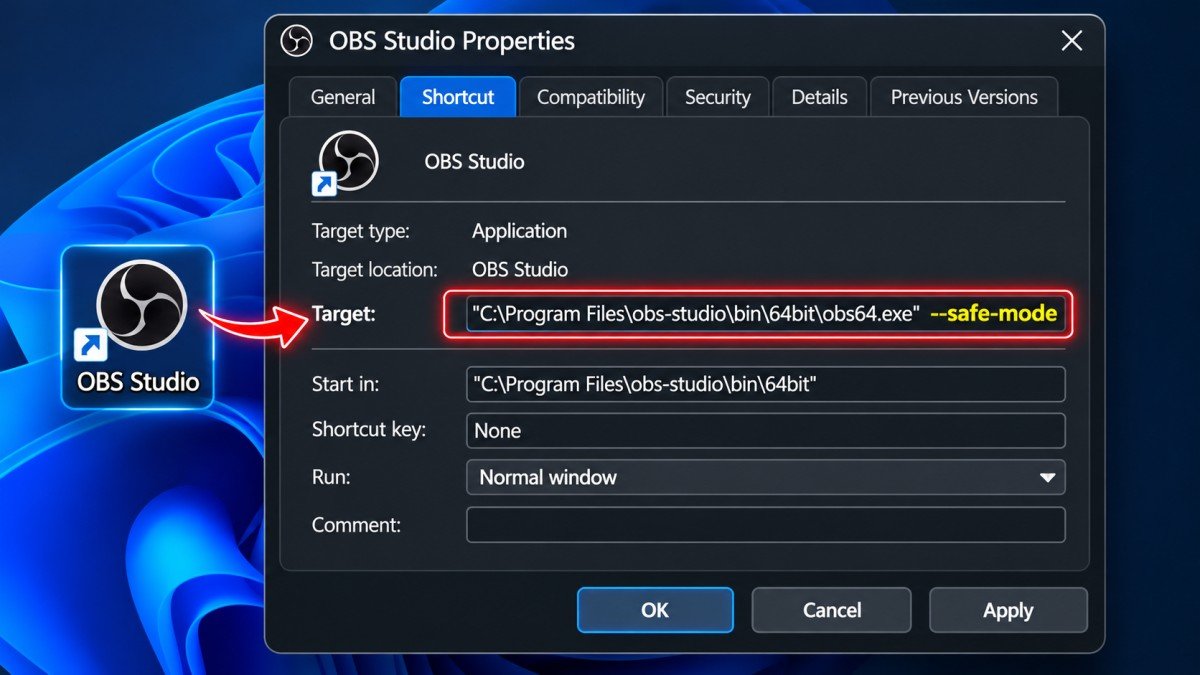
Starting in OBS Studio 30.0, the application includes a dedicated Safe Mode that disables all third-party plugins, scripts, and custom browser docks.
To run Safe Mode using the standard Windows shortcut method:
Locate your OBS Studio desktop shortcut. (If you do not have one, create a shortcut from your installation directory, typically
C:\Program Files\obs-studio\bin\64bit\obs64.exe).Right-click the shortcut and select Properties.
Navigate to the Shortcut tab and locate the Target field.
Place your cursor at the very end of the line, press the spacebar once, and append
--safe-modeoutside the closing quotation mark.Example:
"C:\Program Files\obs-studio\bin\64bit\obs64.exe" --safe-mode
Click Apply, then click OK.
Launch the shortcut.
(Alternative Method: You can open the Windows Run dialog (Windows Key + R), enter the full path to obs64.exe enclosed in quotes followed by a space and --safe-mode, and press Enter.)
If OBS remains stable while in Safe Mode, the issue is likely tied to a third-party add-on or custom script.
Step 5: Audit Plugins, Overlays, and Scene Sources
If Safe Mode prevents the shutdown:
Check Custom Plugins: Check your plugin directories at
C:\Program Files\obs-studio\obs-plugins\64bitand%appdata%\obs-studio\obs-plugins. Temporarily relocate newly installed or unmaintained.dllfiles to an external folder to isolate the offending module.Check In-Game Overlays: Utilities like Discord, Steam, RivaTuner Statistics Server (RTSS), and MSI Afterburner inject code hooks into graphics rendering APIs. Disable in-game overlays inside Discord and Steam, or configure RTSS detection level to None for
obs64.exe.Review Browser Sources: A browser dock or browser source loading an unoptimized web page can encounter internal Chromium Embedded Framework (CEF) crashes. Try hiding or removing active browser sources to test stability.
Step 6: Review Windows Event Viewer Logs
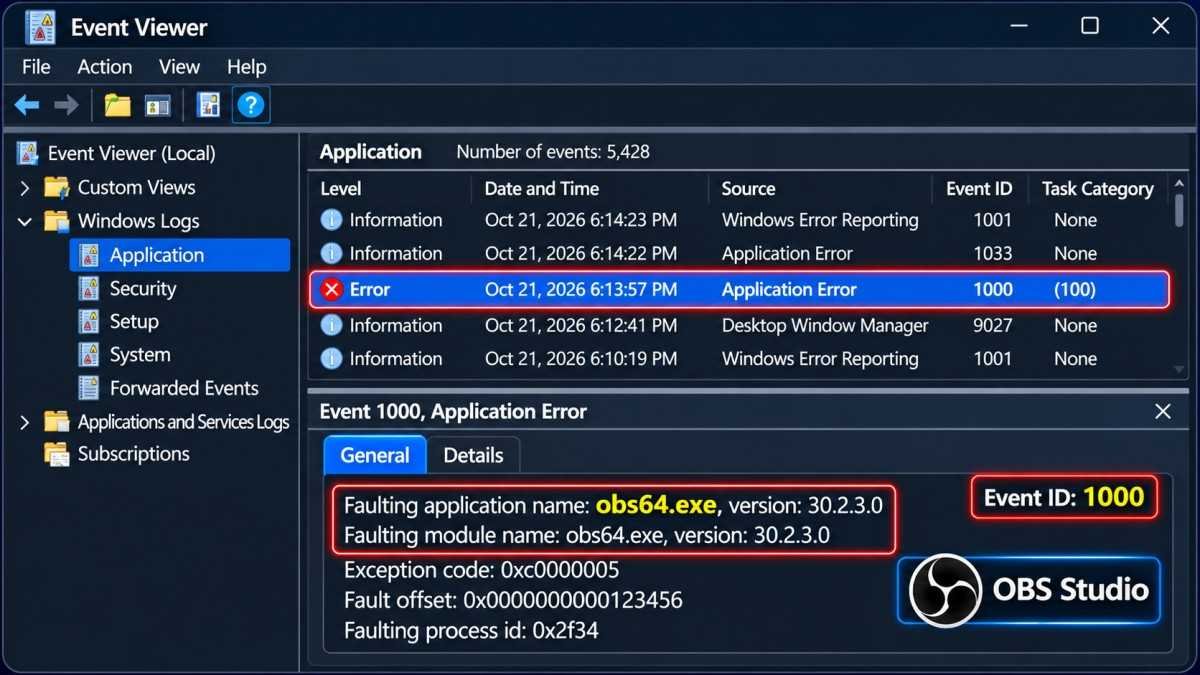
When an application shuts down without producing an internal crash log, the operating system generally logs the termination event.
Right-click the Windows Start button and select Event Viewer.
Navigate to Windows Logs > Application.
In the right panel, select Filter Current Log…, check the Error severity box, and click OK.
Look for entries with a source named Application Error (Event ID 1000) that correspond to the timestamp of the crash.
Review the details:
Faulting application name: Confirm it identifies
obs64.exe.Faulting module name: Indicates the dynamic link library or component where the fault was encountered.
Exception code: (e.g.,
0xc0000005denotes an Access Violation).
Diagnostic Note: A faulting module name points to the file where execution failed, but this does not conclusively prove that file is corrupted. For example, if a graphics runtime DLL or ntdll.dll is listed, it may simply indicate that another process passed invalid parameters into that library.
Step 7: Check Storage and Output Settings (For Recording Crashes)

If OBS exits immediately when selecting Start Recording:
Storage Accessibility: Open Settings > Output > Recording and confirm the destination path points to an accessible local drive with adequate free storage space.
Folder Permissions & Controlled Access: If Windows Defender Controlled folder access is active, it may prevent applications from writing to default folders such as
VideosorDocuments. Check Windows Security > Virus & threat protection > Protection history to determine if write attempts byobs64.exewere blocked.
Step 8: Evaluate Graphics Drivers and Encoder Settings
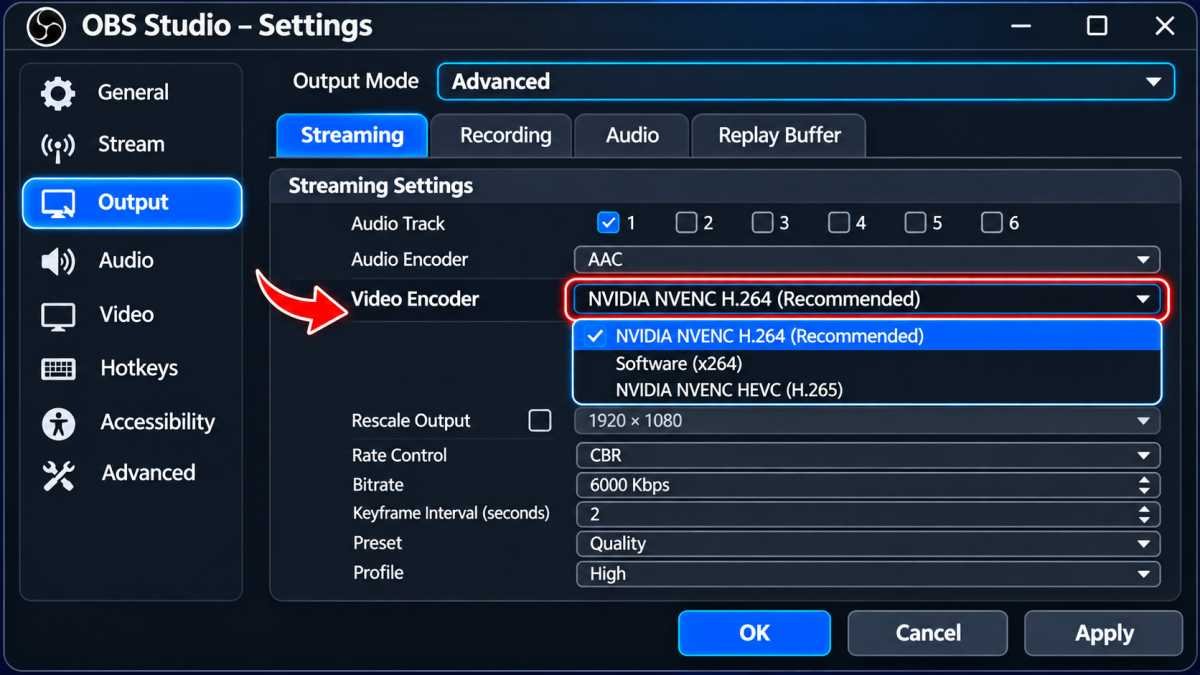
Hardware encoding and canvas rendering rely on direct GPU interaction:
Standard Driver Updates: Check your GPU manufacturer’s website (NVIDIA, AMD, or Intel) to verify that you are running a supported, WHQL-certified driver. Perform a standard driver installation or update before considering advanced driver-removal tools.
Encoder Isolation Test: If you use a hardware encoder (such as NVENC, AMD AMF, or Intel Quick Sync), temporarily switch the encoder to Software (x264) under Settings > Output.
Note: Software encoding increases CPU usage substantially. This adjustment serves solely as an isolation test to verify whether the hardware encoding pipeline is involved in the failure.
Step 9: Advanced Troubleshooting Steps
If basic diagnostics do not reveal the source of the crash:
Clean Driver Installation: If Windows Event Viewer repeatedly references graphics subsystem modules and standard driver installations do not resolve the issue, consider performing a clean installation using the GPU vendor’s installer options, or third-party tools such as Display Driver Uninstaller (DDU) executed in Windows Safe Mode.
Reinstall OBS Studio: Download a fresh installer directly from the official OBS Project website to repair any missing, altered, or damaged core runtime files.
Frequently Asked Questions (FAQ)
Where does OBS Studio store its diagnostic files?
OBS Studio categorizes diagnostic information into two distinct locations:
Session Logs: Located in
%appdata%\obs-studio\logs. A new text log is initiated each time OBS is launched, recording environment initialization and runtime events.Crash Reports: Located in
%appdata%\obs-studio\crashes. These files are generated only when the internal exception handler captures a fatal error before the application exits.
What should I do if OBS closes without generating a crash report?
If no crash report appears in %appdata%\obs-studio\crashes, open the most recent log file in %appdata%\obs-studio\logs to examine the last recorded events. In addition, open the Windows Event Viewer, navigate to Windows Logs > Application, and look for Application Error (Event ID 1000) entries for obs64.exe to view the recorded faulting module and exception code.
Why does OBS Studio crash when I start recording?
A crash upon initiating a recording session is typically associated with output path configuration issues, insufficient storage space, security software blocking disk write permissions, or initialization failures within the selected video encoder.
Can Windows 11 Game Mode cause OBS to crash?
Windows Game Mode allocates CPU and GPU execution priority to the active game process. While this resource prioritization can cause OBS to drop frames or lag if GPU capacity is fully utilized, it is not documented as a direct cause of abrupt, silent software crashes. Keeping Game Mode enabled is generally recommended unless troubleshooting specific frame-pacing problems.
While silent exits in OBS Studio can be difficult to diagnose due to the lack of an immediate error prompt, using structured diagnostic tools—such as the --safe-mode parameter, session logs, and Windows Event Viewer—enables you to isolate whether the failure stems from a plugin, hook collision, storage constraint, or driver conflict without compromising your profiles or scene collections.
Technical References & Documentation
OBS Project Safe Mode Documentation:
OBS Project Official Launch Parameters:
Microsoft Windows Display Driver & TDR Architecture:
Microsoft Windows Event Viewer Application Error Documentation:
Technical Quality and Audit Checklist
Documented System Behavior: The
--safe-modecommand-line parameter was implemented natively in OBS Studio 30.0.0 and functions as an argument to disable third-party plugins and scripts.Documented System Behavior: Windows Event Viewer logs unhandled process terminations under Application Error (Event ID 1000) in the Application event log.
Documented Technical Limitation: Session logs (
%appdata%\obs-studio\logs) write sequentially to a disk buffer and may omit the final system state during a hard, unhandled process crash.Plausible Diagnostic Explanation: Missing crash reports can occur when an external process terminates the task, when an unhandled exception occurs in a secondary thread, or when a graphics driver reset occurs.
Plausible Diagnostic Explanation: Crashes at the start of recording can correlate with file access permissions, storage write exhaustion, or encoder initialization failures.
Version & Environment Qualification: Default paths assume standard 64-bit installations on Windows (
C:\Program Files\obs-studio\bin\64bit\obs64.exe). Custom or portable installations will use different paths.Untested / Conditional Recommendation: Clean driver installation via Display Driver Uninstaller (DDU) is noted as an advanced measure when simpler diagnostic steps fail, rather than an independently verified universal remedy.
User Safety Measures: Scene Collection and Profile exports are explicitly advised prior to making system modifications or file deletions.
5 Comments
7 Proven Ways To Fix Dropped Frames And Disconnection Issues In OBS Studio (2026 Guide)
November 2, 20267 Ways To Fix OBS Game Capture Black Screen On Windows 11 (2026 Guide)
October 29, 20267 Proven Fixes: OBS Capture Specific Window Black Screen (Steam & Chrome)
October 26, 20265 Working Fixes: How To Fix OBS Virtual Camera Not Showing Up In Discord Or Zoom
October 24, 2026Step-by-Step Fix For OBS Studio High CPU Usage And Encoding Overloaded
October 23, 2026