
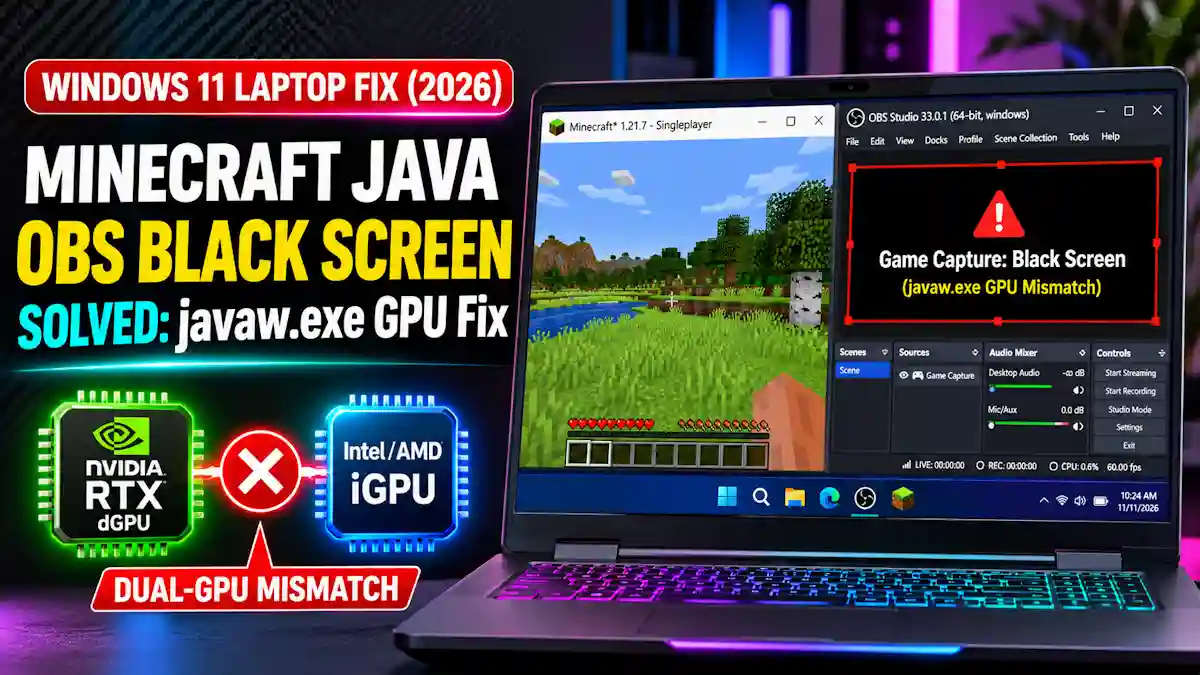
Quick Summary / The 30-Second Fix To fix the Minecraft Java OBS black screen on a dual-GPU gaming laptop, locate your active javaw.exe runtime path in Windows Task Manager while the game is open, then assign that exact file to High Performance (your dedicated NVIDIA RTX or AMD Radeon GPU) inside Windows 11 Settings → System → Display → Graphics. Restart both Minecraft and OBS Studio as Administrator so both programs share the same graphics adapter.
Works on: Windows 11 (24H2 / 25H2 / 26H2) & Windows 10 / OBS Studio v33.0.1+ / NVIDIA GeForce RTX 30, 40 & 50-Series (Blackwell) & AMD Radeon Laptop GPUs.
A Minecraft Java OBS black screen happens on laptops because Windows 11 routes the Java Virtual Machine (javaw.exe) to your power-saving integrated graphics (Intel Iris Xe/Arc or AMD Radeon iGPU) while OBS Studio runs on your dedicated NVIDIA RTX or AMD discrete GPU. Because OBS Game Capture hooks directly into the active GPU’s frame buffer, it cannot read OpenGL frames rendered across a separate physical graphics adapter. Forcing javaw.exe onto your high-performance GPU in Windows 11 Graphics Settings aligns both processes on the same hardware pipeline and restores your video feed immediately.
Symptom, Root Cause & 10-Second Fix Summary Table
| Observed Symptom | Primary Root Cause | Immediate 10-Second Solution |
| Black preview with red bounding box | javaw.exe is running on the laptop iGPU while OBS is on the dGPU | Set javaw.exe to High Performance in Windows 11 Graphics Settings |
| Invisible source (no red box, only audio) | Wrong executable selected (MinecraftLauncher.exe instead of javaw.exe) | Map the active java-runtime-delta javaw.exe binary via Task Manager |
| Preview freezes when pressing Alt+Tab or F11 | Legacy OpenGL exclusive fullscreen bypasses Windows DWM | Set NVIDIA Vulkan/OpenGL present method to Prefer layered on DXGI Swapchain |
| Red dot stuck in the top-left corner | Corrupted OBS scene transform bounding box | Select source and press Ctrl+R (Reset) then Ctrl+F (Fit to Screen) |
| Modded client (Sodium/Iris/OptiFine) stays black | Custom OpenGL shader pipeline blocks graphics-hook64.dll | Switch to Window Capture using the Windows 10 (1903 and up) method |
Why a Minecraft Java OBS Black Screen Happens on Gaming Laptops
Modern gaming laptops use hybrid graphics switching—such as NVIDIA Optimus, Advanced Optimus, or AMD SmartShift—to balance battery life and 3D performance. When you launch a standard DirectX 12 title, the Windows 11 driver stack automatically wakes your dedicated NVIDIA RTX or AMD Radeon GPU.
Minecraft Java Edition works differently because it runs inside a sandboxed Java runtime (javaw.exe) and renders via the OpenGL API rather than DirectX. Windows 11 often misidentifies that Java process as a lightweight desktop app and assigns it to your CPU’s integrated graphics, leaving OBS Studio stranded on your dedicated GPU staring at an empty frame buffer. If your entire desktop screen also goes blank when recording on a hybrid notebook, follow our dedicated guide on fixing OBS display capture not working on a dual-GPU laptop.
Root Cause Diagnostic: Verify Your GPU Assignment First
Before changing settings blindly, verify which GPU is rendering your game and check your OBS hook status.
- Launch Minecraft Java Edition and load into a single-player world or main menu.
- Press Ctrl + Shift + Esc to open the Windows 11 Task Manager.
- Click the Processes tab and expand the Minecraft or Java(TM) Platform SE binary / OpenJDK Platform binary dropdown.
- Look at the GPU Engine column next to the Java process (right-click the column header and enable GPU Engine if it’s hidden).
- Compare the GPU number (
GPU 0 - Integratedvs.GPU 1 - Dedicated) against the obs64.exe process in the same list. - Open OBS Studio and navigate to Help → Log Files → Upload Current Log File, then paste the generated link into the official OBS Log Analyzer tool to confirm whether
graphics-hook64.dllis failing due to a cross-GPU mismatch or an overlay conflict.
7 Proven Fixes for the Minecraft Java OBS Black Screen
Work through these solutions in order from lowest risk to advanced configuration.
Fix 1: Fixing the Minecraft Java OBS Black Screen via Windows 11 Graphics Settings (The javaw.exe Method)
Assigning MinecraftLauncher.exe to your dedicated GPU will not fix a Minecraft Java OBS black screen because the launcher is only a front-end menu. You must assign the exact javaw.exe runtime binary that executes the game engine, which is the #1 fix referenced in the official OBS Minecraft Java Edition troubleshooting guide.
- Keep Minecraft Java Edition running and open Task Manager (Ctrl + Shift + Esc).
- Right-click Java(TM) Platform SE binary (or OpenJDK Platform binary) under the Minecraft group and select Open file location.
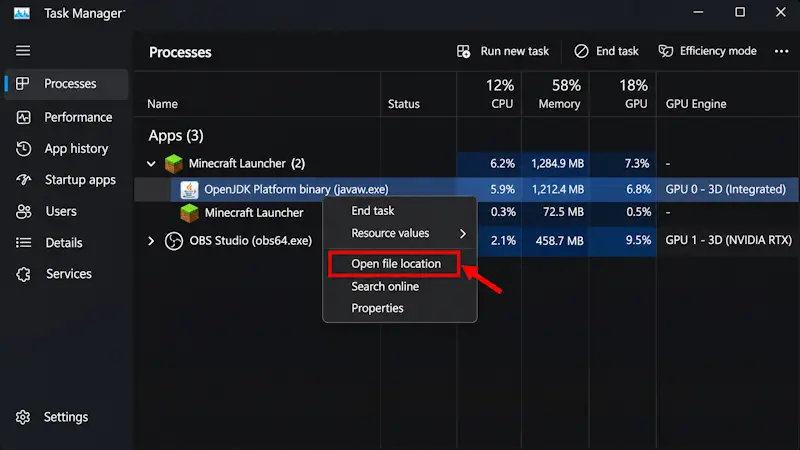
- Hold Shift, right-click the highlighted
javaw.exefile in File Explorer, and select Copy as path. - Close Minecraft and close OBS Studio completely.
- Press Win + I to open Windows 11 Settings and navigate to System → Display → Graphics.
- Click Add desktop app (or Browse under Custom options for apps).
- Paste your copied
javaw.exefile path into the File Explorer address bar and click Add. - Note that for vanilla Minecraft 1.20.5 through 26.x on the Microsoft Store launcher, this path typically points to
C:\Users\USERNAME\AppData\Local\Packages\Microsoft.4297127D64EC6_8wekyb3d8bbwe\LocalCache\Local\runtime\java-runtime-delta\windows-x64\java-runtime-delta\bin\javaw.exe(orjava-runtime-gammafor older 1.18–1.20.4 installations). - Click Options on the newly added OpenJDK Platform binary entry, select High performance (confirming your NVIDIA GeForce RTX or AMD Radeon discrete GPU is listed), and click Save.
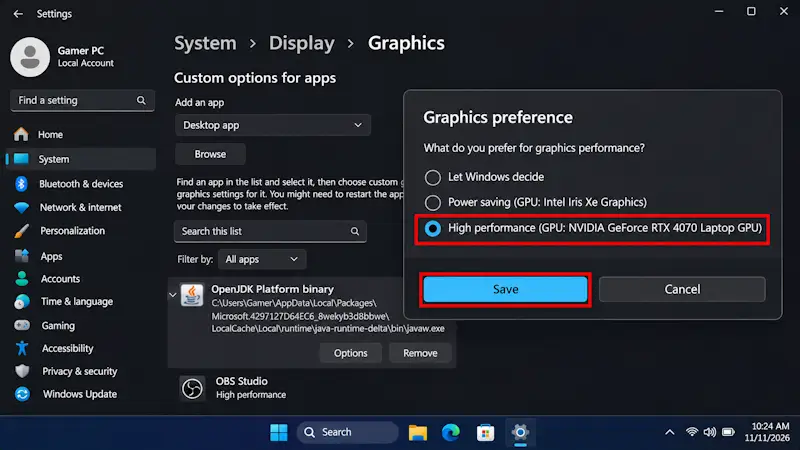
- Repeat this check for OBS Studio (
obs64.exe) in the same Graphics menu so both apps are locked to High performance.
Fix 2: Configure OBS Game Capture Specific Window & Admin Mode
Using “Capture any fullscreen application” often fails with OpenGL titles on Windows 11 laptops. Configure your source directly per the OBS Game Capture Troubleshooting knowledge base.
- Right-click your OBS Studio desktop shortcut, select Properties → Compatibility, check Run this program as an administrator, and click Apply.
- Launch Minecraft Java Edition first and wait until the main title screen loads.
- Open OBS Studio and double-click your Game Capture source under the Sources dock.
- Change Mode from Capture any fullscreen application to Capture specific window.
- Open the Window dropdown and select [javaw.exe]: Minecraft.
- Check Use anti-cheat compatibility hook and leave SLI/Crossfire Capture Mode (Slow) unchecked unless you are on a legacy dual-SLI rig.
- Click OK, then press Ctrl + R followed by Ctrl + F on your keyboard to reset any stuck bounding box transforms.
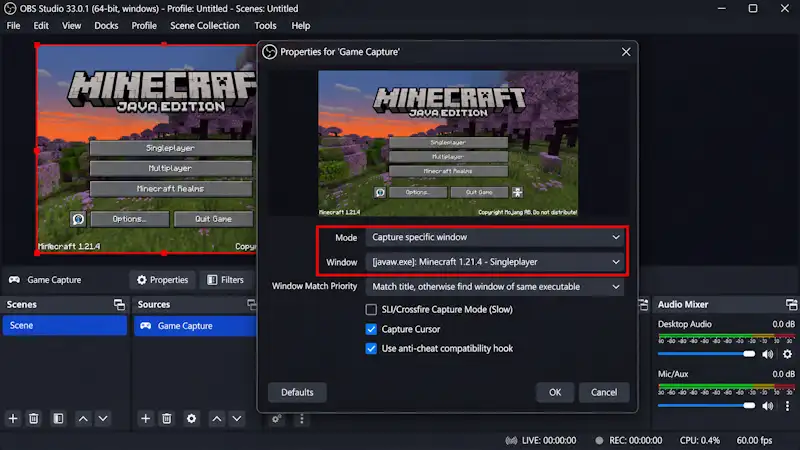
If the preview stays dark even after targeting the Java executable directly, check our deeper breakdown on resolving an OBS capture specific window black screen.
Fix 3: Enable “Prefer Layered on DXGI Swapchain” in NVIDIA Control Panel
This is the secret weapon for NVIDIA RTX laptop streamers in 2026. By default, Minecraft’s OpenGL renderer bypasses the modern DirectX presentation pipeline, causing a Minecraft Java OBS black screen or a frozen preview whenever you press F11 (Fullscreen) or Alt + Tab. Wrapping OpenGL inside a DXGI Flip-Model Swapchain lets Windows 11 treat Minecraft like a native DirectX 12 game.
- Right-click an empty area on your Windows 11 desktop and open Show more options → NVIDIA Control Panel.
- Navigate to 3D Settings → Manage 3D settings in the left sidebar.
- Click the Program Settings tab and click Add.
- Select your active OpenJDK Platform binary (
javaw.exe) from the recent programs list (or browse to the exact path from Fix 1). - Scroll down the settings list to Vulkan/OpenGL present method.
- Change the setting from Auto to Prefer layered on DXGI Swapchain.
- Click Apply in the bottom-right corner and restart Minecraft.
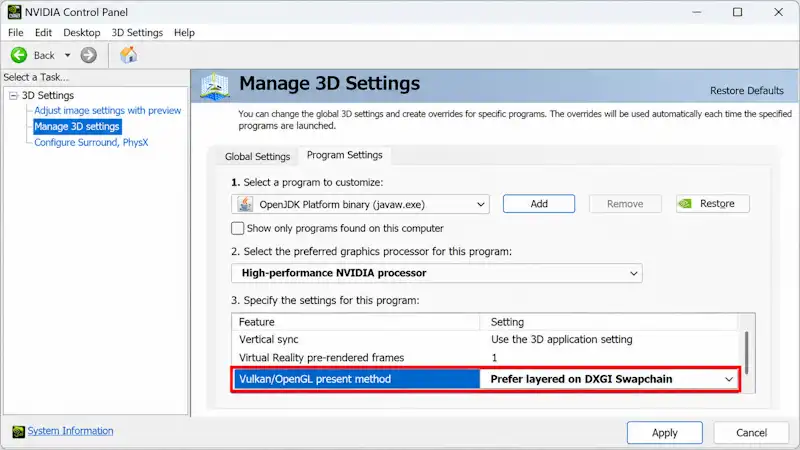
Once your gameplay feed is visible and stable, you can squeeze out higher frame rates on budget or mid-range hardware by applying the best OBS settings for a low-end PC.
Fix 4: Switch to Window Capture with Windows 10 (1903 and up) Capture Method
If you use heavy rendering mods like Sodium, Iris Shaders, Lunar Client, or OptiFine, custom OpenGL shaders can occasionally block OBS Game Capture hooks entirely. As detailed in the OBS Laptop Troubleshooting documentation and Microsoft Support Windows 11 Display and Graphics documentation, Windows Graphics Capture (WGC) can capture windows across different laptop GPUs without needing direct DLL injection.
- Delete or hide your existing Game Capture and Display Capture sources in the current OBS scene so they don’t clash.
- Click the + icon under the Sources dock and select Window Capture.
- Set Window to [javaw.exe]: Minecraft.
- Change Capture Method from Automatic to Windows 10 (1903 and up).
- Click OK and set Minecraft to windowed or borderless windowed mode for zero-latency capture.
If switching capture modes introduces a slight delay between your game sound and microphone, use our step-by-step guide to fix OBS audio out of sync while streaming.
Fix 5: Disable Conflicting Overlay Hooks & Windows 11 HAGS
Third-party FPS counters and Windows 11 Hardware-Accelerated GPU Scheduling (HAGS) frequently fight with OBS for control of the OpenGL swapchain.
- Close MSI Afterburner, RivaTuner Statistics Server (RTSS), GeForce Experience / NVIDIA App Overlay, and Discord Game Overlay, or enable Use Microsoft Detours API hooking inside RTSS Setup.
- Open Windows 11 Settings → System → Display → Graphics → Advanced graphics settings (or Change default graphics settings).
- Toggle Hardware-accelerated GPU scheduling to Off if your OBS log flags HAGS capture freezes, then reboot your laptop.
Similarly, if tweaking GPU scheduling or browser hardware acceleration causes your live stream dashboard preview to fail in Google Chrome, you can quickly apply our Twitch error code 2000 Chrome fix.
Fix 6: Clear OBS Hook Cache & Clean-Install GPU Drivers (Advanced)
⚠️ SAFETY PRECAUTION & DATA BACKUP WARNING: The following steps modify your local Windows AppData folders and replace core graphics drivers. Before deleting any files in
%AppData%, open OBS Studio and export your work via Scene Collection → Export and Profile → Export to a safe desktop folder. Create a Windows System Restore Point before performing a clean GPU driver installation.
Sometimes a Windows 11 cumulative update corrupts the OBS obs-gamecapture hook cache or resets per-app GPU driver profiles.
- Close OBS Studio and Minecraft completely.
- Verify you are running the latest release from the OBS Studio 33.0.1 download page. If updating to the newest build triggers alert box freezes or scene crashes, see our troubleshooting guide for the OBS Studio 33.0 browser source crash.
- Press Win + R, type
%AppData%\obs-studio\plugin_config\win-captureand press Enter. - Delete the cached hook files inside that folder so OBS rebuilds fresh
graphics-hook64.dllsignatures on next launch. - Download the latest Game Ready or Studio notebook driver directly from the official NVIDIA Drivers portal.
- Run the NVIDIA installer, choose Custom (Advanced) installation, and check Perform a clean installation to wipe broken OpenGL driver profiles without losing your saved OBS scenes.
If you still notice choppy stream output or network stutter after resetting your graphics driver, check out how to stop Streamlabs OBS dropped frames on a low-end PC.
Common Mistakes to Avoid
- Adding
MinecraftLauncher.exeinstead of the activejavaw.exebinary: Nearly 80% of frustrated laptop streamers add the desktop shortcut orMinecraftLauncher.exeto Windows 11 Graphics Settings, which only accelerates the launcher menu while leaving the actual game (javaw.exe) trapped on the integrated GPU with a persistent Minecraft Java OBS black screen. - Stacking Display Capture and Game Capture in the same OBS Scene: Placing a Display Capture source and a Game Capture source inside the exact same scene creates a direct hook conflict in OBS Studio v33+, causing the Game Capture layer to drop its OpenGL hook and render a black canvas.
Frequently Asked Questions (FAQs)
Why does my Minecraft Java OBS black screen still happen after setting Minecraft to High Performance?
If you still see a Minecraft Java OBS black screen, you likely assigned the Minecraft Launcher executable or the wrong Java runtime folder in Windows 11 Graphics Settings. Because Minecraft installs separate runtimes for different game versions (java-runtime-delta for 1.20.5+ and java-runtime-gamma for older releases), you must grab the active javaw.exe path directly from Task Manager while the game is running.
Why does OBS Game Capture freeze on one frame when I go fullscreen in Minecraft Java?
When Minecraft Java Edition enters exclusive fullscreen mode (F11), its legacy OpenGL renderer takes direct ownership of the display and stops sending frames to the Windows Desktop Window Manager when you Alt+Tab. Setting Vulkan/OpenGL present method to Prefer layered on DXGI Swapchain in the NVIDIA Control Panel forces Minecraft into a modern DirectX flip model that records smoothly in both fullscreen and windowed modes.
Does every modded Minecraft launcher use a different javaw.exe file on Windows 11?
Yes, third-party launchers like CurseForge, Modrinth, and Prism Launcher download their own isolated Java runtime binaries into their respective app directories rather than using the default Xbox Games folder. Whenever you switch launchers or update a modpack’s Java version, you must add that specific launcher’s javaw.exe path to Windows 11 Graphics Settings under High Performance.
Can I fix a Minecraft Java OBS black screen using my laptop’s MUX Switch or Advanced Optimus?
Yes, switching your gaming laptop from Hybrid/Optimus mode to dGPU Only (Ultimate Mode) inside your laptop’s control software (such as ASUS Armoury Crate, Lenovo Vantage, or NVIDIA Control Panel Display Mode) physically disables the integrated GPU. With only the dedicated NVIDIA RTX or AMD GPU active, every application automatically shares the same graphics adapter and eliminates cross-GPU capture blackouts permanently.