
⚡ Quick Summary / The 30-Second Fix:
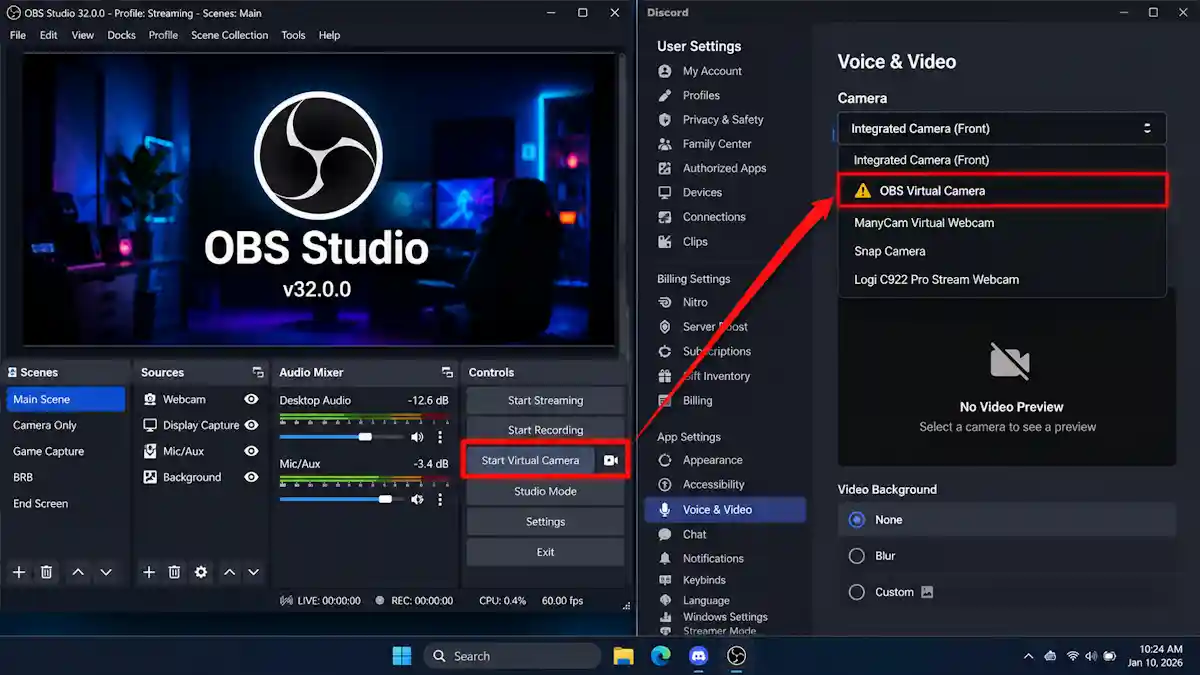
Fully quit Discord from the system tray, click Start Virtual Camera in OBS Studio, then reopen Discord and select OBS Virtual Camera in Voice & Video > Camera.
Works on: Windows 11 (24H2 / 25H2 / 26H2) / Windows 10 / macOS Sequoia 15 / macOS Tahoe 26 / OBS Studio v32+ / Discord Desktop
Root Cause First: Diagnose Why Discord Fails to See OBS
Before changing system settings, identify whether Discord not detecting OBS Virtual Camera means a missing device, a blank video feed, or an outright app crash.
- Check OBS first: Look at the Controls dock and click Start Virtual Camera; the button should immediately change to Stop Virtual Camera.
- Check Discord next: Open your Discord camera selector and look for OBS Virtual Camera; if it’s missing, fully quit and reopen Discord as a low-risk discovery test—not a guaranteed fix.
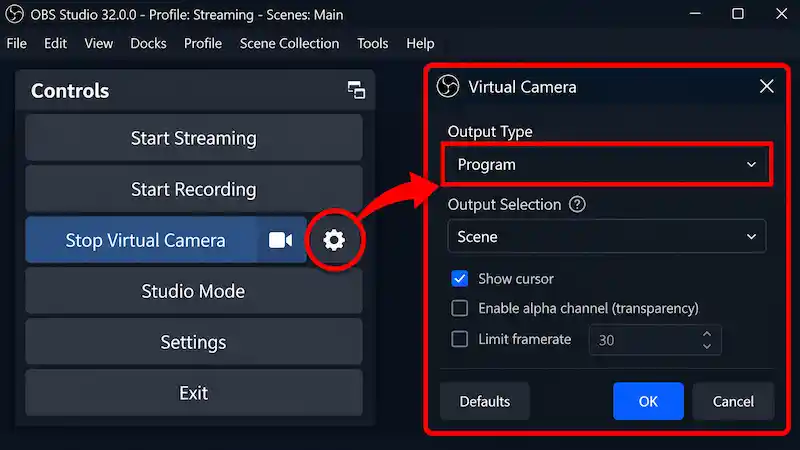
- Separate detection from display: If the camera appears in Discord’s list but shows the wrong scene, click the Gear icon beside Start Virtual Camera in OBS and confirm your intended Program, Preview, Scene, or Source output.
- Check for empty source feeds: If Discord recognizes the virtual camera device but only outputs a pitch-black screen, the issue usually lives inside your OBS canvas—such as an OBS Game Capture black screen or an OBS capture specific window black screen.
- Missing the OBS button entirely? Follow the Official OBS Virtual Camera Troubleshooting Guide to verify your virtual-camera installation or system registration before making deeper OS changes. If the camera is absent across all apps (like Zoom or Chrome), use our dedicated guide to fix OBS Virtual Camera not showing up.
- On macOS: Check whether OBS’s system camera extension needs manual approval in your Mac’s system settings; the OBS Project provides platform-specific extension steps in its official documentation.
- Seeing crashes instead? Note whether OBS or Discord closes, and whether the crash happens at app startup, during camera selection, or when joining a call—treat each of these as separate failure points.
- Use crash history carefully: An older OBS issue linked Discord crashes to virtual-camera resizing, which reporters confirmed was resolved in OBS 30.1.2 and newer; don’t treat that legacy bug as evidence of a current AV1, NVENC, or GPU-specific fault.
Quick Diagnostic Matrix
| Symptom | Possible Cause / Check | First Safe Action |
| OBS Virtual Camera missing from dropdown | Device discovery delay or virtual-camera registration issue. | Click Start Virtual Camera, fully quit Discord, and reopen it; if still missing, check official OBS installation steps. |
| Discord crashes when selecting camera | Cause unconfirmed; check if the crash happens on selection or after a video-setting change. | Restart both apps and retest without changing OBS video settings; don’t assume OpenH264 or hardware acceleration is the culprit. |
| Grey or blank camera preview | Incorrect OBS output selection, empty source, or OS camera-access restriction. | Check your OBS preview and Virtual Camera output; if you use external gear, also rule out a capture card black screen in OBS. |
| Discord crashes at startup while OBS runs | Cause unconfirmed; isolate whether having Virtual Camera active changes the result. | Click Stop Virtual Camera and relaunch Discord; if it still crashes, close OBS completely and retest before repairing registration. |
5 Ways to Solve Discord Not Detecting OBS Virtual Camera
Safety Warning: Before making advanced configuration changes, back up your OBS scene collection through Scene Collection > Export and your profile through Profile > Export. Note that these exports don’t back up Windows registry settings, local Discord data, or your referenced media files.
1. Start Virtual Camera, Then Restart Discord
If OBS Virtual Camera is missing from Discord’s camera dropdown, run this launch-order test before touching drivers or system files. Treat it as a fast diagnostic step rather than proof that Discord only detects cameras at startup.
- On Windows: Right-click the Discord icon in your bottom-right system tray and select Quit Discord.
- On macOS: Quit Discord completely by pressing
Command + Q. - Launch OBS: Open OBS Studio normally—don’t alter administrator privileges during this initial test.
- Activate the feed: In the Controls dock, click Start Virtual Camera.
- Verify in Discord: Reopen Discord and check User Settings > Voice & Video > Camera for OBS Virtual Camera.
- Still missing? Check the Official OBS Virtual Camera Troubleshooting Guide to verify platform-specific installation or macOS camera-extension requirements.
2. Verify Windows Camera Privacy Permissions
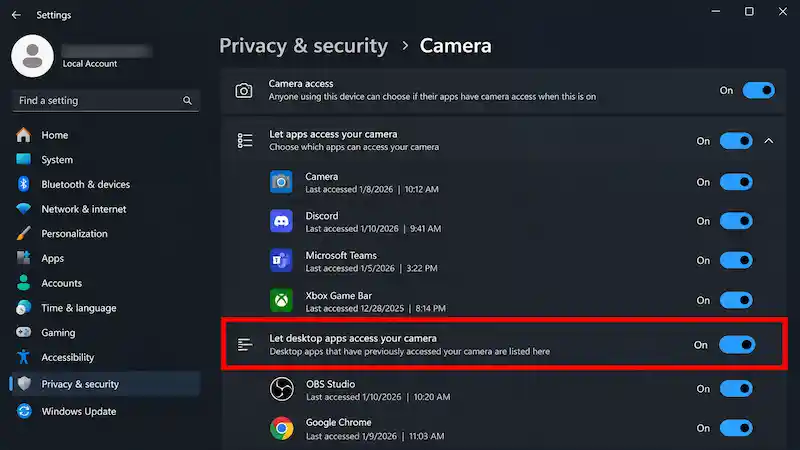
Windows camera privacy toggles can block desktop programs from accessing video feeds. Check these permissions to rule out an OS-level block, though they won’t explain every missing virtual camera.
- Open Windows Settings: Press
Windows + Ion your keyboard. - On Windows 11: Navigate to Privacy & security > Camera, turn Camera access to On, then scroll down and toggle Let desktop apps access your camera to On.
- On Windows 10: Navigate to Privacy > Camera, click Change under Allow access to the camera on this device to enable access, then toggle Allow desktop apps to access your camera to On.
- Retest both apps: Fully quit and reopen OBS and Discord, click Start Virtual Camera, and inspect Discord’s camera dropdown again.
- Important Note: Discord won’t appear as an individually toggleable Microsoft Store app on this page because traditional desktop apps share that single master toggle. Read the Microsoft Windows Camera, Microphone, and Privacy Guide for deeper OS permission details.
3. Repair OBS Virtual Camera Registration on Windows
When you’re dealing with Discord not detecting OBS Virtual Camera, verify the plugin’s registration using OBS’s built-in batch script before assuming deep Windows registry corruption.
Safety Warning: Before tweaking these settings, make sure to back up your current configuration files just in case!
- Shut down both apps: Close OBS Studio and Discord completely.
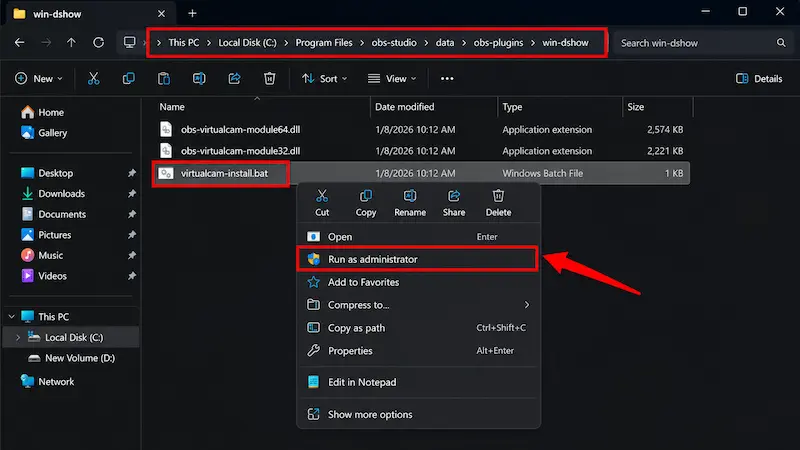
- Locate the plugin folder: Open File Explorer and head to
C:\Program Files\obs-studio\data\obs-plugins\win-dshow(if OBS is installed in a custom directory or runs in portable mode, open the matchingdata\obs-plugins\win-dshowfolder inside that location). - Run the installer script: Right-click
virtualcam-install.batand select Run as administrator. - Approve the prompt: Accept the Windows User Account Control (UAC) prompt if you trust your official OBS installation files.
- Test the camera: Reopen OBS, click Start Virtual Camera, launch Discord, and check User Settings > Voice & Video > Camera to select OBS Virtual Camera and verify the video feed.
If the Script Is Missing or Fails:
- Check your path: Confirm you’re inside the active OBS installation folder.
- Avoid third-party DLL sites: If files are missing, reinstall OBS using the official installer from the OBS Project website rather than downloading loose DLL files from the web.
- Log any errors: If the batch script throws an error code, write down the exact message before trying other tweaks, and consult the Official OBS Virtual Camera Troubleshooting Guide.
- Using a Snapdragon/Arm PC? On Windows-on-Arm devices, follow the Official OBS Windows on Arm Virtual Camera Instructions instead of running generic x64 registration commands.
- Keep in mind: This step specifically repairs virtual-camera registration; it isn’t a cure-all for Discord startup crashes, blocked OS permissions, or blank OBS scenes.
4. Troubleshoot App Stability During Video Initialization
If Discord freezes or closes the moment you select OBS Virtual Camera, test Discord’s video hardware-acceleration toggle. Discord officially recommends this step to isolate video instability, even though it doesn’t prove the exact root cause of a crash.
- Open Discord video settings: Go to User Settings > Voice & Video and select the Video tab.
- Toggle Hardware Acceleration: Scroll down to Advanced and switch Hardware Acceleration to Off as a temporary diagnostic test.
- Restart Discord: Accept the prompt to restart Discord (or fully quit from the system tray and reopen it).
- Retest the camera: Select OBS Virtual Camera again to see if the crash stops; if nothing changes, turn Hardware Acceleration back on before testing your next variable.

Optional Test: Simplify the OBS Video Configuration
Safety Warning: Before tweaking these settings, make sure to back up your current configuration files just in case!
- Save your current specs: Write down your existing OBS resolution and frame rate settings, then click Stop Virtual Camera.
- Lower the output: As a separate diagnostic test, switch to a lower-resolution configuration inside Settings > Video in OBS.
- Re-verify in Discord: Click Start Virtual Camera and test the feed in Discord; restore your original OBS resolution if the change doesn’t improve stability.
- Need more crash checks? Disabling hardware acceleration won’t fix a missing camera driver or blocked Windows permissions, so check the Official Discord Voice and Video Troubleshooting Guide for additional client-side checks.
5. Refresh the Discord Application Cache
If Discord displays a blank UI, freezes randomly, or acts inconsistently alongside your camera troubles, clear its local cache. Discord recommends cache clearing for general app stability, though it won’t repair broken OBS Virtual Camera registration.
Safety Warning: Before tweaking these settings, make sure to back up your current configuration files just in case!
On Windows:
- Exit Discord completely: Right-click the Discord icon in your system tray and click Quit Discord (if files stay locked, open Task Manager and end any lingering Discord processes).
- Open the cache directory: Press
Windows + R, type%appdata%\discord\Cache, and press Enter. - Clear only cache files: Delete the contents inside this Cache folder—do not delete the entire parent
discordfolder (if the path doesn’t exist, skip this step rather than deleting random folders). - Relaunch and test: Reopen Discord, confirm the interface loads cleanly, click Start Virtual Camera in OBS, and check Discord’s camera dropdown.
On macOS:
- Quit Discord: Press
Command + Qto close the app completely. - Navigate to the cache folder: Open Finder, click Go > Go to Folder in the top menu bar, and enter
~/Library/Application Support/discord/Cache. - Empty and retest: Delete the files inside that Cache folder, reopen Discord, and test OBS Virtual Camera again.
- Note: For broader client repairs beyond cache cleanup, check the Official Discord Troubleshooting Guide.
Common Mistakes to Avoid When Setting Up Virtual Camera
- Skipping the app launch sequence test: Opening Discord before clicking Start Virtual Camera in OBS can occasionally cause device discovery delays, so always test a clean Discord restart while the virtual camera is actively running.
- Relying on mismatched application privilege states: Running one app as an Administrator while leaving the other in standard user mode can create Windows permission boundary conflicts across background processes—keep both apps on the same privilege level when troubleshooting Discord not detecting OBS Virtual Camera.
Frequently Asked Questions (FAQs)
Why is Discord not detecting OBS Virtual Camera even when it’s turned on?
If clicking Start Virtual Camera in OBS doesn’t make the camera appear in Discord, Discord either needs a full restart from the system tray to refresh its device list, or the OBS virtual-camera plugin needs to be re-registered using the virtualcam-install.bat script inside your OBS installation folder.
Why is my OBS Virtual Camera showing a black screen on Discord?
When Discord detects the camera device but displays a black preview, the virtual camera output is either pointed at an empty OBS Scene/Source, or your active capture source inside OBS (like Game Capture, Window Capture, or an external capture card) isn’t rendering video properly.
Does turning off Hardware Acceleration in Discord fix Virtual Camera crashes?
Toggling off Hardware Acceleration under User Settings > Voice & Video > Advanced is an official diagnostic test to see if GPU decoding conflicts are crashing Discord during video initialization, though you should re-enable it if the crash persists.
4 Comments
7 Proven Fixes: Ultimate OBS Studio 33.0 Browser Source Crash & Plugin Error Guide
November 9, 20267 Proven Fixes For OBS Not Capturing Audio From Desktop Or Headset (Ultimate Guide)
November 6, 20267 Proven Ways To Fix Twitch Error Code 2000 On Chrome (2026 Guide)
November 3, 20267 Proven Ways To Fix Dropped Frames And Disconnection Issues In OBS Studio (2026 Guide)
November 2, 2026