Quick Summary / The 30-Second Fix
Run OBS Studio as an administrator, match both OBS and your game to your dedicated high-performance GPU in Windows 11 Graphics Settings, and turn off conflicting third-party in-game overlays. This immediately restores hook injection across most modern titles.
Works on: Windows 11 (24H2 / 25H2 / 26H2) & Windows 10 | OBS Studio v32 through v33+ | DirectX 11, DirectX 12, Vulkan, and OpenGL | NVIDIA GeForce RTX, AMD Radeon RX, and Intel Arc GPUs.
Few things disrupt a live broadcast faster than switching to your main scene and finding an OBS game capture black screen instead of your gameplay. This sudden canvas blackout usually indicates that the OBS graphics hook application can no longer pierce or bind into the active frame loop.
Common system bottlenecks include administrative privilege mismatches, hybrid multi-GPU desktop routing, overlapping program layers, or modern kernel-level anti-cheat interference.
If you have already tried standard fixes and are stuck after setting up a dedicated target executable, our deep-dive on OBS capture specific window black screen breaks down custom executable hook failures in detail. Furthermore, if your streaming software suddenly closes to desktop entirely during the injection phase, consult our step-by-step walkthrough on how to fix OBS Studio crashing with no error message on Windows to stabilize your installation first.
Diagnose the Root Cause: Why Does the OBS Game Capture Black Screen Happen?
Game Capture relies on process injection via graphics-hook64.dll. It injects dynamic link libraries into your game’s memory space to intercept the graphics swapchain (DirectX, Vulkan, or OpenGL) before frames hit the display compositor.
When an OBS game capture black screen occurs, the handshake failed. Before changing random configurations, use built-in diagnostics to isolate the exact bottleneck:
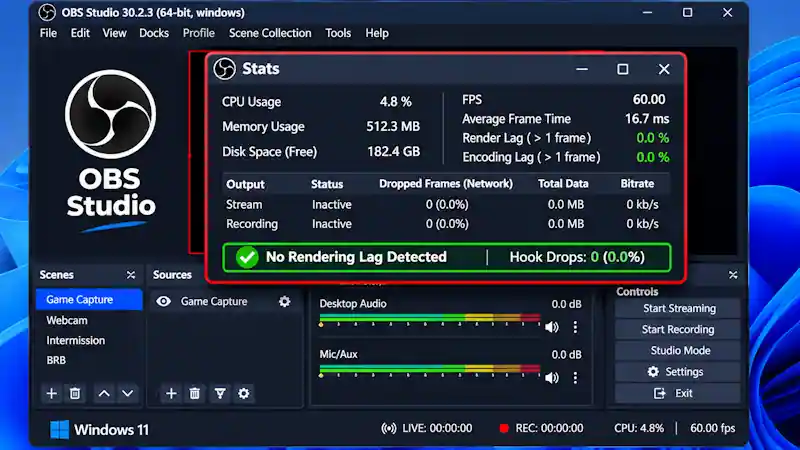
- Check the OBS Stats Dock Dashboard:
- Open OBS Studio on your desktop.
- Click Docks > Stats from the top menu bar.
- Start your game and reproduce the blank canvas error.
- Check the counters for Frames missed due to rendering lag and Skipped frames due to encoding lag.
- If these metrics read 0.0%, your problem is strictly a process capture or hooking error—not system encoding lag.
- If rendering lag values are high, you must resolve your GPU overload issues before modifying your Game Capture profiles.
- Review the Active OBS Log File:
- Reproduce the dark screen error for about 30 seconds while your game runs in the background.
- Inside OBS, click Help > Log Files > View Current Log (or press the
Ctrl + Lshortcut). - Press
Ctrl + Fand search for all string entries containinggame-capture. - Scan the log text for explicit warning signatures like
hook failed: 0x5(Access Denied) orinit_dxgi_hook: failed. - Do not rely on a single log string as definitive proof; use the overall log feedback to narrow down permission or graphic channel issues.
- Run the Official Project Log Analyzer:
- Navigate directly to Help > Log Files > Upload Current Log File.
- Click the Copy URL button once the upload process completes.
- Open the official cloud-based OBS Project Log Analyzer portal in your browser.
- Paste your copied URL into the box and thoroughly review the automated analysis results.
- Pay close attention to system alerts regarding missing administrator rights, conflicting multi-GPU routing paths, or multiple Game Capture sources stacked in the same scene.
Quick Reference: Symptoms, Root Causes, and Immediate Fixes
| Symptom | Likely Cause | Next Step |
| Game Capture stays black while the game runs | OBS may lack permission or the game may block hooking | Run OBS as administrator; if needed, test Use anti-cheat compatibility hook. |
| Black screen on a laptop or multi-GPU PC | OBS and the game may use different GPUs | In Settings > System > Display > Graphics, set both apps to the same dedicated GPU. |
| Black screen with overlays active | Overlay or fullscreen swapchain conflict | Disable one overlay at a time (Discord, RTSS); try Borderless Windowed mode. |
| Capture works, then turns black after Alt-Tab | Fullscreen game stops rendering when unfocused | Set Hook Rate to Normal (recommended); use Capture specific window. |
| Game crashes when Game Capture starts | Third-party injection conflict | Configure RTSS injection delay; add safe exclusions to your antivirus. |
7 Working Methods to Resolve OBS Game Capture Black Screen on Windows 11
1. Run OBS Studio with Administrator Privileges to Fix the Black Screen
Modern Windows 11 User Account Control (UAC) settings often block standard applications from injecting DLL hooks into elevated game processes. Running OBS Studio with heightened permissions allows the software to bypass these security layers and instantly resolves the OBS game capture black screen bug.
- Before you begin:
- Close OBS Studio completely.
- Shut down your running game process.
- Locate the Executable File:
- Navigate to the default installation directory:
C:\Program Files\obs-studio\bin\64bit\obs64.exe
- Navigate to the default installation directory:
- Configure Permanent Administrator Rights:
- Right-click
obs64.exe(or your desktop shortcut) and select Properties. - Click on the Compatibility tab in the properties window.
- Locate the Settings grouping area.
- Check the box labeled Run this program as an administrator.
- Click Apply, then click OK to save changes.
- Right-click
- Verify and Test the Stream Capture:
- Launch OBS Studio again.
- Click Yes when the Windows UAC security prompt appears.
- Open your target game in the background.
- Switch your active OBS scene to the Game Capture source.
- Verify that the preview canvas renders your gameplay properly.
If this step fails to eliminate the capture issue, check our foundational companion piece on how to fix OBS game capture black screen for additional environment-specific checks, or proceed immediately to the hybrid GPU routing configuration detailed in Method 2.
2. Match GPU Allocation in Windows 11 Graphics Settings
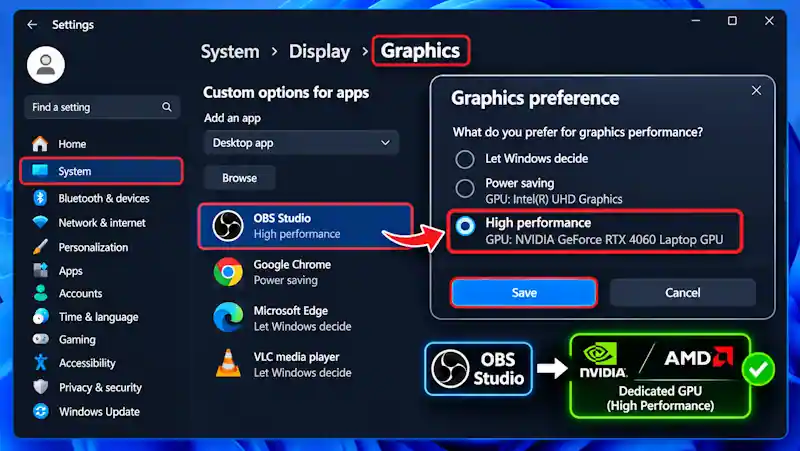
On dual-GPU systems—especially hybrid gaming laptops featuring integrated graphics and a discrete card—Windows 11 often misroutes display memory pools. This cross-adapter routing conflict prevents the software from capturing shared DirectX surface textures, resulting in the dreaded OBS game capture black screen bug.
To ensure unified hardware routing, assign both your streaming software and your game engine to the exact same high-performance graphics card.
- Before you begin:
- Close OBS Studio completely.
- Shut down your active game process.
- Open the Graphics Settings Menu:
- Press the keyboard shortcut
Win + Ito open Windows Settings. - Navigate directly to System > Display > Graphics.
- Press the keyboard shortcut
- Configure the Dedicated Performance Profile:
- Scroll down to the Custom options for apps section.
- Look for OBS Studio in the populated list.
- If missing: Click Browse, navigate to
C:\Program Files\obs-studio\bin\64bit\obs64.exe, select the executable, and click Add. - Click on the OBS Studio entry and select the Options button.
- Under the Graphics preference window, select High performance.
- Note: Ensure your dedicated NVIDIA GeForce, AMD Radeon, or Intel Arc GPU is explicitly listed.
- Click Save to apply the configuration.
- Repeat these identical steps for your specific game executable file to keep both programs on the same GPU layer.
- Verify and Test the Settings:
- Launch OBS Studio on your desktop.
- Click Help > Log Files > View Current Log from the top menu bar.
- Scan the first 30 text lines to verify that the D3D11 adapter name matches your dedicated GPU.
- Launch your game and check if the stream preview window renders your gameplay correctly.
If the visual pipeline remains dark, advance immediately to Method 3 to adjust the dedicated window hook properties.
3. Reconfigure Game Capture Source Hook Properties

The default automatic profile uses broad auto-detection to capture any fullscreen application. If a game launches slowly or utilizes a non-standard window border, the initial graphics handshake times out. This timeout breaks the transmission pipeline and triggers an immediate OBS game capture black screen error.
Forcing the software to hook into an explicit executable pathway permanently resolves this handshake timeout issue.
- Before you begin:
- Keep your target game running actively in the background.
- Access the Source Settings Menu:
- Navigate to the Sources dock inside the main OBS Studio interface.
- Adjust the Graphics Hook Parameters:
- Double-click your existing Game Capture source (or click the source and select the Gear icon).
- Change the Mode dropdown menu from Capture any fullscreen application to Capture specific window.
- Click the Window dropdown and select your active game process (e.g.,
[GameName.exe]: Game Title). - Set the Window Match Priority to Match title, otherwise find window of same executable.
- Verify that the box for Use anti-cheat compatibility hook is strictly checked.
- Configure the Hook Rate selection to Normal to prevent overworking the render thread.
- Keep the Capture third-party overlays (such as steam) box unchecked unless explicitly required.
- Verify and Test the Graphics Pipeline:
- Check that the small preview window inside the properties box displays your live game frame.
- Click OK to save and commit your modified properties.
- Tab back into your game for 5 seconds to generate fresh graphics draw calls.
- Tab back to OBS Studio to confirm that the display output is stabilized.
If the canvas remains completely black, proceed directly to Method 4 to isolate third-party software hook conflicts.
4. Resolve Third-Party In-Game Overlay Conflicts
In-game overlays function by injecting custom rendering hooks directly into the game’s active graphics pipeline. When software like Discord, RivaTuner, or Steam attempts to hook the graphics swapchain simultaneously, the injection sequences collide. This collision forces the software to abort its transmission, resulting in a sudden OBS game capture black screen bug.
Disabling or delaying these competing background overlays allows your streaming software to establish a clean visual hook.
- Before you begin:
- Close OBS Studio completely.
- Shut down your running game process.
- Disable Conflicting App Overlays:
- Discord: Go to User Settings (gear icon) > Game Overlay > Toggle Enable in-game overlay to the Off position.
- RivaTuner Statistics Server (RTSS): Open RTSS from the system tray. Click Add and select your game’s executable. Set the Application detection level to None. Alternative Fix: Change the global Injection delay (ms) setting from
0to15000to let OBS hook the game first. - NVIDIA App / GeForce Experience: Open the application. Click Settings (gear icon) in the top-right menu and toggle the In-Game Overlay switch to Off.
- Steam: Navigate to Steam > Settings > In-Game and uncheck the box labeled Enable the Steam Overlay while in-game.
- Verify and Test the Graphics Feed:
- Press
Ctrl + Shift + Escto open the Windows Task Manager. - Confirm that no residual overlay helpers (such as
DiscordHookHelper64.exeorGameOverlayUI.exe) are running. - Launch OBS Studio as an administrator, open your game, and verify that the video pipeline is fully restored.
- Press
If the canvas remains pitch black, proceed immediately to Method 5 to evaluate conflicting Windows system capture modules.
5. Disable Conflicting Windows 11 Capture & Game Bar Settings
Windows 11 includes background screen capture and Game DVR modules that continuously poll display handles via the Desktop Window Manager (DWM). When these background services attempt to record or buffer gameplay simultaneously, they contend for exclusive access to the graphics presentation chain, triggering an unexpected OBS game capture black screen.
Turning off these background capture services ensures Windows dedicates its graphics buffer exclusively to your active game and your broadcasting pipeline.
- Before you begin:
- Close OBS Studio completely.
- Save your progress and shut down all active games.
- Close any background clip-recording utilities (such as Medal.tv or Outplayed).
- Disable Xbox Game Bar & Background Captures:
- Press the keyboard shortcut
Win + Ito open Windows Settings. - In the left sidebar, click on Gaming.
- Select Xbox Game Bar:
- Set the master toggle labeled Allow your controller to open Game Bar to Off.
- Return to the Gaming menu and click on Captures:
- Set Record what happened (background recording) strictly to Off.
- Set Capture audio when recording a game to Off.
- Toggle Record mouse cursor when recording a game to Off.
- Return to the Gaming menu and click on Game Mode:
- Confirm that Game Mode is toggled On. On modern Windows 11 releases, Game Mode guarantees consistent thread allocation and GPU scheduling to both the active game and an elevated OBS instance.
- Press the keyboard shortcut
- Verify and Test the Graphics Feed:
- Restart your computer to clear lingering background DVR hooks and recording handles from system memory.
- Launch OBS Studio as an administrator.
- Launch your game, tab into the game window for 5 to 10 seconds, and switch to your Game Capture scene.
- Confirm whether the preview canvas properly renders your game stream.
If the canvas remains completely black, proceed directly to Method 6 to evaluate display color bit-depth and HDR swapchain mismatches.
6. Adjust Windows 11 Auto HDR and OBS Color Formats
Windows 11 Auto HDR dynamically switches the rendering swapchain from standard 8-bit SDR to 10-bit or 16-bit scRGB floating-point formats. If OBS Studio is configured for an 8-bit SDR canvas (NV12 or I420) while the game outputs in a wide color gamut format without proper tone-mapping, the capture pipeline fails to interpret the surface buffer, producing an OBS game capture black screen.
Aligning your operating system HDR state with OBS Studio’s internal color matrix restores proper frame composition.
- Before you begin:
- Close your target game completely.
- Keep OBS Studio open to adjust video rendering parameters.
- Configure Windows Display HDR Settings:
- Press
Win + Ito open Windows Settings, then navigate to System > Display > HDR. - If your monitor does not have certified high-peak-brightness HDR hardware (or if you stream strictly in standard SDR):
- Toggle Use HDR to Off.
- Toggle Auto HDR to Off.
- If you intentionally broadcast in HDR, consult the official Microsoft Auto HDR Support Documentation to verify proper display calibration.
- Press
- Align OBS Studio Color Properties:
- In OBS Studio, click File > Settings from the top menu bar (or click Settings in the Controls dock).
- In the left panel, select Advanced.
- Scroll to the Video settings section:
- For standard SDR streaming:
- Set Color Format to NV12.
- Set Color Space to Rec. 709.
- Set Color Range to Limited (Partial) to prevent black level crush.
- For high dynamic range (HDR) streaming:
- Set Color Format to P010 (10-bit, 4:2:0).
- Set Color Space to Rec. 2100 (PQ) or Rec. 2100 (HLG).
- Set SDR White Level to 300 nits (or your display’s calibrated balance).
- For standard SDR streaming:
- Click Apply, then click OK.
- Verify and Test the Graphics Feed:
- Relaunch OBS Studio as an administrator to apply the internal color matrix adjustments.
- Launch your game, set its display mode to Borderless Windowed inside the in-game display options, and check the OBS preview.
- If the image renders correctly, switch the game back to Exclusive Fullscreen to confirm the hook remains intact.
If the preview canvas remains pitch black across all display modes, proceed to the comprehensive driver cleanup procedure in Method 7.
7. Perform a Clean GPU Driver Reinstallation (DDU Method)

Safety Precaution & Data Backup Warning: Before tweaking these settings, make sure to back up your current configuration files just in case! Create a Windows System Restore Point and back up your OBS scene collections by navigating to Scene Collection > Export.
Corrupted display driver state repositories, damaged DirectX runtime files, or broken registry values prevent graphics-hook64.dll from accessing the shared DXGI swapchain. Performing a clean slate driver purge removes conflicting driver remnants that cause the persistent OBS game capture black screen bug.
- Before you begin:
- Download the latest official graphics driver for your specific card directly from the official portals:
- For NVIDIA cards: NVIDIA Official Driver Downloads
- For AMD cards: AMD Drivers and Support Portal
- For Intel Arc cards: Intel Arc Graphics Driver Support
- Download the official portable edition of Display Driver Uninstaller from the Wagnardsoft DDU Official Download Page.
- Disconnect your computer from the internet (unplug your Ethernet cable or disconnect from Wi-Fi) to stop Windows Update from automatically pulling and installing an outdated generic driver mid-process.
- Download the latest official graphics driver for your specific card directly from the official portals:
- Boot Windows 11 into Safe Mode:
- Hold down the
Shiftkey on your keyboard while clicking Restart in the Windows Start Menu. - On the blue recovery interface, navigate to Troubleshoot > Advanced Options > Startup Settings, then click the Restart button.
- When your computer reboots to the Startup Settings screen, press
4orF4to load into Safe Mode.
- Hold down the
- Execute the Driver Cleanup:
- Extract the downloaded DDU archive and launch
Display Driver Uninstaller.exe. - On the right-hand panel, select GPU from the Select device type dropdown.
- Select your specific graphics hardware manufacturer (NVIDIA, AMD, or Intel) from the Select device dropdown.
- Click the top button: Clean and restart.
- Allow DDU to completely wipe the existing display drivers, cache files, and registry entries. Your system will reboot automatically back into normal Windows.
- Extract the downloaded DDU archive and launch
- Install the Fresh Driver Package:
- Once back in standard Windows, run the clean driver installer package you downloaded earlier.
- If installing NVIDIA drivers:
- Select NVIDIA Graphics Driver (Custom / Advanced installation).
- Check the box labeled Perform a clean installation.
- Complete the on-screen installation wizard and restart your computer one final time.
- Reconnect your Ethernet cable or Wi-Fi connection.
- Verify and Test the Capture Hook:
- Press
Win + Xand select Device Manager. Expand Display adapters to verify your dedicated GPU is listed cleanly with zero error badges or warning triangles. - Right-click your OBS Studio shortcut and select Run as administrator.
- Launch your game, navigate to your streaming scene, and verify that the Game Capture source hooks the game frames smoothly.
- Press
Common Mistakes to Avoid When Fixing OBS Game Capture Black Screen
- Stacking Display Capture and Game Capture in the Same Scene: Never place an active Game Capture source directly on top of an active Display Capture source in the same scene layout. Both sources continuously compete for desktop compositor priority and rendering resources, which frequently causes the graphics hook to disconnect and drop back to a solid black screen. Always separate Display Capture and Game Capture into entirely different scenes.
- Using Standard Window Capture for Modern Fullscreen DirectX 12 Games: When Game Capture fails, many streamers switch to Window Capture without adjusting its capture engine. On modern Windows 11 DirectX 12 and Vulkan titles, standard Window Capture either fails to hook or produces heavy frame pacing stutter. If you must use Window Capture as an emergency fallback, you must set its Capture Method explicitly to Windows 10 (1903 and up) to leverage modern Windows Graphics Capture (WGC) memory sharing.
Frequently Asked Questions
Why does OBS Game Capture show a black screen on some games but not others?
Different games use distinct graphics APIs (DirectX 11, DirectX 12, Vulkan, or OpenGL) and anti-cheat architectures. Titles protected by kernel-level anti-cheat engines (such as Easy Anti-Cheat, BattlEye, or Riot Vanguard) block unauthorized third-party DLL injection by default. Unless OBS Studio is launched with administrator privileges and the “Use anti-cheat compatibility hook” toggle is active, the game’s security engine blocks the OBS hook, producing a black screen while leaving simpler games unaffected.
What should I do if a specific game refuses to work with Game Capture?
If a proprietary anti-cheat system or custom rendering engine completely blocks Game Capture after completing all troubleshooting steps, switch to an emergency scene using a Display Capture source. In the Display Capture properties, set the Capture Method to Windows 10 (1903 and up). While this captures your entire monitor rather than just the isolated game window, it completely bypasses process injection, ensuring you can stream the game without dropping your broadcast.
Does Windows 11 Game Mode cause an OBS Game Capture black screen?
Windows 11 Game Mode does not cause a black screen on its own; in fact, modern versions help balance CPU and GPU thread scheduling. However, if OBS Studio is launched without administrator privileges while Game Mode is enabled, Windows aggressively prioritizes hardware resources for the game window and throttles the un-elevated OBS background process. Running OBS Studio as an administrator prevents Windows from starving the capture thread.
4 Comments
7 Proven Fixes For OBS Not Capturing Audio From Desktop Or Headset (Ultimate Guide)
November 6, 20267 Proven Fixes For Streamlabs OBS Dropped Frames On Low End PC (Ultimate Guide)
November 6, 20267 Proven Ways To Fix Dropped Frames And Disconnection Issues In OBS Studio (2026 Guide)
November 2, 2026Fix Capture Card Black Screen In OBS: 5 Console Streaming Fixes (2026)
October 29, 2026