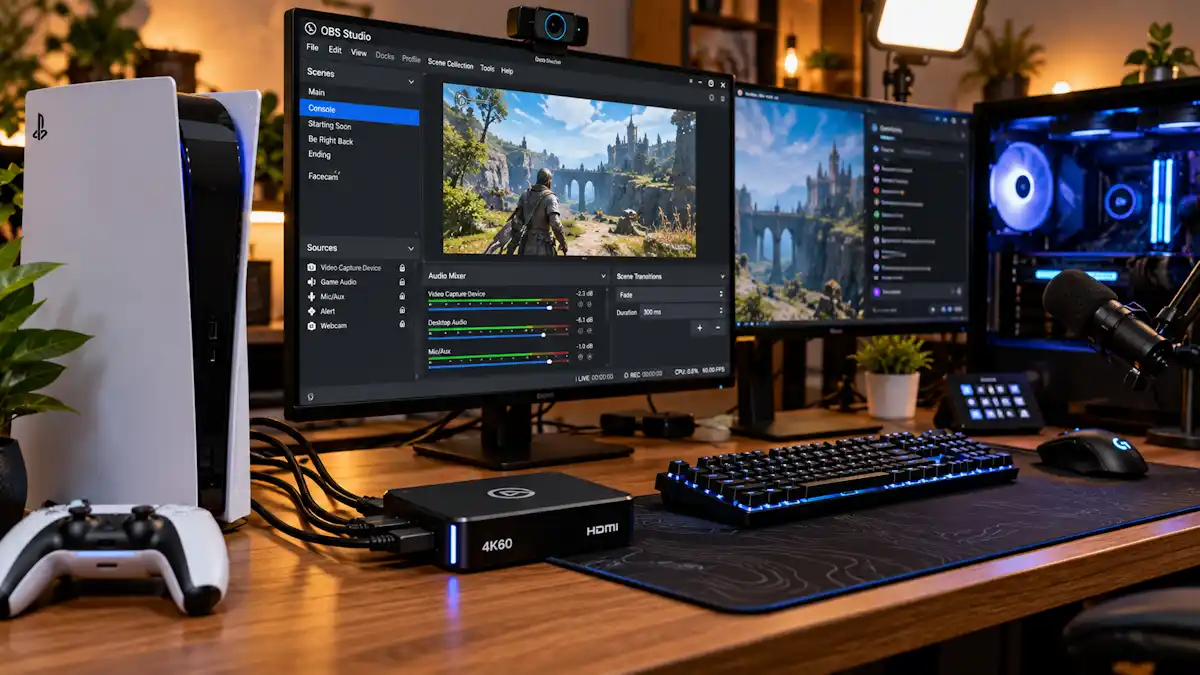
Quick Summary / The 30-Second Fix: If your capture card shows a black feed, turn off HDCP on your console (PS5: Settings > System > HDMI > Enable HDCP > Off) and plug your USB capture card directly into a rear motherboard USB 3.x port—never a front case jack or unpowered hub.
Works on: Windows 11 (26H2 / 25H2 / 24H2), Windows 10 22H2 (with ESU) | macOS Tahoe 26, Sequoia 15, Sonoma 14 | OBS Studio v32+ & v33+ | PS5, Xbox Series X|S, Switch & Switch 2, and Dual-PC rigs.
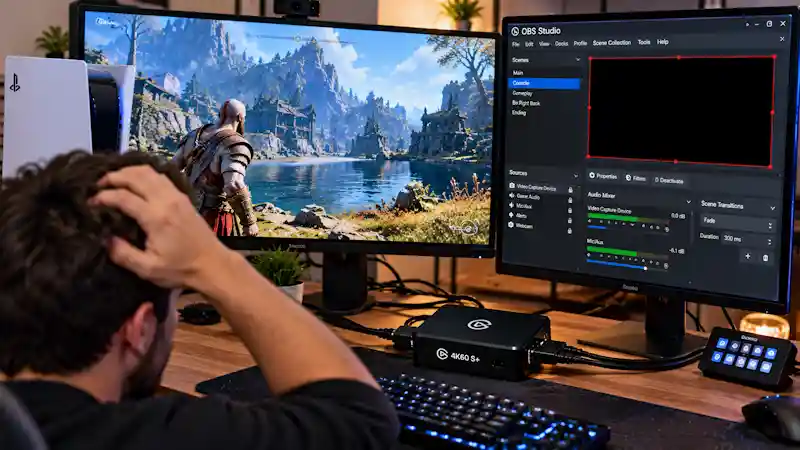
Staring at a stubborn blank preview window right before going live will spike any streamer’s blood pressure.
When you run into a capture card black screen in OBS, the culprit is rarely a dead capture card. It’s usually an HDCP copyright handshake lock, a USB controller bandwidth or power bottleneck, or a mismatched Video Capture Device resolution/FPS setting inside your source properties.
If your streaming rig runs into display canvas failures on the PC side instead of console hardware, see our walkthrough on how to fix OBS game capture black screen to check GPU graphics hooks.
Diagnose the Root Cause Before Tweaking Settings
Guessing at random software toggles can corrupt your scene setups. Before changing advanced driver profiles, systematically find exactly where your console’s video signal pipeline breaks.
- Check the OBS Stats Telemetry Matrix: Open OBS Studio and go to Docks > Stats from the top application menu bar. Watch your rendering and encoding lag counters while your capture source is active. If these indicators stay at zero but the preview window remains entirely blank, your streaming hardware optimization is clean. The failure is completely isolated to the physical capture loop, active HDMI cables, or local device driver layers.
- Read Your Capture Card’s Hardware Status LED: Look directly at your device housing. Blink patterns vary wildly across different models:
- Elgato HD60 X: A solid blue LED confirms a verified incoming HDMI signal handshake. A rapid red flash signals zero signal or an incompatible refresh rate layout.
- Elgato 4K X: A solid blue light indicates a high-speed USB 3.x controller link with a verified signal. A solid white light warns that the USB 3.x link is running, but no active console video feed is detected. An orange LED warns you are bottlenecked by a slow USB 2.0 port protocol. For exact flash cadence maps, reference the Elgato LED Status Indicator Documentation.
- Isolate Faults via Native HDMI Passthrough: Route an HDMI cable from your console directly into the card’s HDMI IN, then route an external monitor line away from the HDMI OUT port. If your game engine displays perfectly on the TV screen with zero input lag, your console configurations and video links are pristine. This isolates your capture card black screen in OBS bug strictly to the local computer interface line, corrupted parent driver files, or a mismatched source property profile.
Symptom vs. Immediate Resolution Matrix
| Symptom in OBS | Likely Root Cause | Immediate 10-Second Resolution |
| Black screen, but console audio works | HDCP protection or unsupported video mode | Turn off HDCP in console HDMI settings; match OBS source resolution/FPS to console output. |
| Black screen with “Device Busy” error | Another app is locking the capture device | Close vendor capture apps, Discord, or second OBS instances; toggle Windows camera permissions. |
| Flickering black screen or stutter | USB bandwidth, power drops, or bad cable | Move capture card from a hub/front-panel port to a direct rear motherboard USB 3.x port. |
| “No Signal” on preview or vendor app | Console output not reaching card digitizer | Reseat/swap HDMI cable, disable HDCP, and temporarily force console to 1080p/60Hz SDR. |
Safety Warning: Before tweaking these settings, make sure to back up your current configuration files just in case! In OBS Studio, go to Scene Collection > Export and save a snapshot of your layout to your desktop so you never lose your scene overlays.
5 Ways to Eliminate the Capture Card Black Screen in OBS
1. Disable Console HDCP Protection
HDCP (High-bandwidth Digital Content Protection) encrypts your console’s outbound HDMI video signal to block unauthorized recording devices.
- When this copyright flag triggers, modern capture cards instantly blind their pipelines, leaving you stuck with a capture card black screen in OBS layout.
- PlayStation 5 Protocol:
- Navigate to Settings > System > HDMI.
- Flip the Enable HDCP switch to Off.
- Perform a cold system reboot, then re-initialize your OBS application window.
- PlayStation 4 Legacy Rigs:
- Open Settings > System from the dashboard.
- Clear the checkbox for Enable HDCP.
- Crucial Operational Caveat: This setting operates for raw gameplay capture only. You must manually re-enable this setting before running DRM platforms like Netflix or playing commercial Blu-ray/DVD discs.
- Xbox Series X|S Environment Reset:
- Close active streaming media hubs (like YouTube, Spotify, or Netflix) entirely before initializing your capture pipeline.
- Avoid keeping your console locked in continuous Standby/Sleep modes, as standby parameters lock the unverified HDCP state.
- Navigate to Settings > General > Power options and initiate a manual Full Shutdown instead of sleep mode to completely flush out stuck hardware chip handshakes.
- Nintendo Switch & Switch 2 Architecture:
- Always lock the device inside its official OEM docking unit; portable handheld profiles cannot output external video lines over raw USB-C.
- Route the physical HDMI core output line directly to the HDMI IN port of your streaming card.
- Drop third-party low-profile travel docks completely when diagnosing failures to bypass unpredictable device micro-code updates.
- If the video transmission breaks down while docking/undocking, reconnect the unit to the dock and restart the capture source inside the OBS Video Capture Device properties menu.
2. Check Windows Camera Permissions and USB Power Management
Some USB capture cards appear to the operating system as camera-class video devices. If system-wide camera access is blocked, OBS cannot open the stream even though your hardware links are functional.
If you are setting up virtual feeds across Discord or Zoom alongside your console, our guide on how to resolve an OBS virtual camera not showing up walks through similar DirectShow access bottlenecks.
- Enable Camera Access for OBS:
- Open your system dashboard and go to Start > Settings > Privacy & security > Camera.
- Switch the master toggle for Camera access to On.
- Switch the secondary toggle for Let apps access your camera to On.
- Scroll down the menu page and turn on Let desktop apps access your camera.
- Restart OBS Studio, open your source properties, and toggle your capture source off and back on.
- Disable USB Power Saving Toggles:
- Right-click your Windows Start button and select Device Manager from the pop-up list.
- Scroll down the device tree and expand Universal Serial Bus controllers.
- Double-click a listed USB Root Hub (USB 3.0 / USB 3.2) entry to open its properties window.
- Click over to the Power Management tab, if available for that specific hub controller.
- Uncheck the option for Allow the computer to turn off this device to save power.
- Click OK, then repeat these steps for other listed USB Root Hub entries where the option is present.
- Restart your computer completely to refresh the local hardware controllers.
- Operational Note: This optimization step directly addresses cards dropping out during extended live streams, freezing during gameplay spikes, or failing to revive after your PC wakes from system sleep mode.
- For broader driver deployment profiles and advanced operating system device troubleshooting guidelines, consult the Microsoft Windows Hardware & Device Support Guide.
3. Rebuild Video Capture Device Properties in OBS Studio
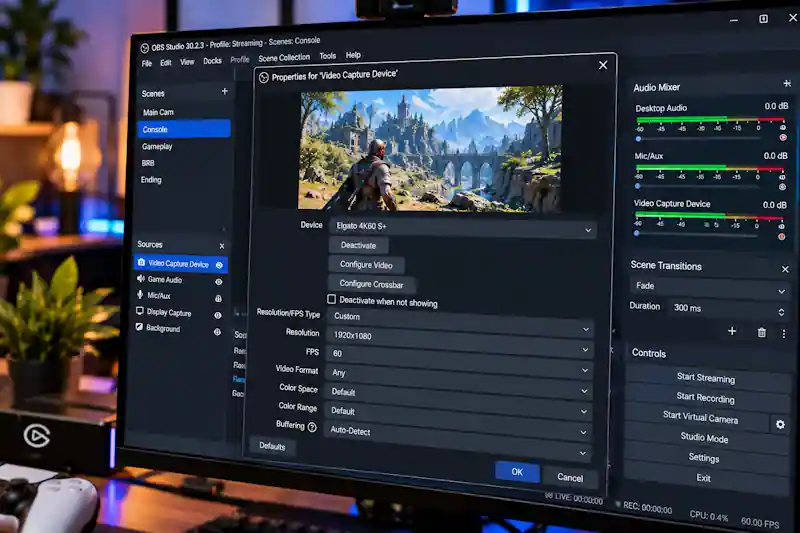
Abrupt changes to your console’s resolution or sudden frame drops can lock up the system’s DirectShow video stream capture hook. This leaves your viewport completely unresponsive until you force a manual driver handshake reset.
- Execute a Manual Source Handshake Reset:
- Go to the OBS Sources panel layout and double-click your specific capture card source icon.
- Locate the Deactivate button placed directly underneath the device selection dropdown bar.
- Click Deactivate, count to 5 to let the Windows background system thread clear out, and then click Activate.
- Override Failed Auto-Negotiation Presets:
- Scroll down inside the device properties menu box until you find Resolution/FPS Type.
- Change the selection setting away from Device Default and set it strictly to Custom.
- Click the Resolution drop-box array and select the exact output resolution of your source console layout (e.g., select 1920×1080 or 3840×2160).
- Lock Rigid Performance Specs to Prevent Blank Drops:
- Click the FPS field option box and select an absolute target parameter match (like 60 or Match Output FPS).
- Operational Hazard: Do not leave the frame rate input blank after setting the resolution to custom; missing frame configurations will instantly result in a continuous capture card black screen in OBS layout.
- Change the Video Format parameter choice from Any directly to NV12 or YUY2 to bypass processing latency loops.
- Click OK at the bottom of the properties menu window to lock your customized signal parameters.
- Review the Official OBS Studio Video Source Documentation if your specialized multi-input capture card requires specific hardware color space mapping adjustments.
4. Switch from Front Panel Case Ports to Motherboard USB 3.2 Gen 2
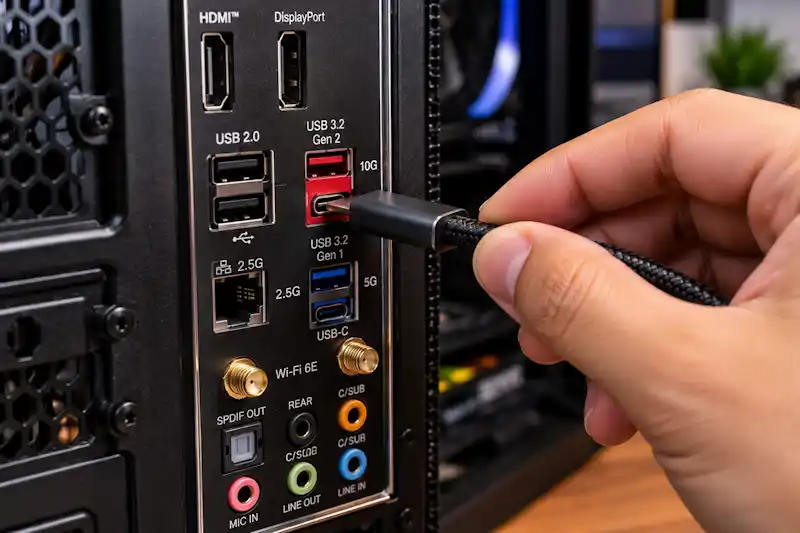
High-end external capture nodes like the Elgato 4K X or AVerMedia Live Gamer ULTRA 2.1 require an absolute minimum data pipeline bandwidth of 10 Gbps (USB 3.2 Gen 2).
- The Front Panel Signal Drop: Connecting these heavy hardware interfaces into front case I/O ports or internal top panels introduces voltage drops due to lengthy internal case chassis wires. This often results in a permanent capture card black screen in OBS fault state.
- Execute an Airtight Peripheral Cleanout:
- Unplug the high-speed interface connector away from the top or front expansion slots of your PC case.
- Disconnect all unpowered USB hubs, structural pass-through links on gaming monitors, or legacy keyboard extensions to prevent bus resource splitting.
- Target High-Speed Motherboard Hub Terminals:
- Connect the capture device link directly into a rear motherboard interface hub slot located at the back of the computer.
- Color Matching Protocol: Prioritize physical slot ports embedded with Red or Teal plastic brackets (which denote USB 3.2 Gen 2 10 Gbps capability). Avoid standard Blue ports (USB 3.2 Gen 1 5 Gbps) if you are processing raw 4K streams.
- Verify Cable Technical Classifications:
- Ensure the active interface line is a certified high-speed data transmission cord explicitly rated for 10 Gbps or 20 Gbps throughput.
- Avoid low-cost phone charging cables; these legacy accessories limit performance architecture down to old USB 2.0 parameters (480 Mbps), instantly prompting hardware processing stalls.
- If you run a dual-PC streaming setup where your secondary system runs into software capture freezes on the OS layer, check our fix for OBS game capture black screen on Windows 11 to configure dedicated GPU graphic preferences.
5. Disable Variable Refresh Rate (VRR) & 120Hz Output Handshakes
Legacy capture nodes utilizing standard HDMI 2.0 specifications are capped at a maximum throughput of 18 Gbps. Sending high-speed HDMI 2.1 data packets—such as a 4K resolution running at 120Hz or containing active Variable Refresh Rate (VRR) signals—instantly overwhelms older hardware chips, triggering a permanent capture card black screen in OBS layout.
- Configure PS5 Display Frameworks:
- Boot your console dashboard and navigate directly to Settings > Screen and Video > Video Output.
- Locate the VRR (Variable Refresh Rate) configuration tab and switch it to Off.
- Scroll down to the 120 Hz Output structural line and change the setting profile to Off.
- Override Dynamic EDID Handshakes:
- Locate the Resolution selector box inside the same system menu layout.
- Change the configuration parameter away from Automatic and force a fixed baseline (such as 1080p or 1440p) that matches your specific card’s technical limitations.
- De-escalate Color Matrix Overloads:
- Find the Deep Color Output operational option toggle.
- Switch this parameter layout to Off to prevent the console from sending dense 10-bit or 12-bit chroma stream packages.
- Operational Benefit: This modification forces the console to push standard, unencrypted 8-bit color matrices, immediately reducing processing overhead across the capture card hardware encoder pipeline.
- If you stream browser-based overlays, emulators, or chat clients that freeze under similar hardware-accelerated conditions, look into our guide to solve OBS capture specific window black screen issues.
Common Mistakes to Avoid
- Relying on Front PC Case Ports or Passive USB Hubs: Plugging high-bandwidth external capture cards into unpowered desktop splitters or front-panel case ports starves the device’s internal microcontrollers of necessary bus bandwidth and operating voltage. This power starvation causes immediate signal brownouts, resulting in instant capture card black screen in OBS errors or intermittent audio syncing drops.
- Toggling Console Display Settings While OBS is Open: Altering output resolutions, refresh rates, or HDR toggles on your gaming console dashboard while the OBS software is actively reading the device’s media stream pipeline triggers a hot-plug event that drops the active EDID handshake. Because the OBS DirectShow video pin framework cannot dynamically renegotiate changing input properties on the fly, the preview window drops into a permanent freeze. Always close OBS Studio completely or click Deactivate inside the source properties panel before adjusting console video configurations.
Frequently Asked Questions
Why does my capture card have a black screen in OBS but passthrough works perfectly on my TV?
Native hardware passthrough operates via a dedicated, uncompressed HDMI split loop built directly into the card’s chassis interface that routes video signals to your gaming monitor without system delay. If your TV screen displays the console feed but your preview window remains entirely blank, your console configuration and incoming HDMI cables are fully operational. This precise behavior means the underlying failure exists between the capture card’s internal digitizer chip and your computer motherboard. It points to a bad USB data cable, an overloaded USB host controller bus, blocked Windows camera privacy permissions, or an active HDCP lock from the console dashboard.
Do I need to turn off HDCP every single time I want to stream on my PS5?
No. Once you turn off the Enable HDCP toggle inside your console’s settings menu, the PlayStation 5 permanently retains that system state across reboots and full power closures. However, keep in mind that media streaming hubs like Netflix, Prime Video, Disney+, and Spotify utilize strict digital rights management. They will refuse to launch or stream content until you jump back into your console system settings and turn HDCP back on.
Can an outdated or corrupted graphics driver cause a capture card black screen in OBS?
Yes. OBS Studio relies directly on your computer’s graphics card hardware processing architectures using Direct3D 11 or Direct3D 12 rendering pipelines to draw all incoming video feeds onto your display canvas. If your local graphics card drivers are unstable or corrupted, the system cannot process the incoming DirectShow video feed from your capture source, resulting in a persistent capture card black screen in OBS layout. Keeping your display drivers updated via clean installation profiles ensures smooth hardware acceleration allocation and blocks runtime application rendering failures.
4 Comments
6 Working Fixes For OBS Audio Out Of Sync Issue When Streaming (2026 Guide)
November 4, 20267 Proven Ways To Fix Dropped Frames And Disconnection Issues In OBS Studio (2026 Guide)
November 3, 20265 Working Fixes For OBS Studio 33.0.0 Crash Fix & Discord Black Screen (2026 Guide)
November 1, 20265 Working Fixes: Discord Not Detecting OBS Virtual Camera & Startup Crashes
October 30, 2026