
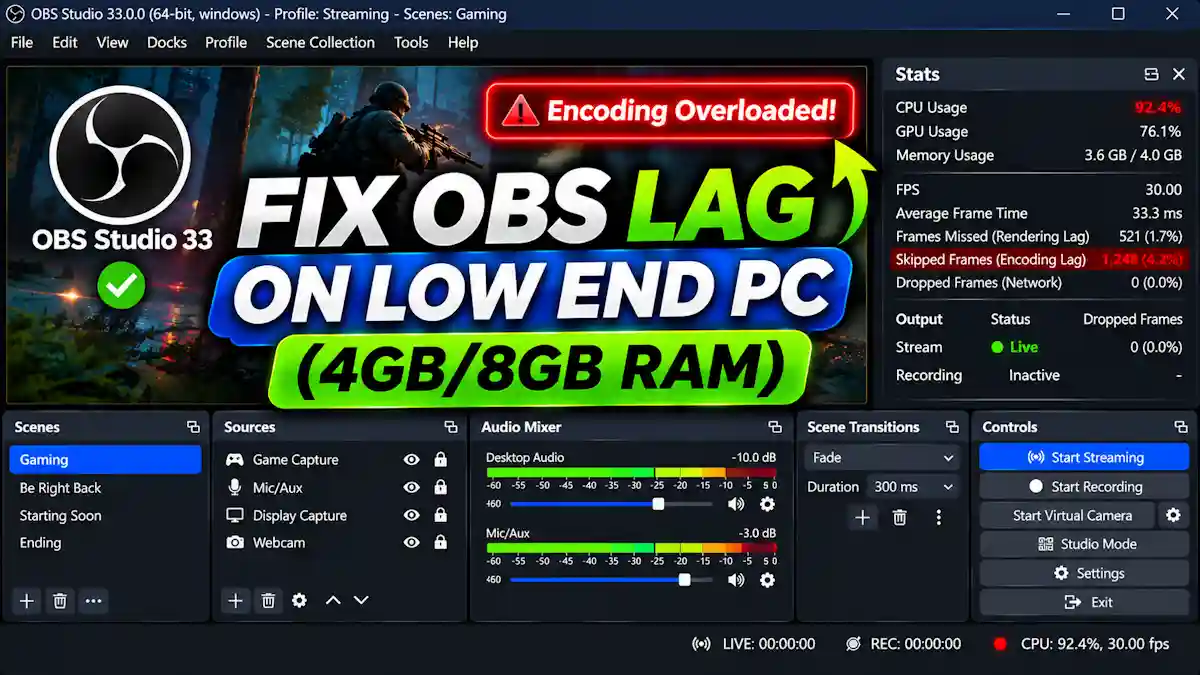
Quick Summary / The 30-Second Fix: Apply the Best OBS Settings for Low End PC by running OBS Studio as Administrator, locking both Base and Output Resolution to 1280×720 at 30 FPS with the Bilinear filter, and switching your Video Encoder from x264 to Intel QuickSync (QSV), AMD HW, or NVENC. Right-click the main canvas and uncheck Enable Preview to immediately save 10% to 15% integrated GPU 3D load.
Works on: Windows 11 (24H2 / 25H2 / 26H2) / Windows 10 / macOS 13+ / OBS Studio v33.0.1 (Latest) & v32.2 / 4GB & 8GB RAM PCs (Intel UHD, Iris Xe, AMD Radeon Vega, GTX/RTX)
To eliminate choppy video and high frame render times on a 4GB or 8GB RAM system, offload video compression from your CPU cores to a dedicated hardware media block like Intel QuickSync (QSV) while setting your native canvas directly to 720p30. Launching OBS Studio with Administrator privileges forces the Windows Desktop Window Manager (DWM) scheduler to reserve high-priority Direct3D 11 swapchain resources for frame compositing, stopping your game from starving the stream encoder.
Diagnose Hardware Bottlenecks via the OBS Stats Dock
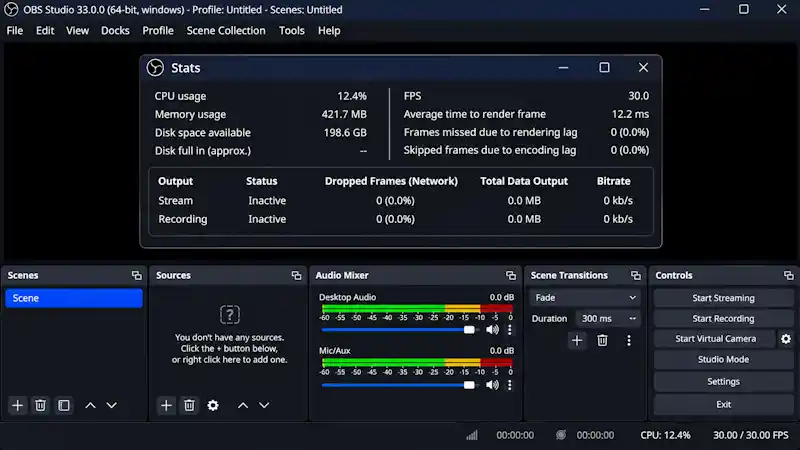
Never change settings blindly. Open your built-in telemetry dock first to verify whether your processor, integrated graphics chip, or system memory is causing the stutter.
- Click Docks in the top navigation bar and select Stats to open the real-time hardware monitor.
- Check Time to render frame at the top left of the window.
- Keep this number strictly under 33.3 ms when streaming at 30 FPS or 16.6 ms at 60 FPS.
- Inspect Frames missed due to rendering lag to see if your GPU 3D engine is maxed out at 99% utilization.
- Inspect Skipped frames due to encoding lag to confirm if your CPU or hardware encoder chip is overloaded.
- Read the official OBS Studio Encoding Performance Troubleshooting Guide to see how OBS prioritizes GPU compositing slices.
| Primary Symptom | Root Hardware Cause | Immediate 10-Second Solution |
| Encoding Overloaded Warning | CPU hitting 100% on x264 software encoding | Switch Encoder to Intel QSV, AMD HW, NVENC, or x264 ultrafast |
| Rendering Lag / Stuttering | GPU 3D engine starved by uncapped game FPS | Run OBS as Admin and cap in-game frame rate to 60 FPS |
| OBS Freezes on 4GB / 8GB RAM | RAM exhausted by Chromium Browser Sources | Check Shutdown source when not visible on all Browser Sources |
| Blank Window Capture Screen | Legacy BitBlt hook failing on modern apps | Change Window Capture Method to Modern (WGC) in OBS 33.0.1 |
If your diagnostic check shows the software suddenly closing on its own rather than just dropping frames, follow our guide on how to fix OBS Studio crashing with no error message on Windows to repair broken system hooks.
How to Configure the Best OBS Settings for Low End PC
Apply these adjustments step-by-step from simple application settings to deeper Windows OS configurations.
1. Force Windows GPU Priority and Disable the Canvas Preview
OBS requires dedicated Direct3D rendering headroom to assemble your scene before encoding begins. When a game hits 99% GPU usage on budget hardware, Windows starves OBS unless you elevate its process priority.
- Close OBS Studio completely.
- Right-click your OBS Studio desktop shortcut and click Properties.
- Open the Compatibility tab and check Run this program as an administrator.
- Click Apply and OK to permanently reserve GPU scheduling priority.
- Open OBS Studio, right-click anywhere inside the video preview window, and click Enable Preview to uncheck and disable it.
- Turning off the live preview stops your integrated GPU from rendering an extra uncompressed viewport on your monitor.
If you are trying to stream or share your screen after updating and encounter a blank capture window, check our walkthrough on the OBS Studio 33.0.0 crash fix and Discord black screen solution.
2. Dial in the Best OBS Settings for Low End PC Video & Output Tabs
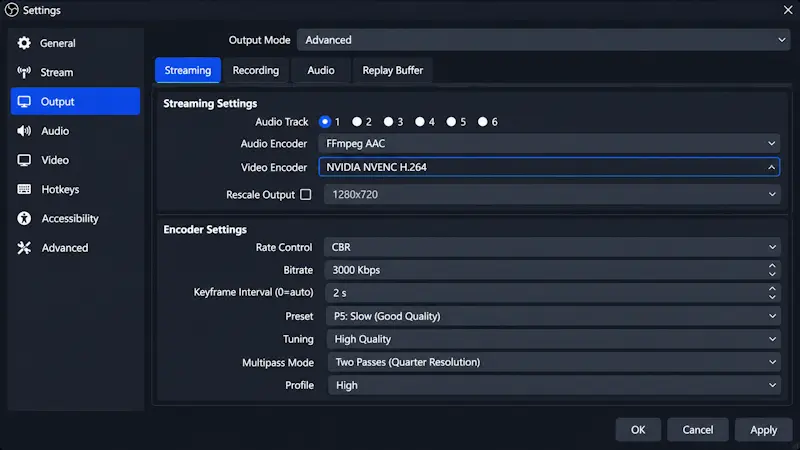
Downscaling inside the Output tab forces your weak processor to render a heavy 1080p canvas before shrinking it. Lowering your Base (Canvas) Resolution directly inside the Video tab saves massive memory bandwidth on single-channel 4GB and 8GB RAM PCs.
- Click Settings in the bottom-right controls dock and open the Video tab.
- Set Base (Canvas) Resolution to 1280×720 so OBS composites all scenes natively at 720p.
- Set Output (Scaled) Resolution to 1280×720 for a 1:1 pixel match with zero downscaling penalty.
- Set Downscale Filter to Bilinear (Fastest, but blurry if scaling) to bypass heavy shader math.
- Change Common FPS Values to 30 to double your frame rendering budget from 16.6 ms to 33.3 ms.
- Open the Output tab and change Output Mode at the top to Advanced.
- Select the Streaming tab and apply the exact hardware settings for your specific processor under the Best OBS Settings for Low End PC:
- For Intel UHD / Iris Xe Laptops (QuickSync H.264): Set Rate Control to CBR, Bitrate to 3000 Kbps, Keyframe Interval to 2 s, and Target Usage to TU7 (Fastest) or TU6.
- For Budget NVIDIA GTX / RTX Cards (NVIDIA NVENC H.264): Set Rate Control to CBR, Bitrate to 3500 Kbps, Preset to P1 (Fastest) or P3, Multipass Mode to Single Pass, and uncheck both Look-ahead and Adaptive Quantization (formerly called Psycho Visual Tuning) as documented in the Official OBS Advanced NVENC Guide.
- For AMD Radeon Integrated Vega APUs (AMD HW H.264): Set Rate Control to CBR, Bitrate to 3000 Kbps, Preset to Speed, and Max B-frames to 0.
- For Very Old CPUs Without Hardware Encoders (x264): Set Rate Control to CBR, Bitrate to 2500 Kbps, and CPU Usage Preset to ultrafast.
- Switch to the Recording tab and set Recording Format to Hybrid MP4, which prevents corrupted video files if your 4GB RAM laptop crashes or loses power, featuring improved file-splitting stability in the Official OBS Studio 33.0.1 Release Notes.
Once your video encoder is running smoothly, if you notice your game sound or microphone isn’t coming through on the recording, read our step-by-step fix for OBS not capturing audio.
3. Strip RAM-Heavy Chromium Browser Sources (4GB / 8GB RAM Fix)
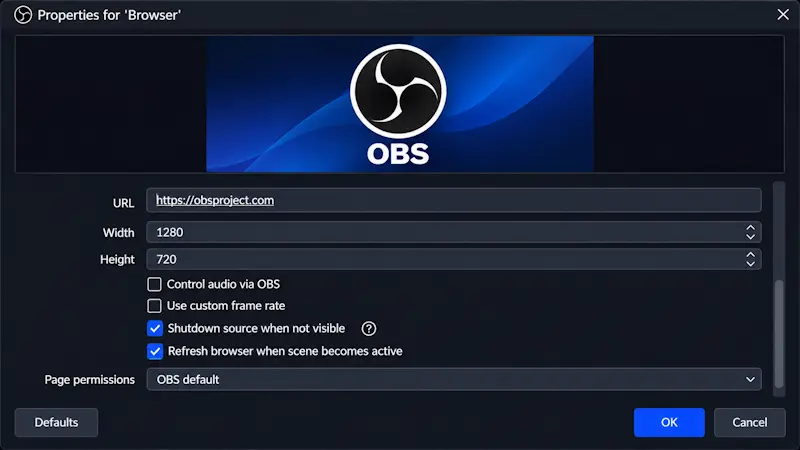
OBS Studio 33.0.1 features an updated Chromium Embedded Framework (CEF) backend for Browser Sources. On a 4GB or 8GB RAM machine, three active animated alert overlays will still consume 400 MB+ of RAM and force Windows into slow SSD pagefile swapping.
- Double-click each Browser Source in your Sources dock to open its properties.
- Scroll down and check Shutdown source when not visible.
- Check Refresh browser when scene becomes active to clear accumulated memory leaks when switching scenes.
- Navigate to Settings > Advanced, scroll down to the Sources section, and uncheck Enable Browser Source Hardware Acceleration if your integrated GPU shares system RAM.
- Delete heavy animated
.webmstinger transitions and replace them with a simple Cut or Fade transition in the Scene Transitions dock. - Open Windows Task Manager (
Ctrl + Shift + Esc) and confirm OBS Studio stays below 400 MB of RAM while idle.
If your stream still freezes the exact moment an alert box pops up on screen, follow our dedicated guide to resolve the OBS Studio 33.0 browser source crash.
4. Optimize Windows 11 (25H2 / 26H2) Graphics & Capture Pipeline
Safety & System Precaution: Before modifying Windows graphics scheduling settings or system configurations, create a manual System Restore Point (type Create a restore point in Windows Search). Inside OBS Studio, click Profile > Export and Scene Collection > Export to save a backup of your current layout.
Windows 11 background recording hooks and uncompressed color spaces waste valuable memory bandwidth on low-end laptops.
- Open Settings > Advanced in OBS Studio and locate the Video section.
- Set Color Format to NV12 (8-bit, 4:2:0, 2 planes), Color Space to Rec. 709, and Color Range to Limited to minimize GPU memory bandwidth.
- Double-click your Window Capture source in the Sources dock if you capture non-fullscreen apps or games.
- Set Capture Method to Modern (WGC) in OBS Studio 33.0.1 (or Windows 10 (1903 and up) if you are on OBS 32 or older) for tear-free capture.
- Open Windows Settings (
Win + I) and go to Gaming > Game Bar. - Toggle Allow your controller to open Game Bar to Off.
- Go to Gaming > Captures and switch Record what happened to Off so Windows stops running a background encoder in your RAM.
- Go to Gaming > Game Mode and toggle Game Mode to On to prioritize foreground game and capture threads, as detailed in Microsoft’s Windows Gaming Documentation.
- Navigate to System > Display > Graphics > Advanced graphics settings and toggle Hardware-accelerated GPU scheduling (HAGS) to Off if you experience micro-stuttering on older GTX 10-series, 16-series, or integrated UHD graphics.
If you also use your OBS output as a webcam feed for voice chats and run into recognition bugs after disabling background hooks, check out our Discord not detecting OBS Virtual Camera fix. Similarly, if you use Streamlabs instead of standard OBS Studio and still experience network or encoder stutter after applying the Best OBS Settings for Low End PC, read our guide on fixing Streamlabs OBS dropped frames on a low end PC.
Common Mistakes to Avoid
- Checking “Rescale Output” Inside the Output Tab: Enabling Rescale Output under
Settings > Output > Streamingbypasses your fast GPU Video tab scaler and forces the encoder to rescale frames twice, causing immediate encoding overload. Always scale resolution strictly insideSettings > Video. - Using Display Capture for Gaming on Single-Channel RAM: Display Capture records your entire desktop along with every background window, eating massive VRAM and system memory. Always use Game Capture (or Window Capture set to Modern (WGC) in OBS 33+) to hook directly into the game window.
Frequently Asked Questions (FAQs)
Can I stream or record with OBS Studio on 4GB RAM without lag?
Yes, you can record and stream on a 4GB RAM laptop by using the Best OBS Settings for Low End PC, which includes removing all Browser Sources, setting your Base and Output Resolution to 1280×720 at 30 FPS, and closing background web browsers. You must also select your integrated GPU hardware encoder (Intel QSV or AMD HW) so OBS uses less than 350 MB of RAM.
Should I use x264 or Intel QuickSync (QSV) on a low-end PC?
Always choose Intel QuickSync (QSV) over x264 on an Intel laptop or office desktop. QuickSync uses a dedicated hardware media circuit on your Intel chip to encode video with almost zero CPU load, whereas x264 uses software CPU threads that will immediately freeze your game on a dual-core or quad-core processor.
Why did the “Windows 10 (1903 and up)” Window Capture method disappear in OBS 33?
In OBS Studio 33.0.0 and 33.0.1, the developers officially renamed the Windows Graphics Capture method from “Windows 10 (1903 and up)” to Modern (WGC). Selecting Modern (WGC) or leaving the Capture Method on Automatic delivers the exact same low-latency window capture without black or white screens.
Why does OBS lag when my CPU usage is below 25%?
OBS lags at low CPU usage when your graphics card hits 99% to 100% 3D utilization, leaving zero rendering headroom for OBS to assemble the scene. Cap your in-game frame rate to 60 FPS, turn on V-Sync, and run OBS Studio as Administrator so Windows reserves enough GPU capacity to render every frame on time.