Quick Summary / The 30-Second Fix:
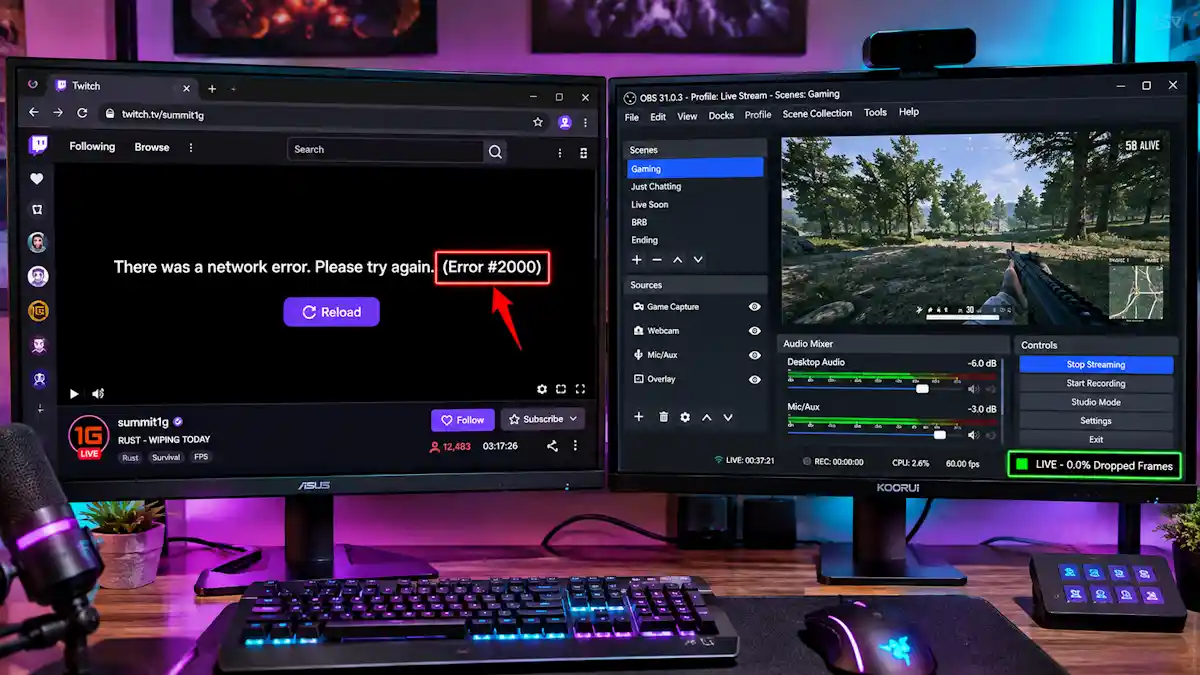
Twitch Error Code 2000 is a generic secure-connection drop between Chrome and Twitch’s media servers, usually triggered by aggressive Manifest V3 ad-blockers, corrupted local session tokens, or third-party web shields. Hard-refresh your browser (Ctrl + Shift + R on Windows or Cmd + Shift + R on Mac) or test the stream in an Incognito window to isolate the conflict instantly.
Works on: Windows 11 (24H2 / 26H2) | macOS Tahoe & Golden Gate | Google Chrome (v130+) | OBS Studio v33.0+ | NVIDIA GeForce RTX 40/50-Series & AMD RX 7000/8000 GPUs
Why Does Twitch Error Code 2000 Crash Your Live Stream?
Twitch Error Code 2000 is a client-side network disconnect where Google Chrome fails to maintain a persistent WebSocket or HLS (HTTP Live Streaming) handshake with Twitch’s decentralized edge servers. Whether you’re monitoring your own broadcast via the Twitch Creator Dashboard or watching a co-stream, this error kills the video player while your actual upload from the official OBS Studio software continues running in the background.
Step 0: Diagnose the Root Cause First (Streamer vs. Viewer Side)
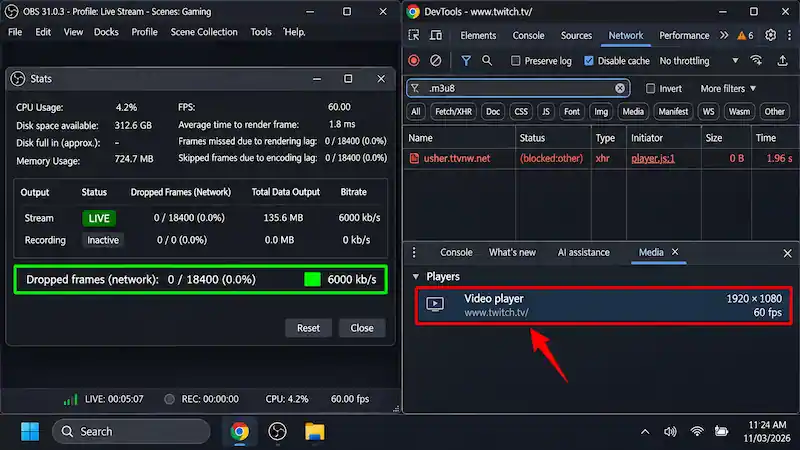
Before reconfiguring your Chrome architecture, verify whether your outbound broadcast is dropping frames or if Chrome’s local video decoder is choking on bad packet routing.
- Check Your Outbound Encoder First: Open OBS Studio and navigate to Docks > Stats along the top menu bar.
- Verify Dropped Frames (Network): Look at the Dropped Frames (Network) counter at the bottom right; if it sits at 0.0%, your upstream broadcast is healthy and the failure is strictly inside Google Chrome. (If your encoder is dropping frames or closing unexpectedly, follow our dedicated guide to fix OBS Studio hardware encoding overload and silent crashes).
- Inspect the Chrome DevTools Network Tab: Open your failing Twitch tab in Chrome and press Ctrl + Shift + I (or F12) to launch Developer Tools.
- Filter for Manifest Failures: Click the Network tab at the top, type
usher.ttvnw.netor.m3u8into the filter box, and press Ctrl + Shift + R to reload the stream. - Read the Status Code: If you see red entries labeled
(blocked:other)orCORS error, a Chrome extension is hijacking the video player; if you seeERR_TIMED_OUTorERR_NAME_NOT_RESOLVED, your local DNS or firewall is dropping packets from Twitch Edge Compute Nodes and Points of Presence (PoPs). - Trace Secure Handshake Errors via the Media Drawer: Inside Chrome DevTools (Ctrl + Shift + I), click the Three Dots (More Options) icon in the top-right corner, select More Tools > Media to open the Media drawer, and select the active video instance on the left to inspect real-time decoder state and secure network handshake errors.
- Verification: You have isolated whether the pipeline break is triggered by a browser script blocker (Methods 1–3) or OS-level network and hardware thread contention (Methods 4–7).
7 Proven Methods to Resolve Twitch Error Code 2000 on Chrome
Execute these fixes in chronological order, starting with browser-level Manifest V3 script conflicts before modifying your Windows 11 network stack.
1. Bypass Corrupted Cache & Isolate Manifest V3 Extensions via Incognito
Twitch updates its SureStream ad-injection architecture constantly, causing declarative net request rules inside Manifest V3 extensions to sever the video player’s data stream mid-broadcast.
- Force a Hard Cache Reload: Click inside your active Twitch Chrome window and press Ctrl + Shift + R (Windows) or Cmd + Shift + R (Mac) to bypass local cache files and pull a clean video manifest.
- Launch an Isolated Session: Press Ctrl + Shift + N in Chrome to open a clean Incognito window with zero active extensions or cached tokens.
- Test Your Stream URL: Log into your Twitch account inside the Incognito window and load your live stream or Creator Dashboard.
- Open the Chrome Extension Manager: If the stream plays without error in Incognito, return to your main window and follow the Google Chrome extension management steps by clicking Extensions (puzzle piece icon) > Manage Extensions.
- Disable Known Manifest V3 Offenders: Toggle off standard Manifest V3 script blockers—specifically uBlock Origin Lite and AdGuard AdBlocker MV3—alongside third-party proxy-routing extensions (TTV LOL PRO, Purple Ads Blocker, or Alternate Player for Twitch.tv).
- Whitelist Twitch Directly: If you require uBlock Origin Lite or AdGuard AdBlocker MV3 active for other tabs, open the extension popup and slide the filtering mode to “No filtering” or “Disable on this site” for
twitch.tvanddashboard.twitch.tv. - Verification: Press Ctrl + Shift + R on your standard Chrome tab; the live stream should initialize within 2 seconds without throwing the Twitch Error Code 2000 overlay.
2. Purge Corrupted Twitch Site Data & Chrome Cookies
Outdated OAuth tokens and bloated IndexedDB or LocalStorage databases inside Chrome often prevent the player from authenticating your session with Twitch’s media servers.
⚠️ Data & 2FA Session Backup Warning: Deleting on-device site data and cookies will immediately sign you out of Twitch, break active browser-based stream alerts if you haven’t saved their URLs, and reset local Creator Dashboard layouts. Back up your two-factor authentication (2FA) recovery codes and save any custom browser source URLs before proceeding.
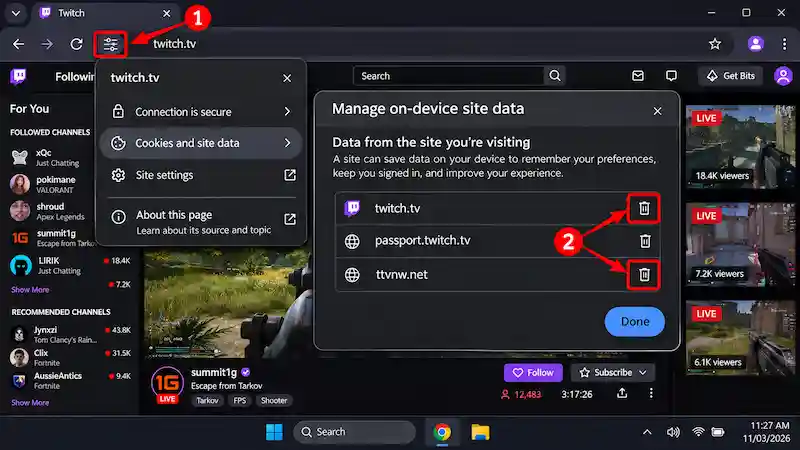
- Open Site Information Controls: Navigate to
twitch.tvin Chrome and click the Site Information (tune icon) on the far left of the address bar. - Access Cookies and Site Data: Click Cookies and site data from the initial popup layer.
- Open On-Device Storage Manager: Select Manage on-device site data at the bottom of the menu to expose active database containers.
- Delete Specific Database Entries: Click the Trash Can (Delete) icon next to
twitch.tv,passport.twitch.tv, andttvnw.net, then click Done to purge corrupted tokens without wiping your entire browser history. - Perform a Full Cache Purge (If Needed): If the token conflict persists across sub-domains, follow the official Google Account cache clearing procedure by pressing Ctrl + Shift + Delete, setting the Time range to All time, checking Cookies and other site data and Cached images and files, and clicking the Delete data button.
- Verification: Log back into Twitch from scratch and load a 1080p60 broadcast; your session token will regenerate cleanly inside the DevTools Media drawer.
3. Disable Antivirus HTTPS Web Shield & Bypass VPN Kernel Hooks
Twitch actively throttles known VPN IP addresses to combat view-botting, while third-party antivirus suites often mistake Twitch’s dynamic HLS decryption streams for malicious scripts.
- Kill Active System VPN Connections: Open your desktop VPN client (ExpressVPN, NordVPN, ProtonVPN, or Mullvad) and click Disconnect.
- Use Browser Extension Overrides Over App Split-Tunneling: Due to Windows 11 (24H2/26H2) WFP kernel alterations, desktop VPN clients like Mullvad have modified how local app-based split-tunneling hooks interact with Chromium sandboxed processes; instead of relying on desktop split-tunneling, disable the system-wide VPN and use a browser-specific proxy extension configured to exclude
*.twitch.tv. (If a VPN or driver conflict is also breaking your local camera or Elgato feeds, check our step-by-step guide on how to fix Discord virtual camera and capture card black screens). - Open Your Antivirus Dashboard: Launch your third-party security suite (such as Bitdefender, Kaspersky, Avast, or Malwarebytes) or check your Windows Defender Firewall settings.
- Locate HTTPS/Web Scanning: Navigate to Protection > Web Shield (or Encrypted Web Scan / HTTPS Scanning).
- Whitelist Twitch Edge Domains: Add
twitch.tvandttvnw.netto the Web Shield exclusion list so your security software stops intercepting encrypted HLS video chunks mid-stream. - Verification: Press Ctrl + Shift + R in Chrome and monitor the stream for 5 minutes to confirm your security suite no longer severs the WebSocket connection.
4. Flush Windows DNS Cache & Reset Winsock Catalog
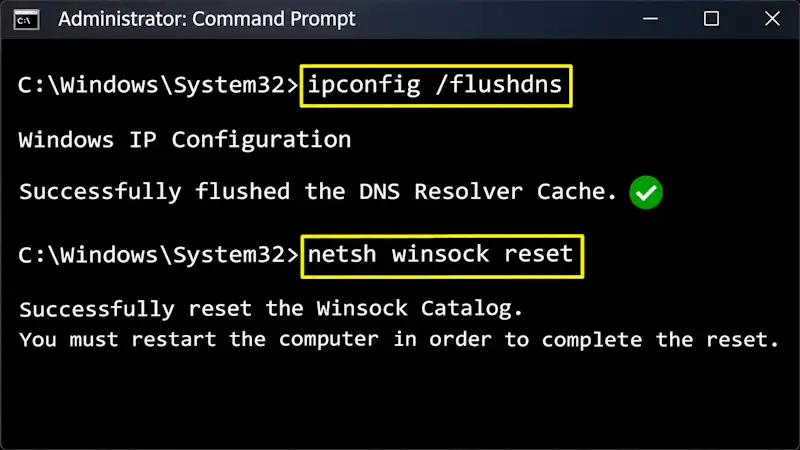
When Twitch dynamically shifts traffic across its decentralized Twitch Edge Compute Nodes and Points of Presence (PoPs), stale local DNS entries on your PC will cause Chrome to request video chunks from dead endpoints.
⚠️ Network Reset Warning: Running Winsock and IP reset commands will briefly sever your active internet connection. Never execute these commands while you are actively live-streaming from the same PC, or your OBS Studio broadcast will immediately disconnect.
- Launch Elevated Command Prompt: Press the Windows Key, type
cmd, right-click Command Prompt, and select Run as administrator. - Purge the DNS Resolver Cache: Type
ipconfig /flushdnsand press Enter to wipe outdated domain-to-IP mappings. - Release Current IP Leases: Type
ipconfig /releaseand press Enter, followed immediately byipconfig /renewand Enter. - Reset the Winsock Catalog: Type
netsh winsock resetand press Enter to repair corrupted Windows socket configurations. - Reboot Your System: Restart your Windows 11 rig to initialize the clean network stack.
- Verification: Command Prompt will return
"Successfully flushed the DNS Resolver Cache"and Chrome will automatically handshake with your nearest Twitch Point of Presence (PoP) on reboot.
5. Switch to Cloudflare 1.1.1.1 DNS & Configure Chrome Secure DNS
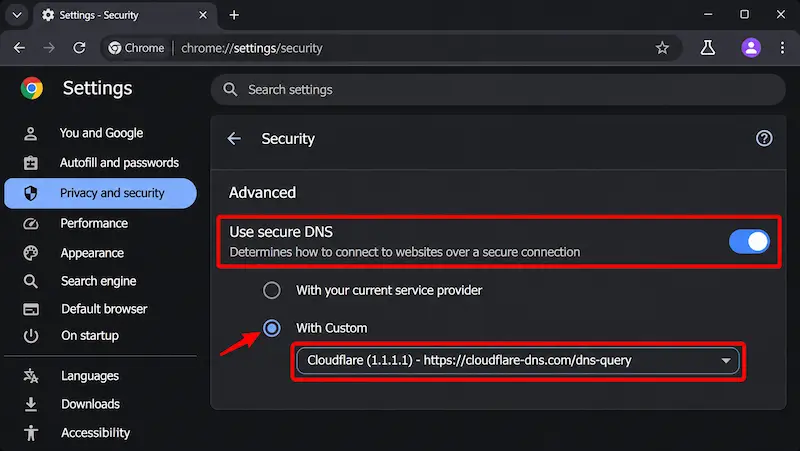
Default ISP DNS resolvers (Comcast Xfinity, Spectrum, AT&T) routinely throttle or misroute high-bandwidth Twitch HLS streams during peak US evening hours.
- Open Chrome Security Settings: Click the Three Dots (More Options) menu in the top-right corner of Chrome and navigate to Settings > Privacy and security > Security.
- Locate Secure DNS: Scroll down to the Advanced section and enable the Use secure DNS toggle.
- Configure Custom DoH Provider: Select the With Custom radio button and choose Cloudflare (1.1.1.1) from the dropdown menu; if the preset service provider dropdown is unavailable on your Chromium build, manually enter the explicit DNS-over-HTTPS (DoH) address
https://cloudflare-dns.com/dns-query(orhttps://cloudflare-dns.com) into the Custom text field. - Update System-Level DNS: For hardware-level stability across both Chrome and OBS Studio, open Windows Settings (Win + I) > Network & internet > Ethernet (or Wi-Fi) > Hardware properties.
- Assign Static IPv4 DNS Servers: Click Edit next to DNS server assignment, switch the dropdown from Automatic (DHCP) to Manual, toggle IPv4 On, and input
1.1.1.1as Preferred DNS and1.0.0.1as Alternate DNS before clicking Save. - Verification: Visit the official Cloudflare 1.1.1.1 DNS verification page in Chrome and confirm that “Using DNS over HTTPS (DoH)” displays Yes.
6. Toggle Graphics Acceleration & Fix ANGLE Backend Contention
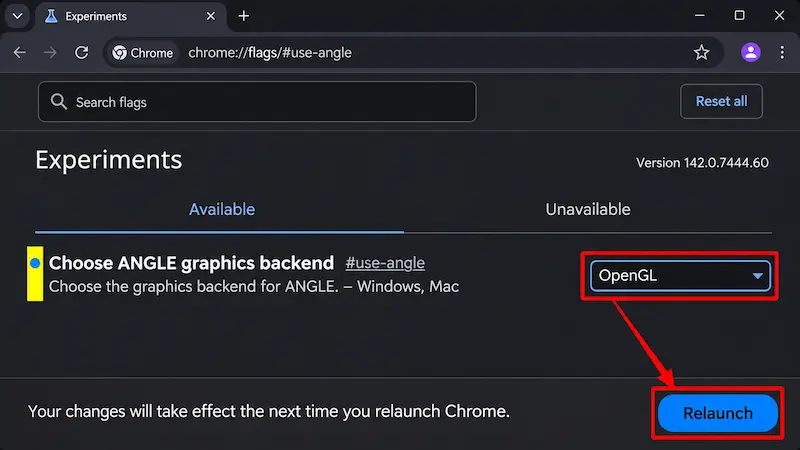
When running GPU-intensive games on NVIDIA GeForce RTX 50-Series or 40-Series cards alongside OBS Studio and a Chrome stream preview on a secondary monitor, Windows Hardware-Accelerated GPU Scheduling (HAGS) can starve Chrome’s rendering process and trigger a false Twitch Error Code 2000.
- Open Chrome System Settings: Click the Three Dots menu in Chrome and navigate to Settings > System.
- Test Without Graphics Acceleration: Toggle off Use graphics acceleration when available and click the Relaunch button next to the toggle to shift video decoding onto your CPU.
- Access the ANGLE Graphics Backend Flag: If CPU decoding introduces frame skipping on high-refresh-rate monitors, re-enable graphics acceleration, type
chrome://flags/#use-angleinto your Chrome address bar, and press Enter. - Switch to OpenGL or Default Thread Composition: Because modern Chromium builds have deprecated and removed the legacy
D3D11on12flag, multi-monitor streamers should change the Choose ANGLE graphics backend dropdown from Default to native OpenGL (or revert to Default hardware thread compositions if previously modified) and click Relaunch at the bottom right. (If CEF hardware acceleration is also causing your custom stream alerts or docks to freeze inside OBS, read our dedicated walkthrough on how to fix OBS Studio v33.0.0 browser source crashes). - Verification: Launch your game at uncapped framerates alongside your Twitch Chrome tab; the video player will no longer drop its decoder instance when your RTX GPU hits 99% utilization. (If your game feed itself turns blank inside OBS after toggling OpenGL or HAGS, check our guide to resolve OBS game capture black screen glitches).
7. Verify Live Edge PoP Status & Disable Low-Latency Buffering
If an upstream Amazon Web Services (AWS) edge router goes dark, Chrome cannot fetch video segments regardless of your local configuration.
- Check Real-Time Edge Uptime: Visit a live server monitor like the Instatus Twitch.tv live outage tracker to check if Twitch Edge Compute Nodes and Points of Presence (PoPs) or Playback APIs are experiencing regional US degradation.
- Open Twitch Player Advanced Settings: Click the Settings (Gear Icon) inside the bottom-right corner of the Twitch video player and select Advanced.
- Toggle Low Latency Off: Switch the Low Latency toggle to the Off position.
- Verification: Disabling Low Latency expands Chrome’s local HLS playback buffer by 3 to 5 seconds, preventing micro-dropouts from triggering Twitch Error Code 2000 during regional PoP congestion.
Quick Symptom & Root Cause Matrix
| Core Symptom | Primary Root Cause | Immediate 10-Second Solution |
| Stream freezes with “Network Error 2000” overlay | Manifest V3 ad-blocker (uBlock Origin Lite / AdGuard MV3) clashing with SureStream ad-injection | Disable filtering on twitch.tv and press Ctrl + Shift + R (Cmd + Shift + R on Mac) |
| Error 2000 happens only in Creator Dashboard | Corrupted Chrome IndexedDB tokens or expired session cookies | Click Site Information icon > Cookies and site data > Manage on-device site data and delete twitch.tv entries |
| All Twitch streams fail to load across Chrome | ISP DNS routing failure across Twitch Edge Compute Nodes / PoPs or flagged VPN IP | Disconnect your system VPN and configure Chrome Secure DNS to [https://cloudflare-dns.com](https://cloudflare-dns.com) |
| Stream drops whenever a game launches on PC | Antivirus “HTTPS Web Shield” blocking streams or RTX GPU thread contention | Whitelist *.twitch.tv / *.ttvnw.net in Web Shield and switch chrome://flags/#use-angle to OpenGL |
Common Mistakes to Avoid
- Spamming Standard Refresh Instead of Hard-Reloading: Pressing standard F5 (or clicking the circular reload icon) forces Chrome to read the exact same corrupted local cache files that crashed the video player—always press Ctrl + Shift + R (or Cmd + Shift + R on Mac) to force a clean manifest pull from Twitch’s edge servers.
- Stacking Multiple Manifest V3 Ad-Blockers: Running uBlock Origin Lite alongside AdGuard AdBlocker MV3 or third-party Twitch proxy extensions triggers declarative net request race conditions that immediately break Twitch’s HLS media player and lock Chrome into a permanent Error 2000 loop.
Frequently Asked Questions (FAQs)
Does Twitch Error Code 2000 mean I am banned or shadowbanned?
No, Twitch Error Code 2000 has zero connection to account suspensions, DMCA strikes, or Terms of Service violations. It is strictly a local browser playback and network handshake error indicating that Google Chrome lost its secure data connection to Twitch’s edge delivery servers.
Why do I only get Twitch Error Code 2000 on one specific streamer’s channel?
When Error 2000 isolatedly hits a single channel while other broadcasts play normally, your Manifest V3 ad-blocker is failing to parse a channel-specific mid-roll ad script, or that creator is broadcasting at a high source bitrate (8000+ Kbps) without transcoding options that your local Twitch Point of Presence (PoP) route is dropping. Lowering the player resolution from 1080p60 (Source) to 720p60 or disabling uBlock Origin Lite / AdGuard AdBlocker MV3 on that channel resolves it immediately.
Will fixing Chrome’s Error 2000 stop my OBS Studio stream from disconnecting?
Fixing Error 2000 inside Chrome only repairs video playback in your web browser, not your outbound RTMP or WHIP broadcast from OBS Studio v33.0+. However, if your Twitch Error Code 2000 was triggered by a system-wide DNS routing failure or an unstable desktop VPN hook (resolved in Methods 3, 4, and 5), repairing your Windows 11 network stack will simultaneously stabilize both Chrome and your outbound OBS Studio connection.
1 comment
6 Working Fixes For OBS Audio Out Of Sync Issue When Streaming (2026 Guide)
November 4, 2026