The dreaded OBS Game Capture black screen on Windows 10 is a frequent issue encountered by PC gamers and content creators. In most cases, it is rarely a hardware failure. Instead, it is caused by simple software-level conflicts, such as:
- Operating system permission boundaries (UAC blocks)
- Third-party software or overlay collisions
- GPU assignment mismatches on multi-adapter systems
Troubleshooting Decision Tree
Use this decision tree to identify the most relevant troubleshooting section based on your specific setup:
Follow this quick guide to find the exact fix for your setup:
- Are you experiencing an OBS Game Capture black screen?
- Does the black screen happen across EVERY game you launch?
- Using a dual-GPU laptop? ➔ Go to Fix 2 (Align GPU Preferences)
- Using a single-GPU desktop? ➔ Go to Fix 1 (Elevated Admin Rights)
- Does the black screen happen with only ONE specific game?
- Does the game crash or freeze on launch? ➔ Go to Fix 3 (Disable In-Game Overlays)
- Is it a modern DirectX 12 / Vulkan game? ➔ Go to Fix 4 (API & Windowed Display Mode)
- Does it use kernel-level anti-cheat? ➔ Go to Fix 5 (Window Capture Fallback)
- Does the black screen happen across EVERY game you launch?
Quick Troubleshooting Matrix
| Problem & Likely Cause | Recommended Troubleshooting Steps |
| All games show a black screen (Desktop) Cause: Windows UAC blocks elevated hooking | 1. Test running OBS Studio as an administrator. 2. If unresolved, inspect OBS session logs for hook rejection errors. |
| All games show a black screen (Laptop / Multi-GPU) Cause: OBS and game run on separate GPUs | 1. Set OBS Studio to “High performance” in Windows 10 Graphics settings. 2. Verify the game is running on the matching discrete GPU. |
| Game crashes, flickers, or closes on hook Cause: Third-party overlay collision | 1. Disable in-game overlays (Discord, Steam, GeForce Experience). 2. Check background tools like RivaTuner Statistics Server (RTSS). |
| Only specific DX12 or Vulkan titles fail Cause: Exclusive Fullscreen or API hook timing | 1. Switch the game from Exclusive Fullscreen to Borderless Windowed. 2. Test running under DirectX 11 if an in-game toggle exists. |
| Anti-cheat titles block capture Cause: Anti-cheat prevents external DLL injection | 1. Verify “Use anti-cheat compatibility hook” is enabled in source properties. 2. Switch to Window Capture using the Windows 10 (1903+) method. |
Why Does Game Capture Show a Black Screen?
OBS Studio’s Game Capture source captures video by injecting a dynamic hook library directly into the running game’s graphics rendering pipeline (such as DirectX, OpenGL, or Vulkan).
Because this method reads frames directly from the graphics memory used by the game engine, it offers lower latency and requires fewer system resources than capturing the entire desktop. However, this direct injection can fail if:
- Windows integrity levels prevent standard programs from hooking elevated applications.
- Another background application hooks into the same graphics presentation cycle.
- The game engine renders on a different graphics adapter than the one OBS Studio is capturing from.
- The game’s anti-cheat system or developer policies explicitly block third-party hooking.
For an in-depth technical breakdown of hook injection behavior, review the OBS Project Game Capture Guide. When the hook cannot initialize or frame transfers fail, the Game Capture source cannot receive data, resulting in a black preview canvas.
1. Test Running OBS Studio as Administrator
When This May Help
This step is relevant if Game Capture fails across multiple games on a desktop PC, or when capturing games that launch with elevated administrative privileges or use system-level anti-cheat services.
Technical Explanation
Under the Windows security architecture, an application running at standard user privileges cannot inspect memory or inject dynamic link libraries into a process running with elevated administrative rights. Running OBS Studio as an administrator grants it the matching integrity level required to establish the hook.
Step-by-Step Instructions
- Close OBS Studio and exit your game completely.
- Locate the OBS Studio shortcut on your desktop, or browse to
C:\Program Files\obs-studio\bin\64bit\obs64.exe. - Right-click the shortcut or
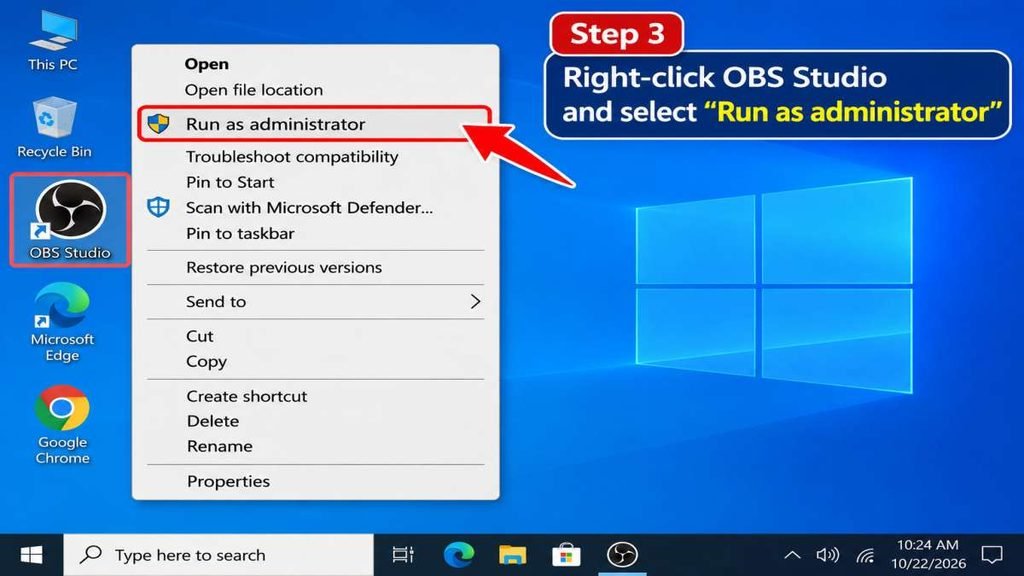
.exefile and select Run as administrator
4.Confirm the Windows User Account Control (UAC) prompt if prompted.
5.Launch your game, switch back to OBS, and check if the Game Capture source receives the feed.
Suggested Screenshot 1: The Windows context menu showing the right-click selection of Run as administrator on the OBS Studio shortcut icon.
How to Verify
If your game’s video feed appears in the OBS preview window while the game is running, the issue was caused by privilege-level restrictions.
Next Steps & Limitations
Running as administrator is an effective diagnostic test, but it is not a universal fix for overlay or multi-GPU issues. Note that running OBS Studio as administrator disables drag-and-drop functionality for files (such as images and media sources) from Windows File Explorer into OBS, because Windows prevents dragging files between differing user integrity levels.
2. Verify GPU Settings on Laptops and Multi-GPU Systems
When This May Help
This is the primary diagnostic step for gaming laptops or dual-GPU desktops where Game Capture fails across games, but other sources (like Display Capture) may work.
Technical Explanation
Laptops with hybrid graphics typically include both an integrated GPU (such as Intel Graphics or AMD Radeon) for energy efficiency and a dedicated discrete GPU (such as NVIDIA GeForce or AMD Radeon RX) for 3D applications.
According to the official OBS Studio GPU Selection Guide, Game Capture works best when OBS Studio and the target game run on the same high-performance discrete GPU. While OBS Studio includes cross-adapter capture routines to transfer frames between different GPUs, this process adds performance overhead and may fail depending on driver support and operating system configuration. Setting both OBS Studio and the game to the high-performance GPU eliminates cross-adapter transfer bottlenecks.
Note: In modern versions of Windows 10, graphics processor assignment is managed by the Windows Settings app, which takes precedence over legacy vendor control panels.
Step-by-Step Instructions
- Close OBS Studio and your running game.
- Open the Windows 10 Start Menu and click the Settings gear icon (or press
Windows Key + I). - Select System, then choose the Display tab in the left-hand menu.
- Scroll to the bottom of the page and select Graphics settings.
- Under “Choose an app to set preference,” select Desktop app, then click Browse.
- Navigate to your OBS Studio executable (Default:
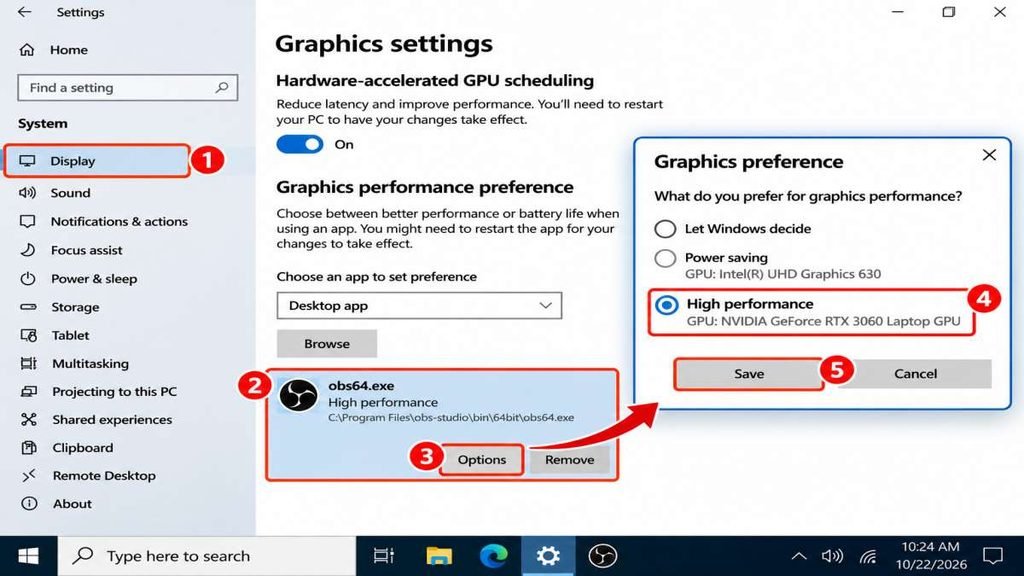
C:\Program Files\obs-studio\bin\64bit\obs64.exe) and select Add. - Click OBS Studio in the list, select Options, choose High performance, and click Save.
8.Ensure your game is also configured to use the High performance GPU in this menu.
9.Restart OBS Studio and launch your game.
Suggested Screenshot 2: The Windows 10 Graphics settings window displaying obs64.exe assigned to the High performance profile.
How to Verify
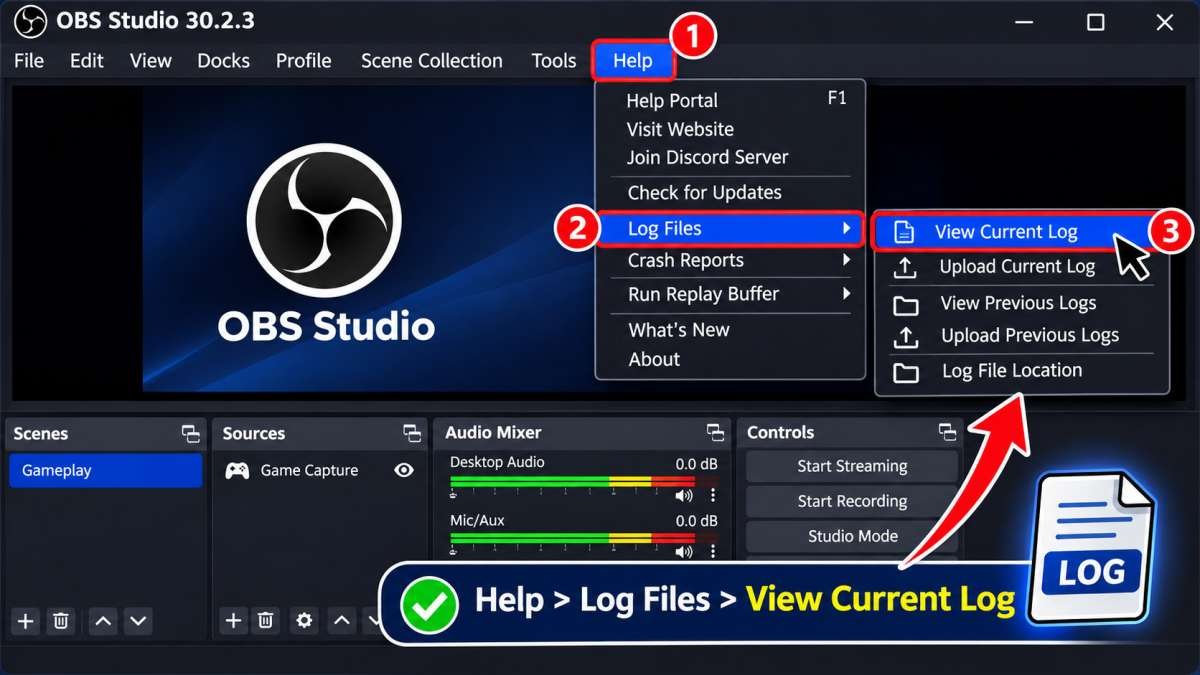
In OBS Studio, navigate to Help > Log Files > View Current Log. Near the top of the log, locate the line listing the D3D11 adapter (e.g., Loading up D3D11 on adapter...). It should display your discrete high-performance graphics card.
Next Steps & Limitations
If you run OBS Studio on the discrete GPU on a hybrid laptop, standard Display Capture may show a black screen on older Windows 10 builds if the laptop display is physically wired to the integrated GPU. If you must capture both your desktop and 3D games within the same session on Windows 10 (version 1903 or newer), Display Capture supports the “Windows 10 (1903 and up)” capture method to work across different GPUs.
3. Check for In-Game Overlay Conflicts
When This May Help
Follow these steps if your game crashes, drops frames significantly, or displays a black screen in OBS immediately after Game Capture attempts to hook the running title.
Technical Explanation
Third-party utilities that provide in-game overlays—such as Discord, Steam, or NVIDIA GeForce Experience—operate similarly to OBS Game Capture by injecting their own hooks into the game’s graphics swap chain.
When multiple programs attempt to hook the rendering pipeline simultaneously, hook collisions can occur. If an overlay conflicts with the OBS hook, the game may drop the capture hook or prevent OBS from receiving valid frames.
Step-by-Step Instructions
Discord In-Game Overlay
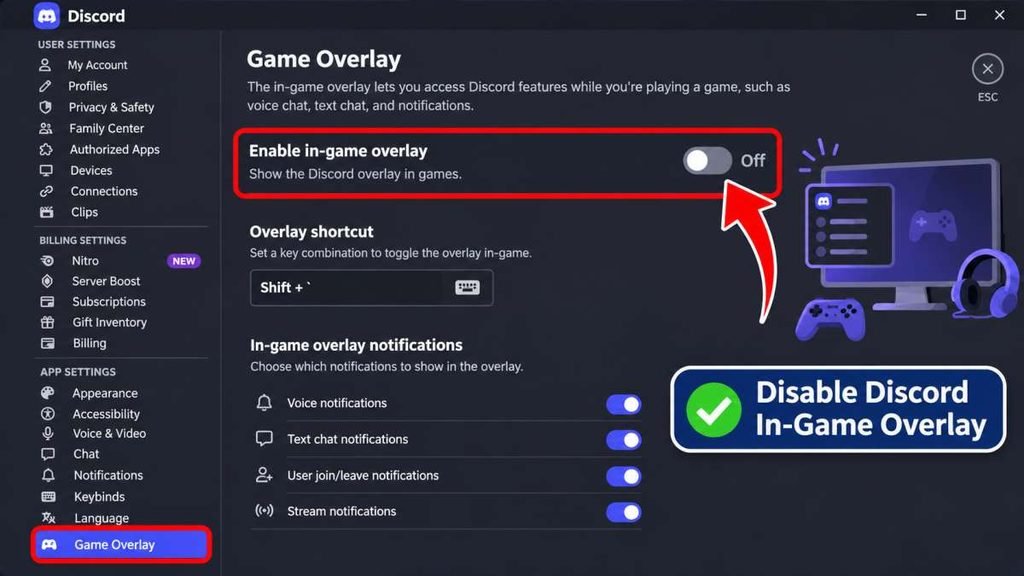
- Open Discord and click the gear icon (User Settings) in the lower-left corner.
- In the left sidebar, navigate to the Game Overlay tab under “Activity Settings.”
- Toggle off the switch labeled Enable in-game overlay.
Steam Community Overlay
- Open Steam and select Steam > Settings from the top-left menu.
- Select the In Game tab.
- Uncheck Enable the Steam Overlay while in-game and click OK.
NVIDIA GeForce Experience In-Game Overlay
- Open GeForce Experience and click the gear icon (Settings) in the upper right.
- On the General tab, locate In-Game Overlay.
- Toggle the switch to the Off position.
Suggested Screenshot 3: The Discord User Settings menu showing the Game Overlay toggle set to disabled.
How to Verify
Restart the game and return to OBS Studio. If the video appears without crashing or freezing, one of the disabled overlays was conflicting with the capture hook.
Next Steps & Limitations
If overlay conflicts persist, check for other background utilities that use graphics hooks, such as RivaTuner Statistics Server (RTSS), MSI Afterburner, or third-party game recording software. In RTSS, setting the application detection level to None for OBS or enabling Custom Direct3D support can help prevent hook collisions.
4. Adjust Game-Specific Graphics Modes and Settings
When This May Help
This step is useful when the black screen occurs exclusively in specific titles—particularly games using modern low-level APIs like DirectX 12 or Vulkan—while older DirectX 9 or 11 games capture without issues.
Technical Explanation
Games running on modern APIs give the game engine direct control over display presentation, frame buffers, and memory management. In some titles, Exclusive Fullscreen mode limits external access to swap chains or causes hook timing issues.
Switching the game to Borderless Windowed (or Windowed) mode allows the Windows Desktop Window Manager (DWM) to manage presentation parameters, often permitting OBS to establish or maintain its hook more reliably. Additional properties and capture mechanics can be reviewed in the OBS Sources Documentation.
Caution: Do not delete local application data directories (%LOCALAPPDATA%) or clear graphics shader caches as a routine fix for this issue. Doing so does not fix hooking conflicts and may erase saved preferences or require shaders to recompile on next launch.
Step-by-Step Instructions
- Change Display Mode: Open the game’s in-game Graphics or Video settings. Switch the display mode from Exclusive Fullscreen to Borderless Windowed (or Windowed).
- Test DirectX 11 Mode: If the game provides an option in its settings menu to switch between DirectX 12/Vulkan and DirectX 11, try setting it to DirectX 11 and restarting the title.
- Configure Specific Window Capture:
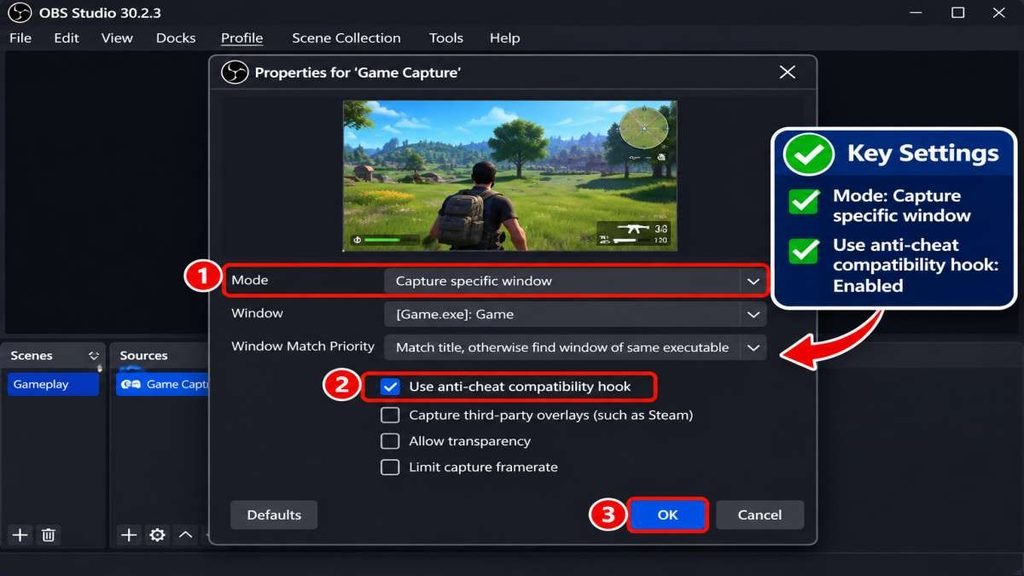
- In OBS Studio, double-click your Game Capture source.
- Set the Mode dropdown to Capture specific window.
- Under the Window dropdown, select your active game executable.
- Verify that Use anti-cheat compatibility hook remains checked.
- Click OK.
Suggested Screenshot 4: The Game Capture Properties window in OBS Studio showing the Capture specific window mode selected.
How to Verify
Switch focus to your game window and interact with it for several seconds (many modern game engines suspend frame presentation when minimized or losing window focus), then inspect the OBS preview canvas.
Next Steps & Limitations
If the title still does not display, inspect your OBS log files to check whether the hook is being explicitly denied by anti-cheat or system policies.
5. How to Check Your Official OBS Studio Log Files
When the black screen cannot be resolved through interface settings, the session log files generated by OBS Studio provide diagnostic details about the capture process.
Accessing the Log File
- Launch OBS Studio and reproduce the issue by opening your game with Game Capture active.
- In the OBS Studio menu bar, click Help > Log Files > View Current Log.
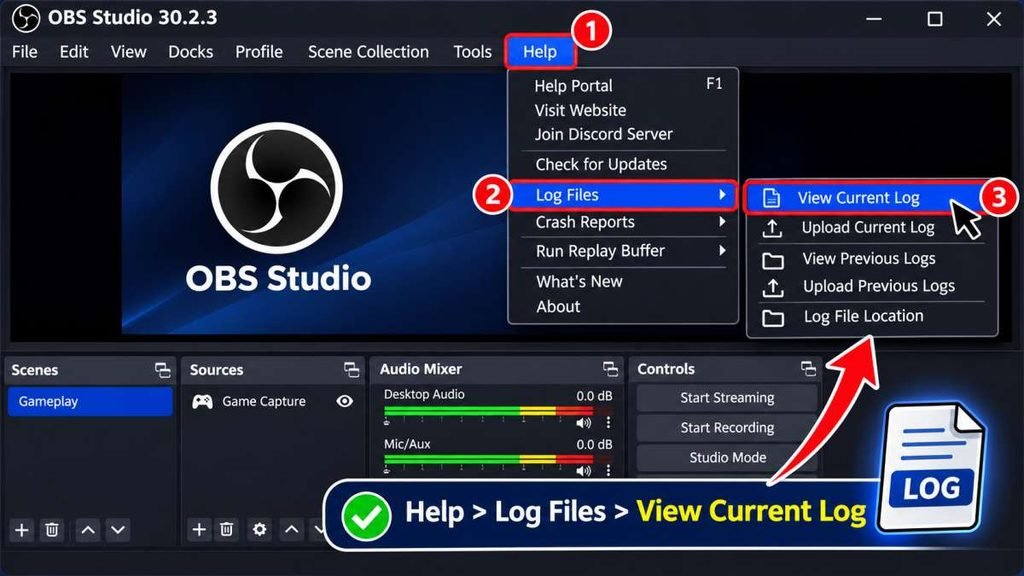
3.Alternatively, press Windows Key + R, type %APPDATA%\obs-studio\logs, and press Enter to open the folder containing your session logs.
Suggested Screenshot 5: The OBS Studio menu showing Help > Log Files > View Current Log.
Understanding Log File Diagnostics
Because log messages and formatting vary between OBS Studio releases and graphics API implementations, log entries should be treated as diagnostic indicators rather than definitive conclusions:
[graphics-hook]lines indicate the status of the injection attempt into the target application.- Log entries noting that a hook was blocked, timed out, or access was denied can suggest that elevated permissions are needed, anti-cheat software prevented injection, or security software interfered with the hook.
- Warnings referencing device creation errors or adapter mismatches often indicate that the game and OBS Studio are running on differing graphics processors.
You can also run your log through the web-based Official OBS Studio Log Analyzer by selecting Help > Log Files > Upload Current Log File in OBS, copying the provided URL, and analyzing the automated breakdown of your session.
6. Using Window Capture as an Alternative
When This May Help
Use this method when a game’s anti-cheat software explicitly blocks dynamic library injection (such as Destiny 2 or VALORANT), or when proprietary engine restrictions prevent Game Capture from functioning.
Capture Source Differences
| Capture Method | Key Technical Details & Best Use |
| Game Capture | • Level: Direct hook into graphics API • Performance: Lowest resource overhead • Notifications: Hidden automatically • Ideal for: Standard PC games where injection is allowed |
| Window Capture | • Level: Desktop Window Manager (DWM) • Performance: Low to moderate overhead • Notifications: Hidden (captures selected window only) • Ideal for: Anti-cheat games, browser games, and emulators |
| Display Capture | • Level: Desktop frame compositor • Performance: Moderate overhead • Notifications: Visible (captures full monitor) • Ideal for: Desktop guides or switching between desktop and games |
Step-by-Step Instructions
- Set the target game to Borderless Windowed or Windowed mode in its display settings.
- In OBS Studio, click the + (Add) icon under the Sources dock and select Window Capture.
- Name the source and click OK.
- In the Window dropdown, select your game’s active executable.
- Set the Capture Method dropdown to Windows 10 (1903 and up). This capture method uses the modern Windows Graphics Capture API to deliver low-overhead capture without injecting files into the game process.
- Click OK.
Frequently Asked Questions (FAQ)
Why does Game Capture turn black whenever I Alt+Tab away from my game?
Most PC games suspend or throttle their rendering pipelines when minimized or when losing active window focus to reduce GPU resource consumption. Because no new frames are pushed to the graphics buffer while the application is unfocused, OBS Studio cannot retrieve updated frames, leading to a frozen frame or a black canvas until you return to the game.
What does “Use anti-cheat compatibility hook” do in Game Capture?
This setting alters how OBS Studio injects its capture hook into the target application to ensure compatibility with various anti-cheat systems. It is enabled by default in OBS Studio. You should keep this setting checked unless directed otherwise by official documentation, as disabling it will cause Game Capture to fail on games protected by anti-cheat services.
Can antivirus software cause Game Capture to show a black screen?
In rare cases, proactive behavioral detection features in third-party antivirus suites can flag or block the dynamic library injection method used by OBS Studio. If you suspect an antivirus conflict, check your security program’s quarantine or action logs rather than disabling protection entirely. If verified, adding an exclusion specifically for the OBS Studio directory (C:\Program Files\obs-studio) can resolve false positives.
Suggested Screenshots to Capture
Capture these screenshots from your local setup to illustrate the instructions:
obs-run-as-admin.png: Right-click context menu on the OBS desktop shortcut showing “Run as administrator.”windows-10-graphics-settings-obs.png: Windows 10 Graphics settings window showingobs64.exeset to “High performance.”discord-overlay-disabled.png: Discord User Settings menu showing the “Enable in-game overlay” toggle switched off.obs-game-capture-properties.png: OBS Studio Game Capture properties window showing the “Mode” set to “Capture specific window” and “Use anti-cheat compatibility hook” checked.obs-view-log-menu.png: OBS Studio navigation bar showing Help > Log Files > View Current Log.
5 Comments
5 Working Fixes: Discord Not Detecting OBS Virtual Camera & Startup Crashes
October 30, 20267 Ways To Fix OBS Game Capture Black Screen On Windows 11 (2026 Guide)
October 29, 2026Fix Capture Card Black Screen In OBS: 5 Console Streaming Fixes (2026)
October 29, 20265 Working Fixes: How To Fix OBS Virtual Camera Not Showing Up In Discord Or Zoom
October 24, 2026Step-by-Step Fix For OBS Studio High CPU Usage And Encoding Overloaded
October 23, 2026